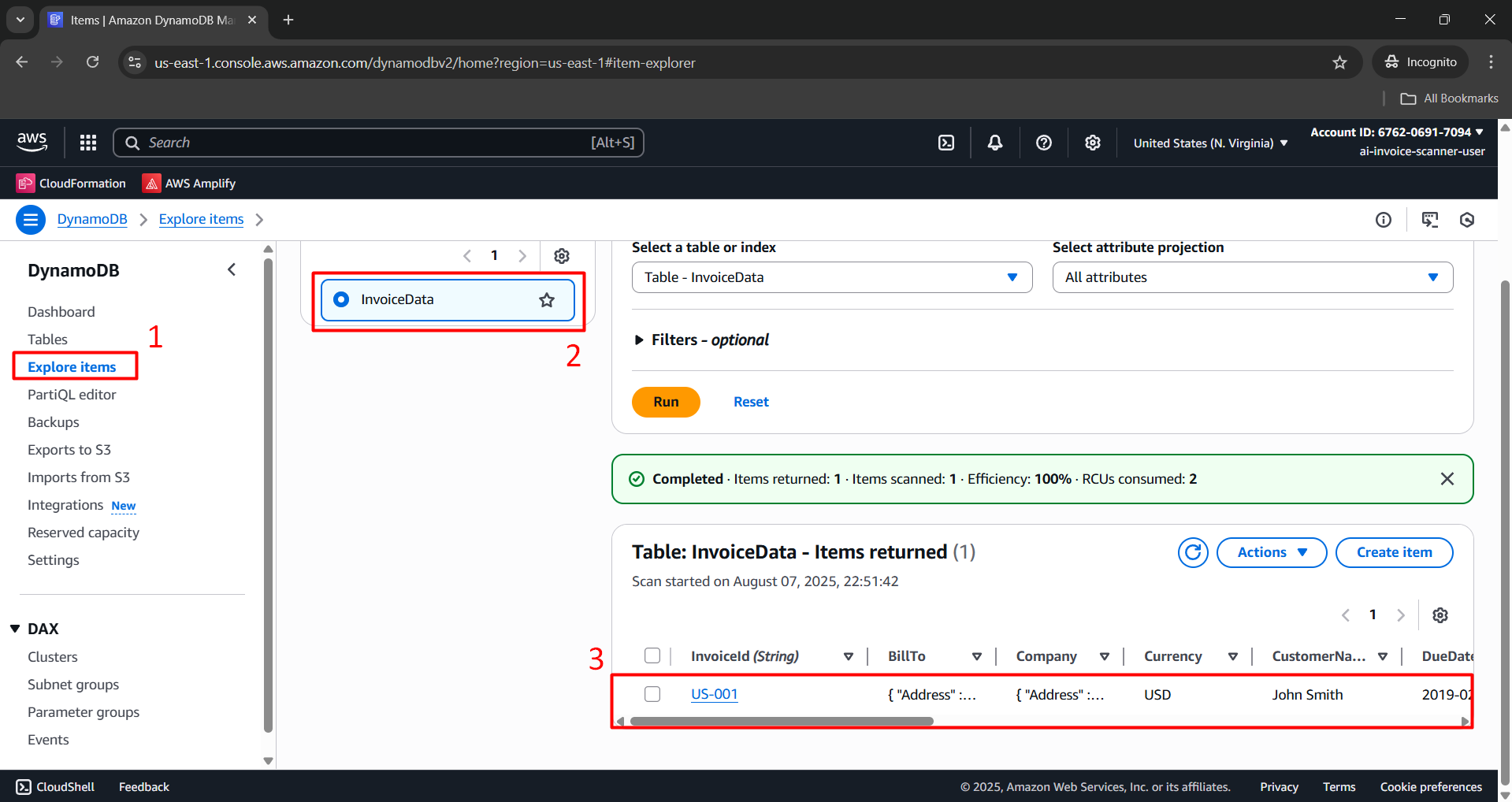
Testing Invoice File Upload
Prerequisites
- Postman installed (https://www.postman.com/downloads).
Resource Preparation
Download the following files before testing the API in Postman:
Step 1: Convert Images to Base64
We will use the online tool base64-image.de:
- Visit the website and select the file demo_invoice.png.
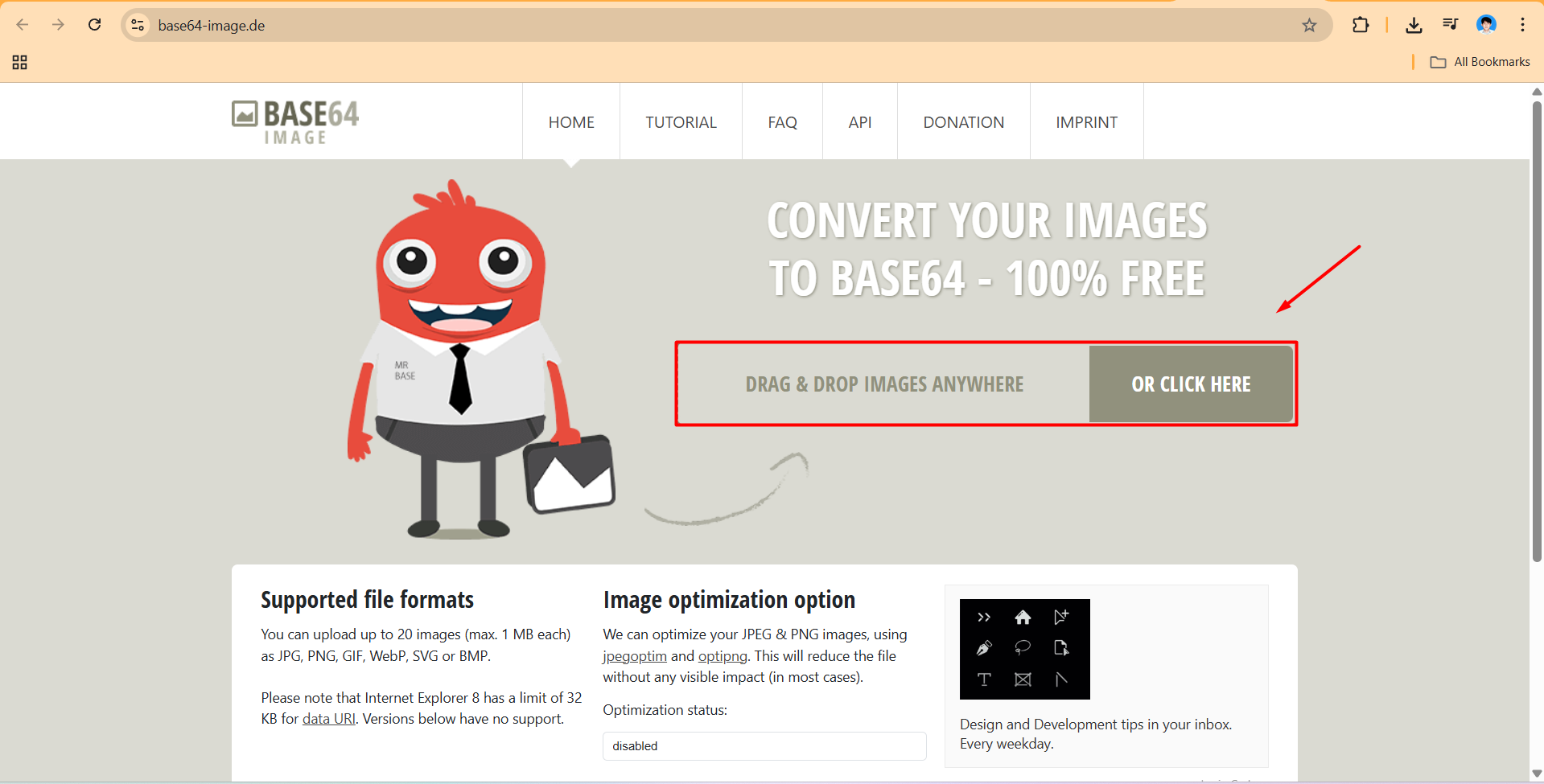
- The website will automatically convert it to Base64.
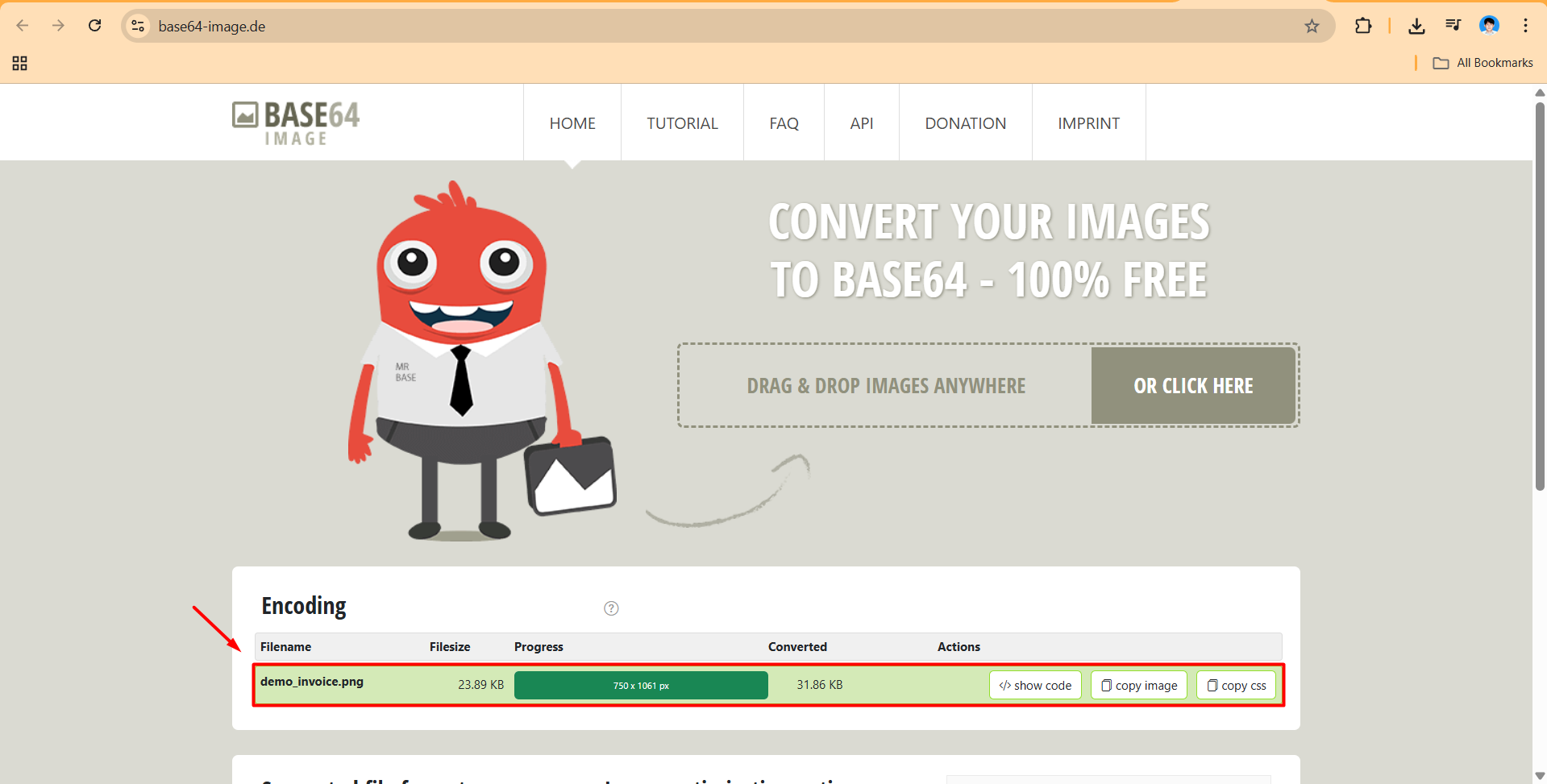
- Click </> show code to retrieve the Base64 string.
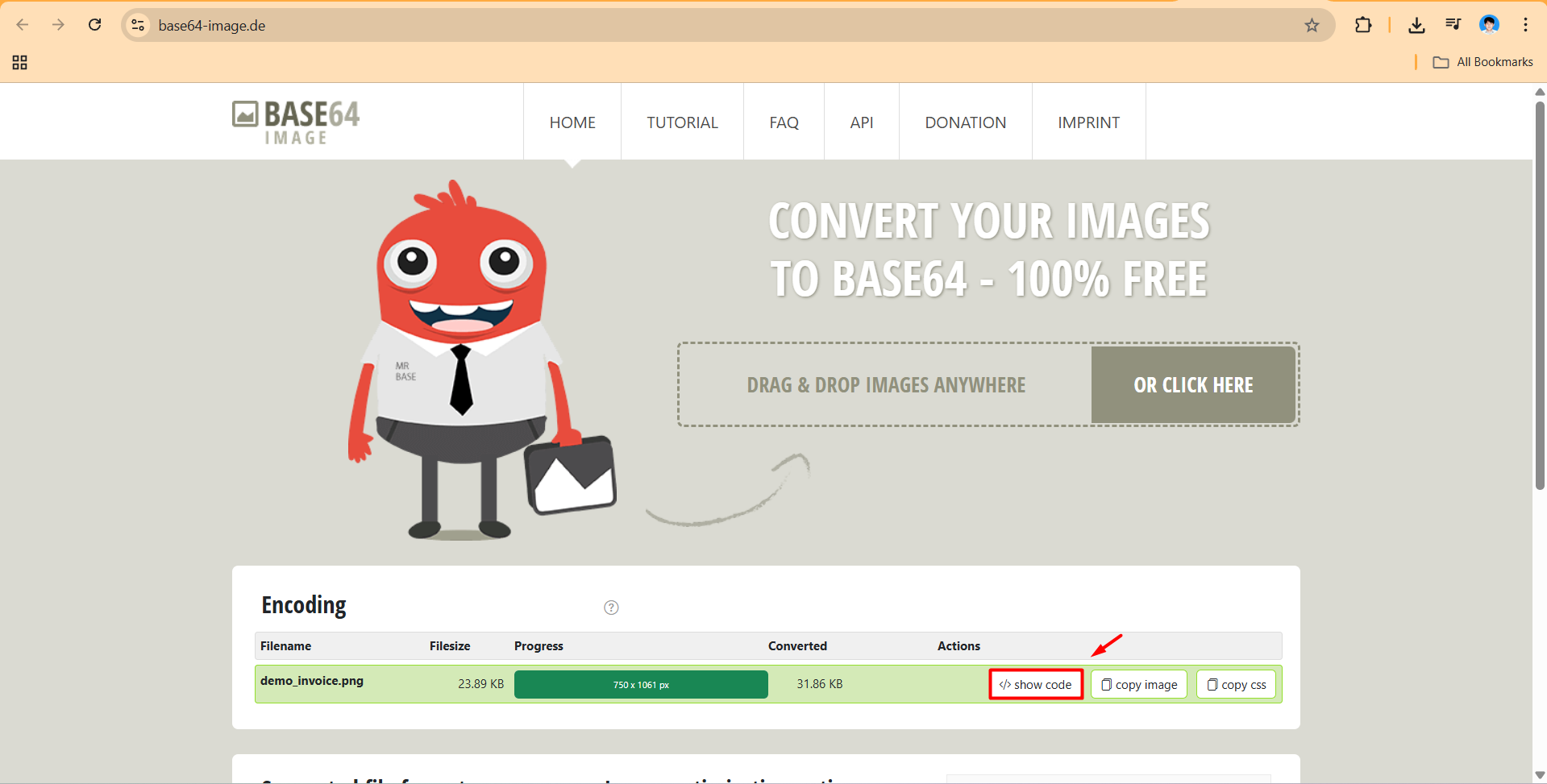
- Copy the Base64 code.
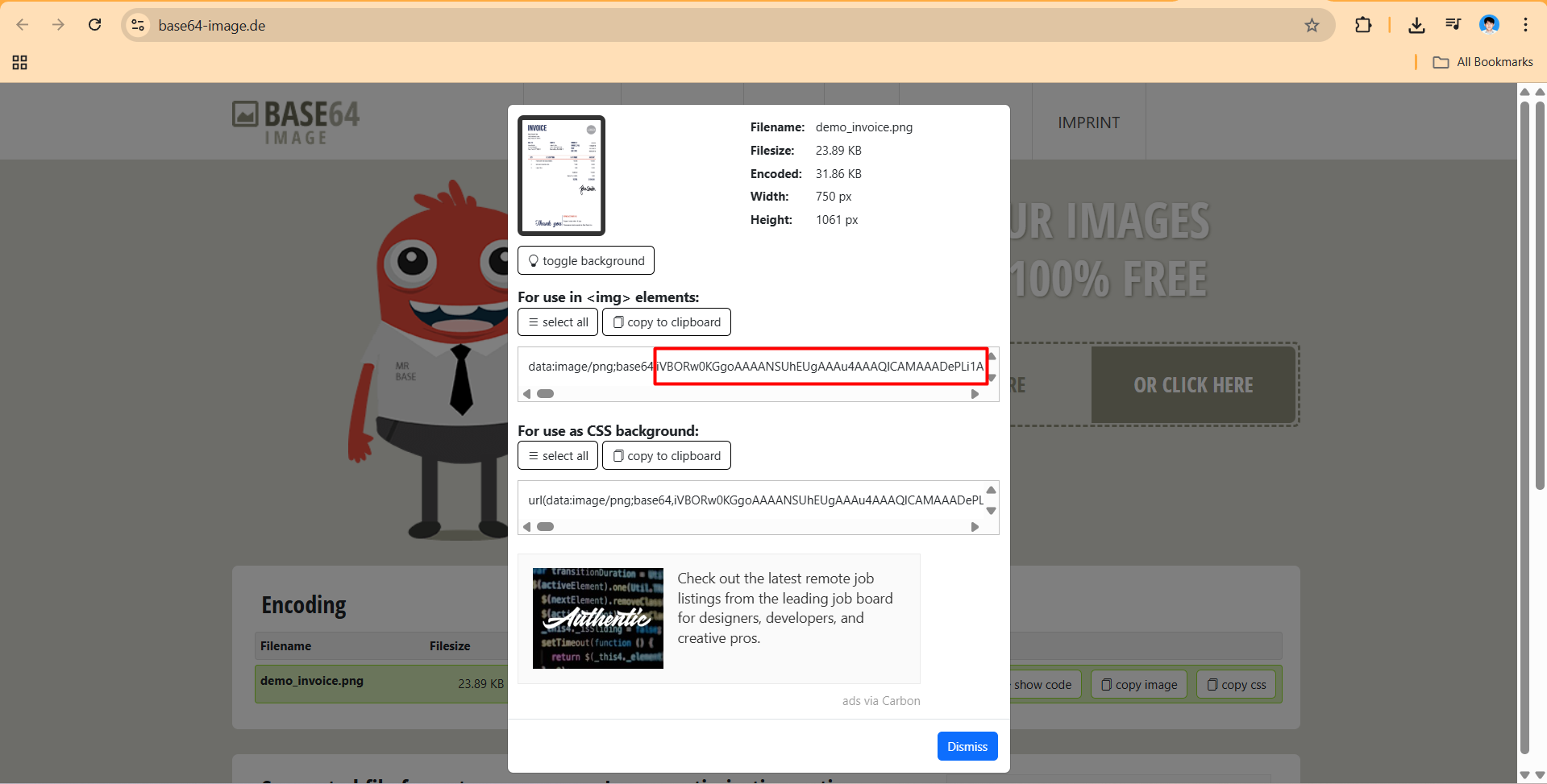
Save it temporarily in Notepad.
Repeat the process for the remaining two files.
Step 2: Create a Postman Collection
- Open the Postman application.
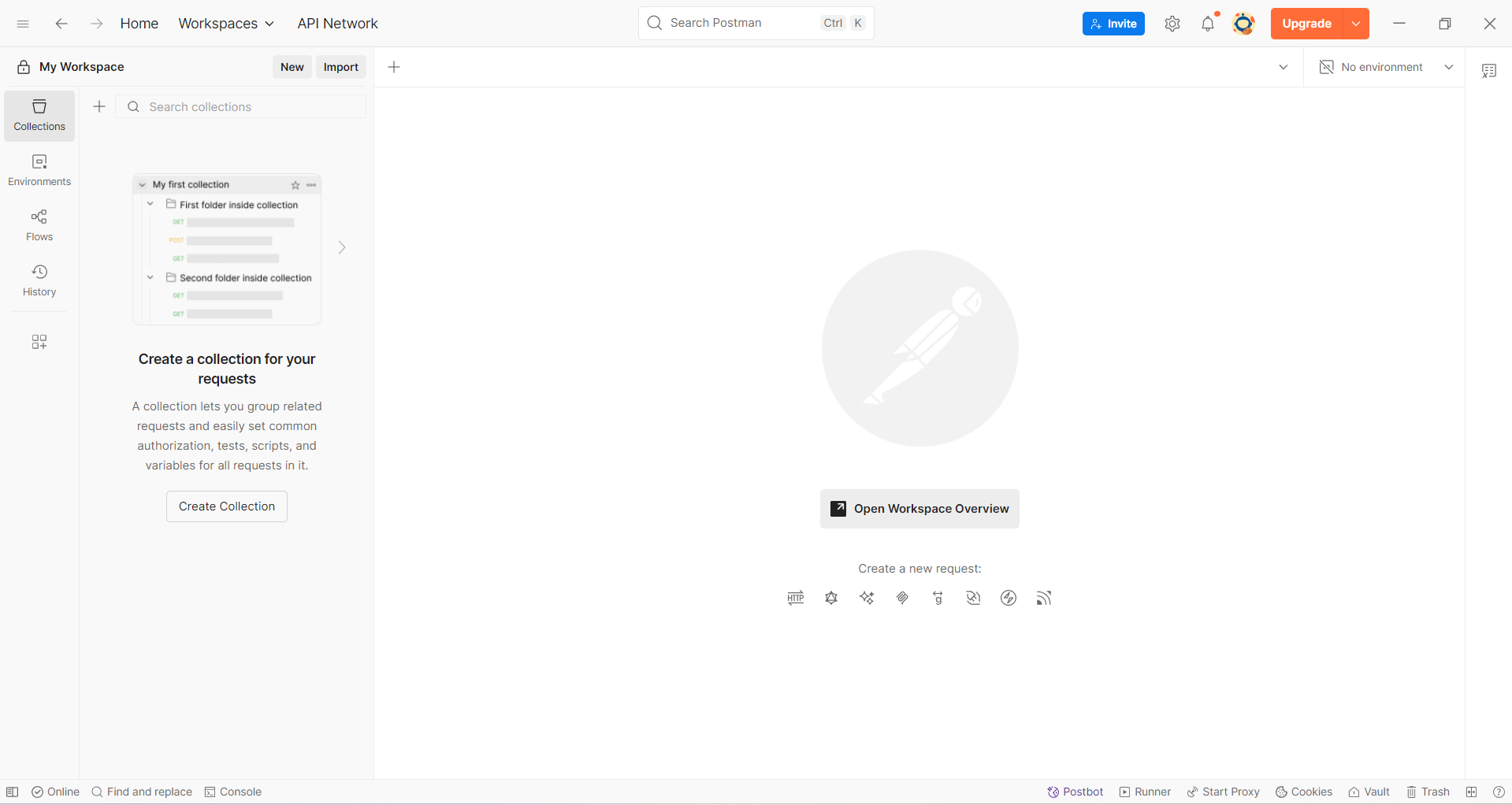
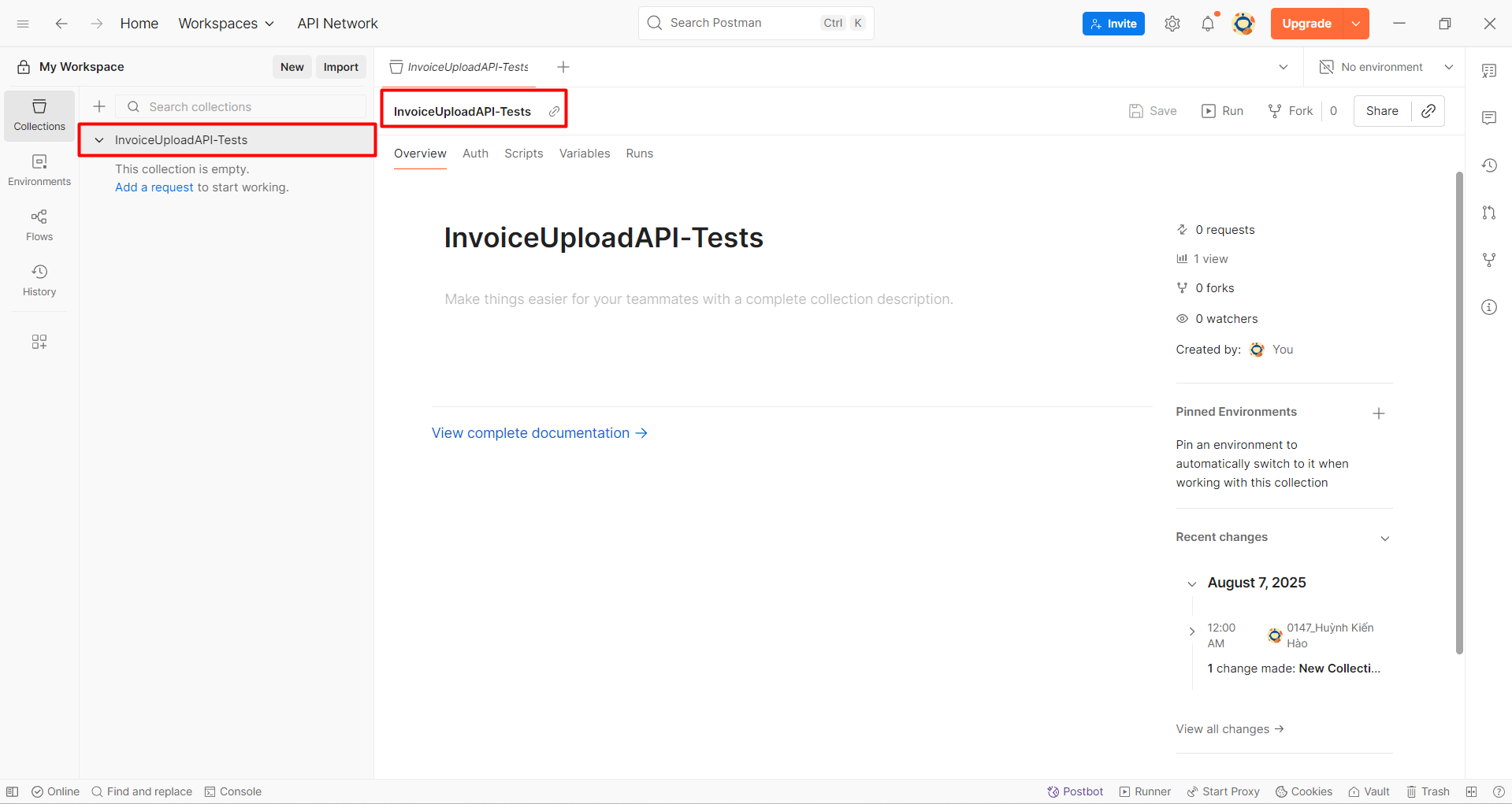
- Click the "+" button to create a new collection.
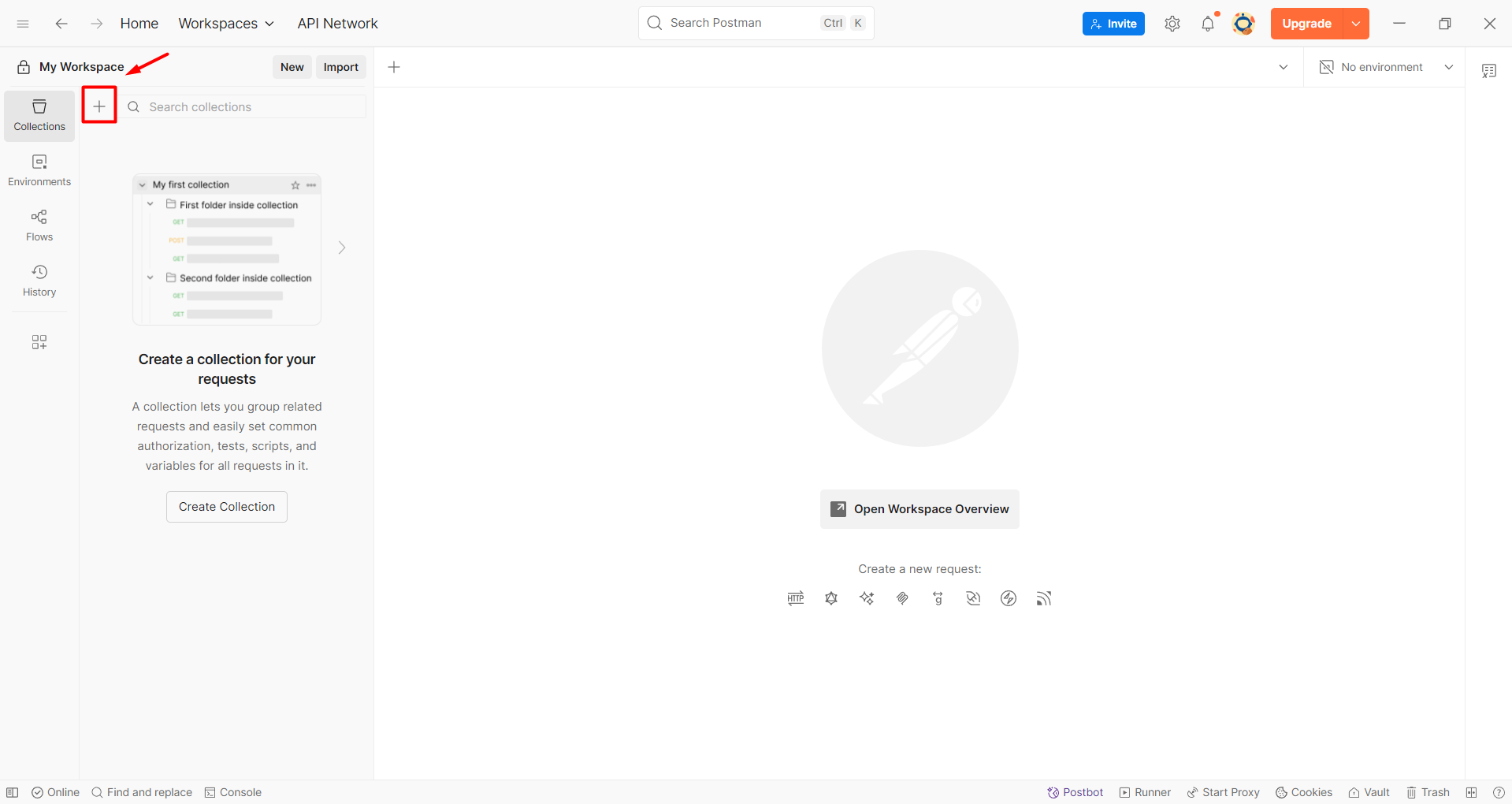
- Select Blank Collection.
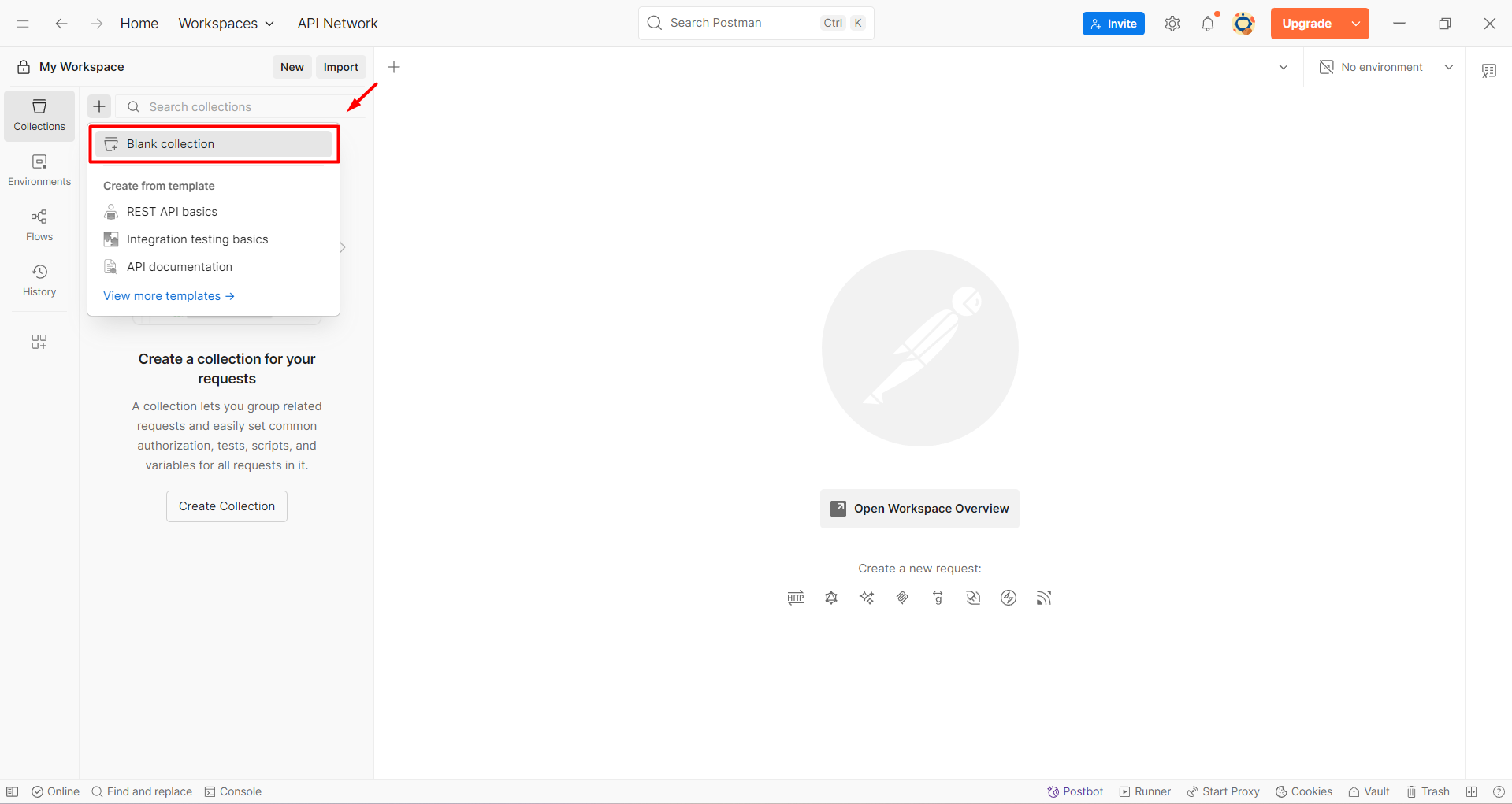
- Name it:
InvoiceUploadAPI-Tests
Step 3: Create a Request
- Inside the newly created collection, click the "+" button to add a request.
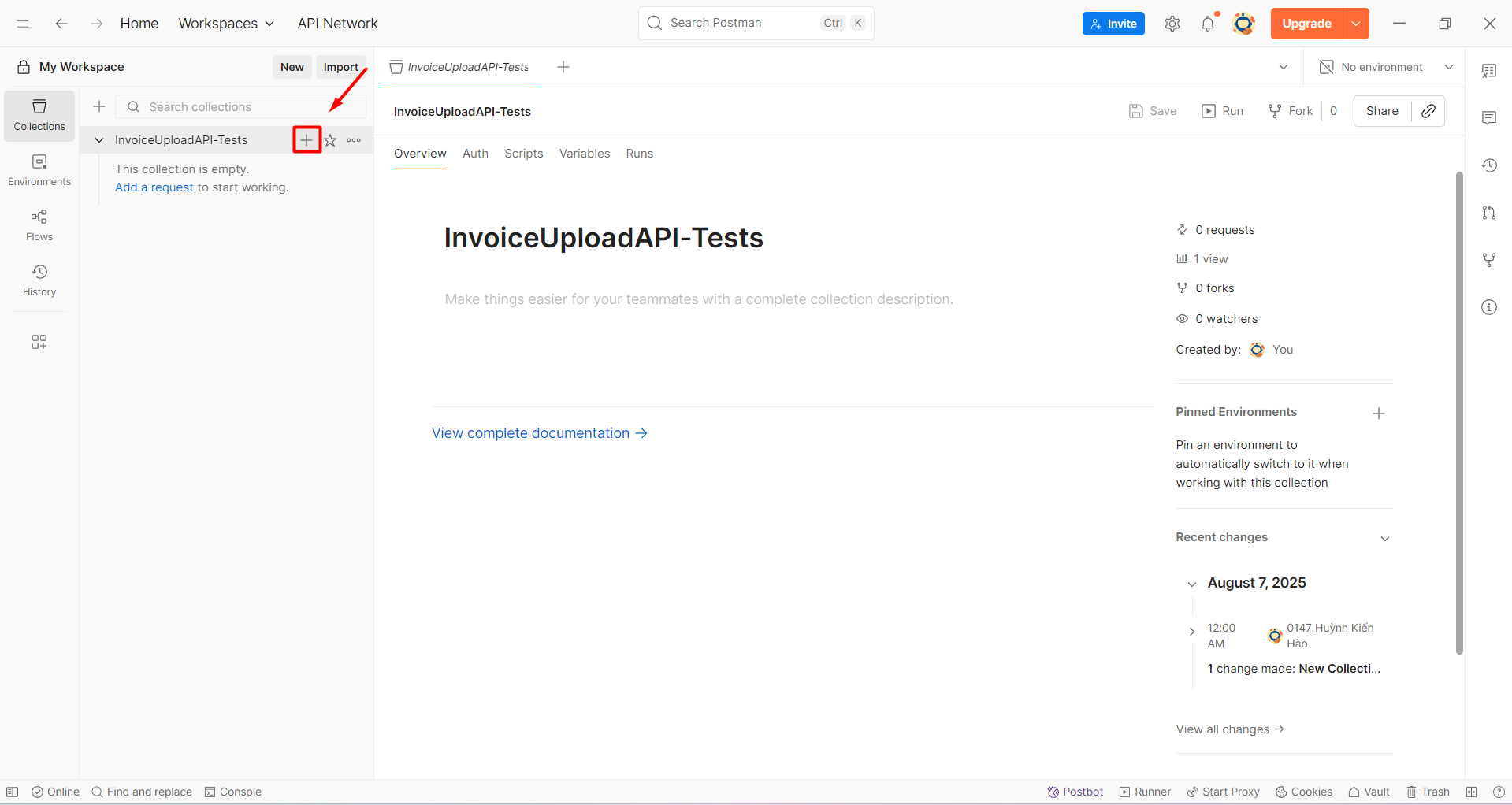
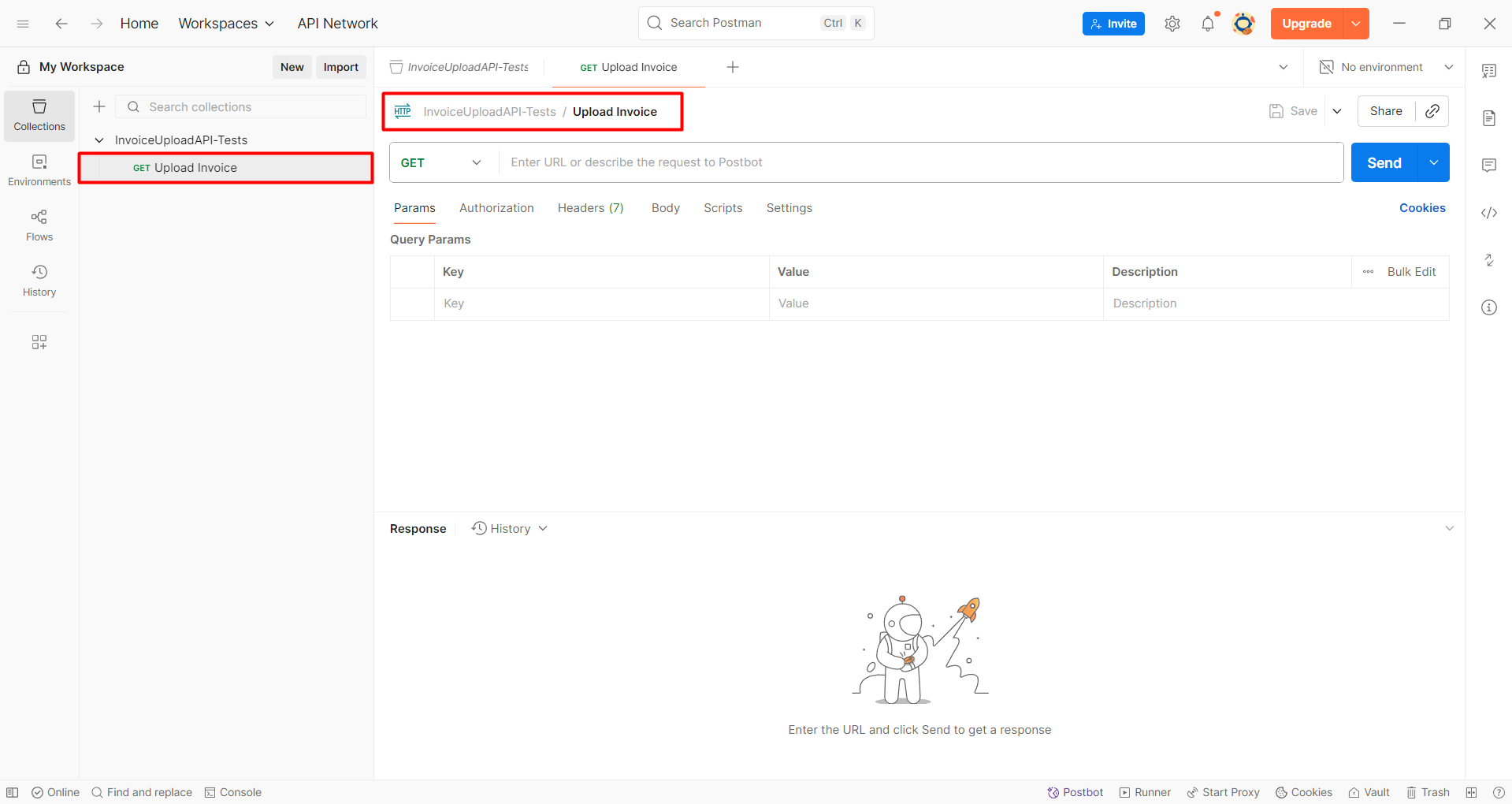
- Name the request:
Upload Invoice.
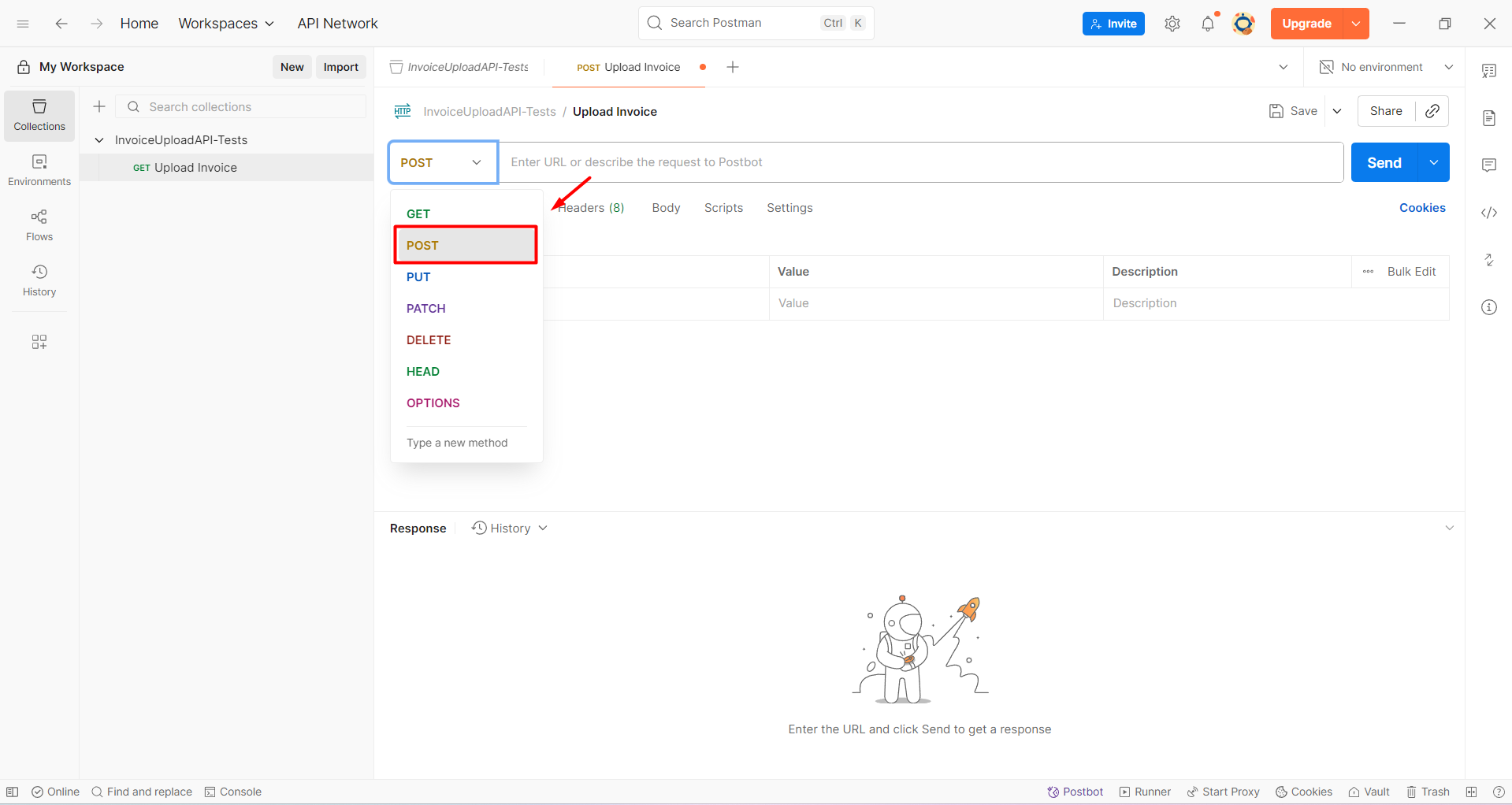
- Select the POST method.
- Go to API Gateway, select the API:
PostInvoiceAPI.
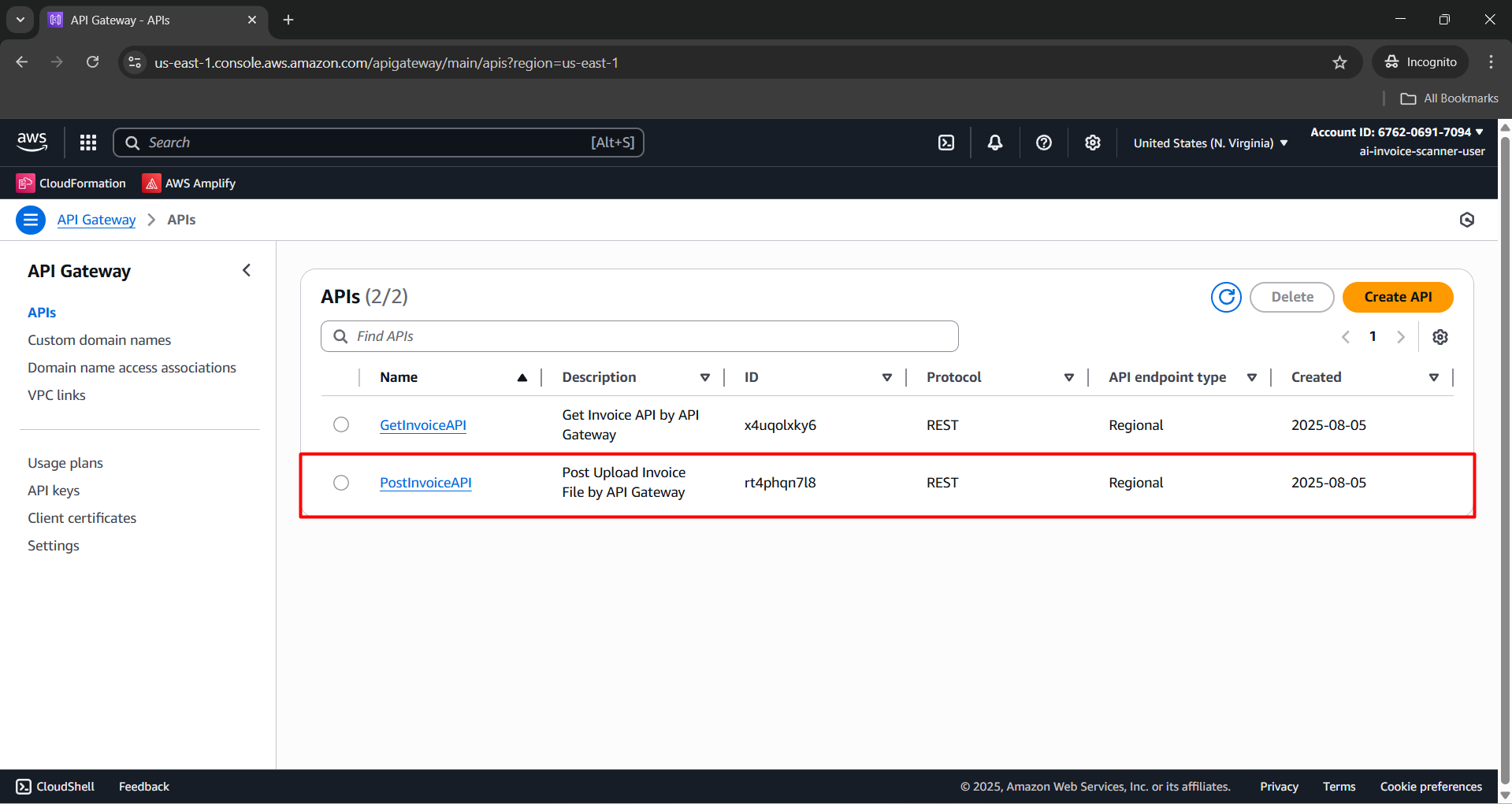
- Navigate to the Stages section.
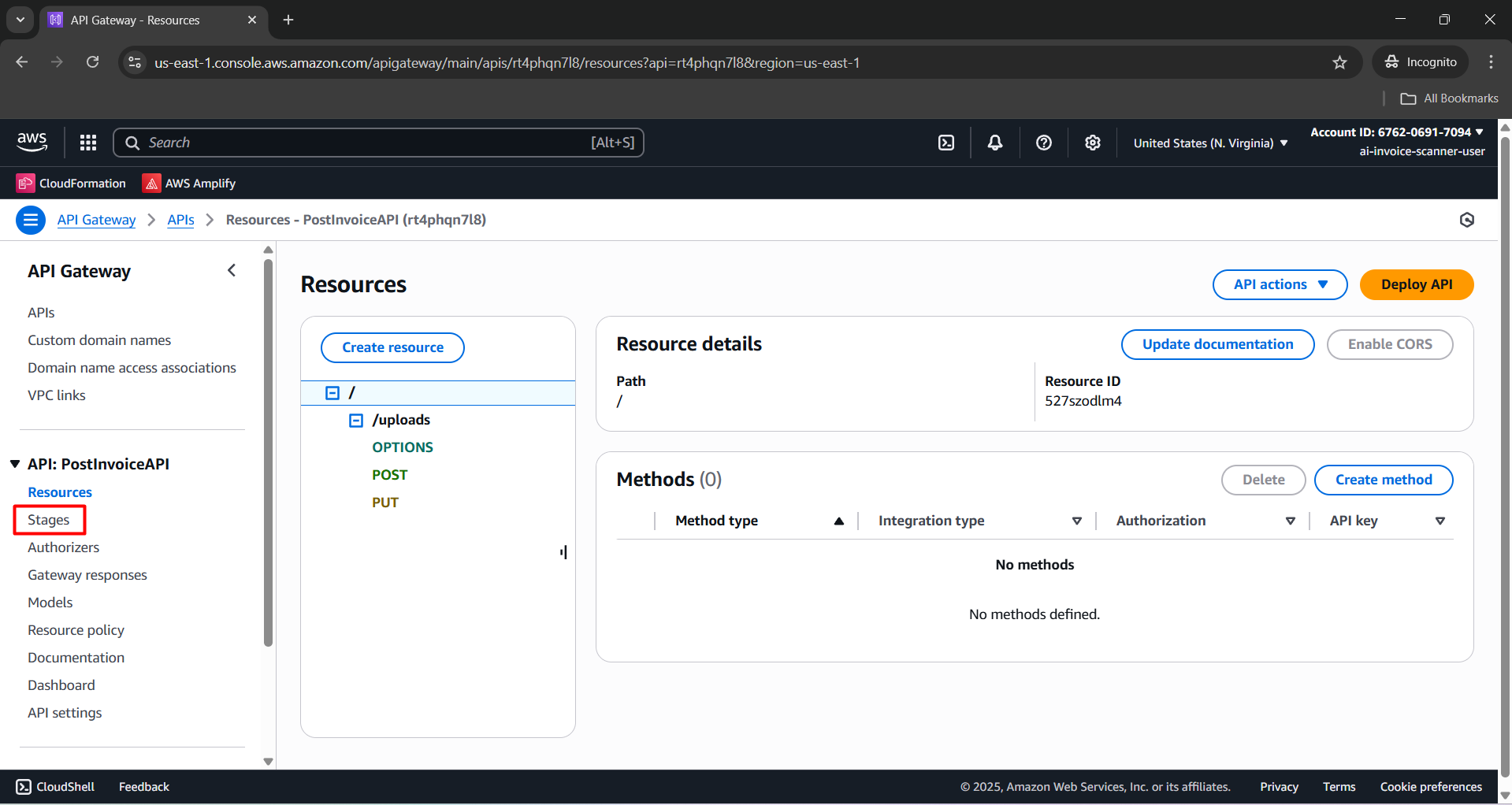
- Click the “+” button to reveal the full URL.
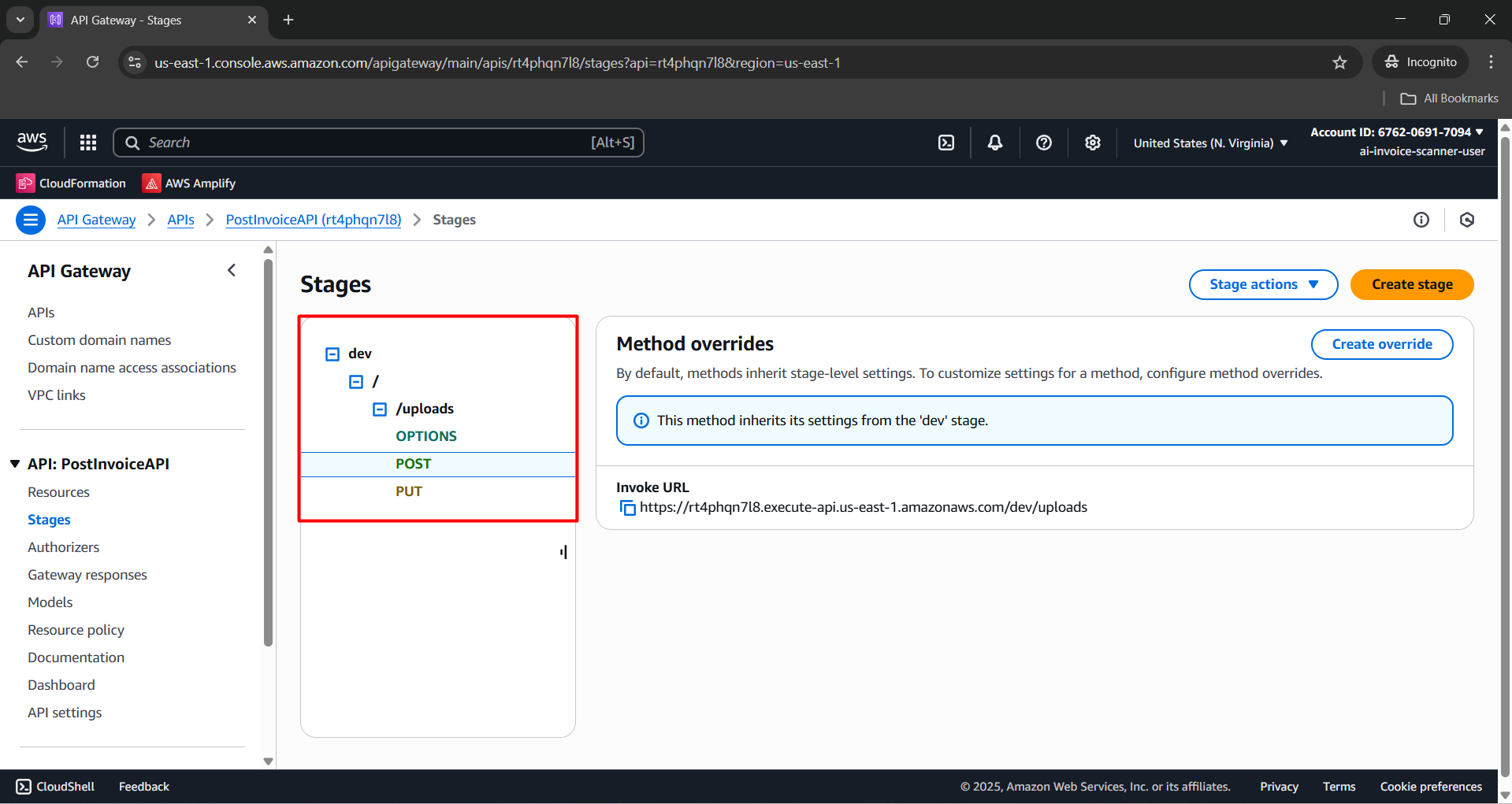
- Select the POST method and copy the Invoke URL.
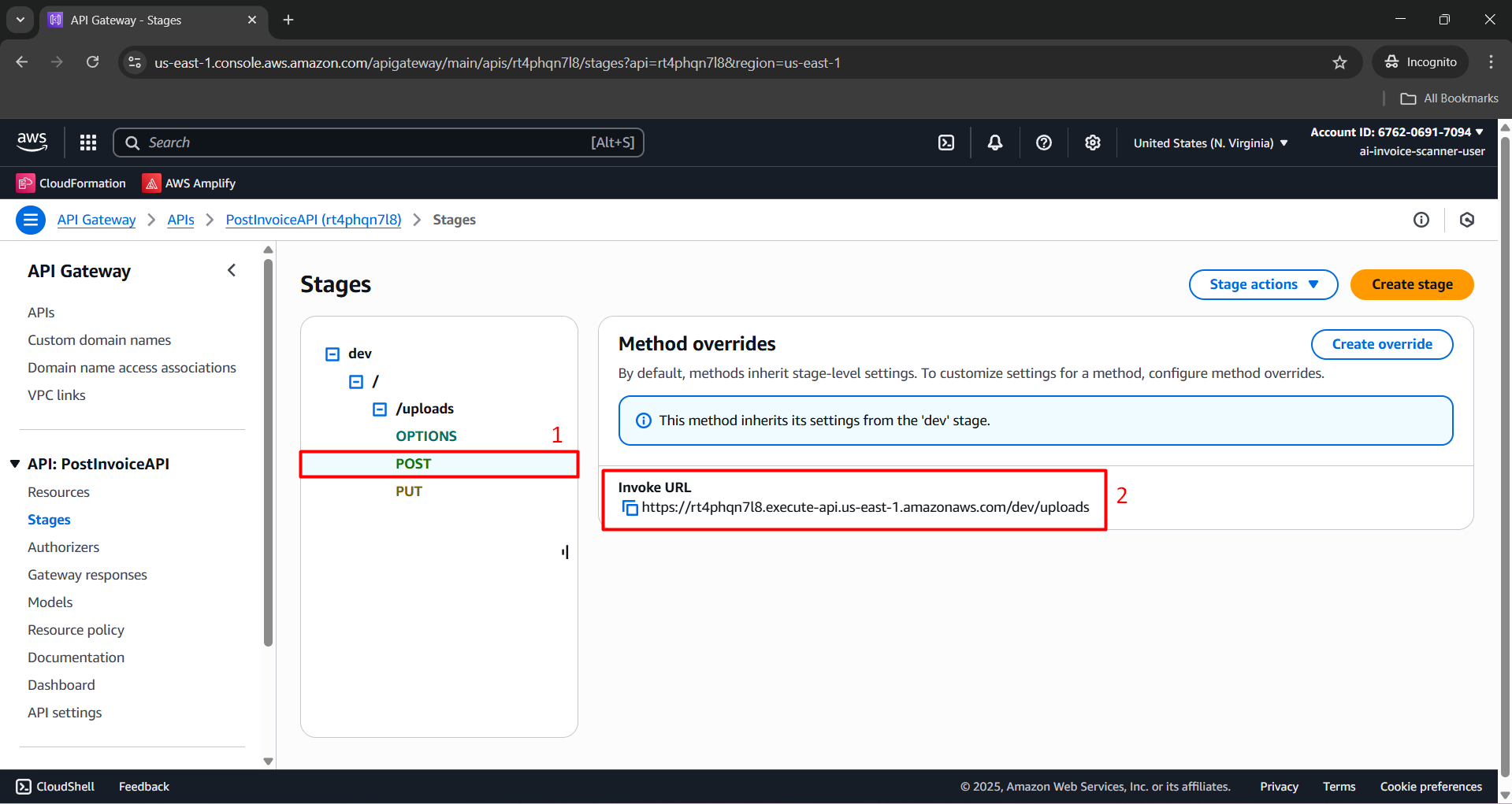
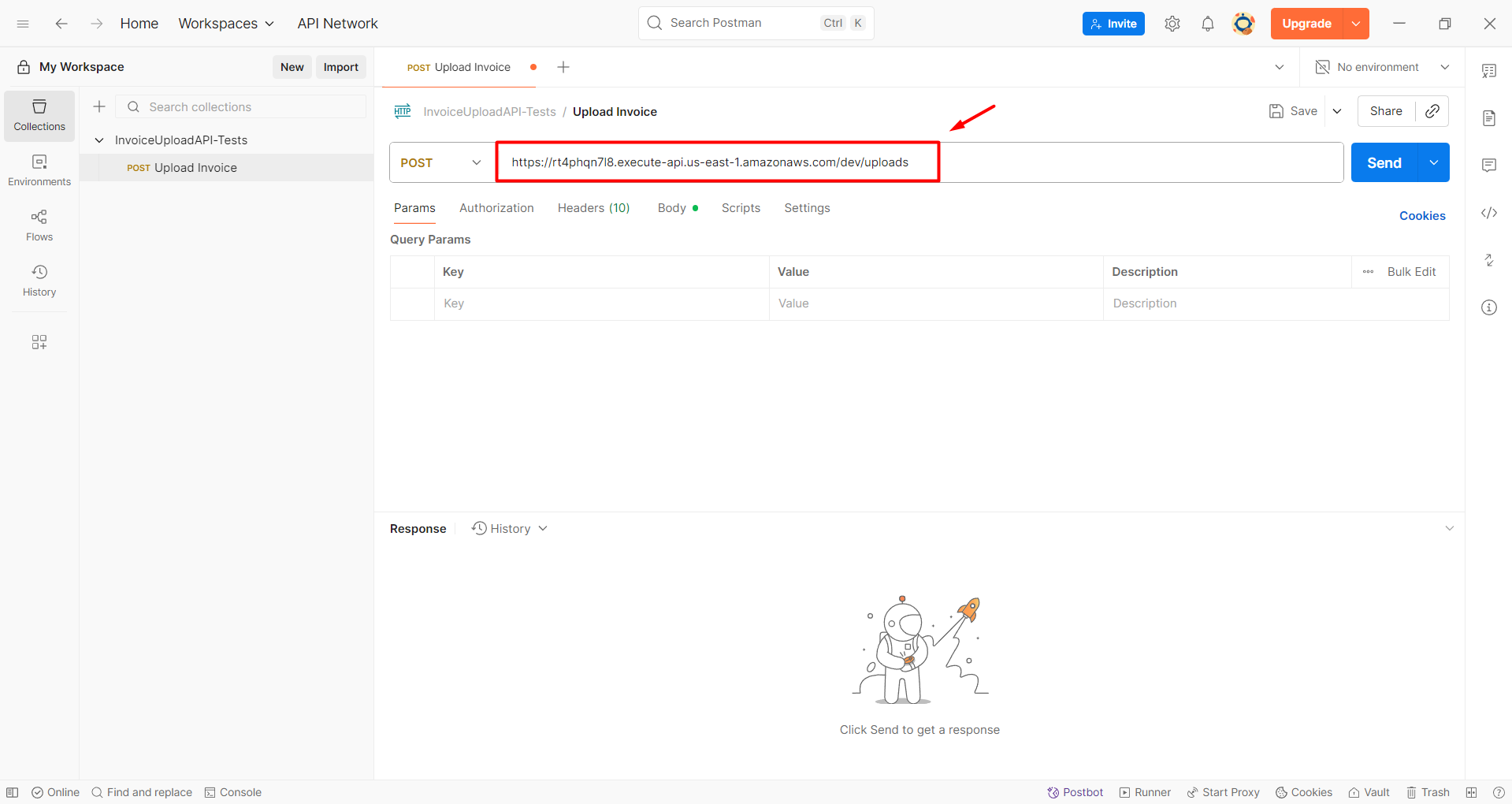
- Paste the Invoke URL into Postman as shown:
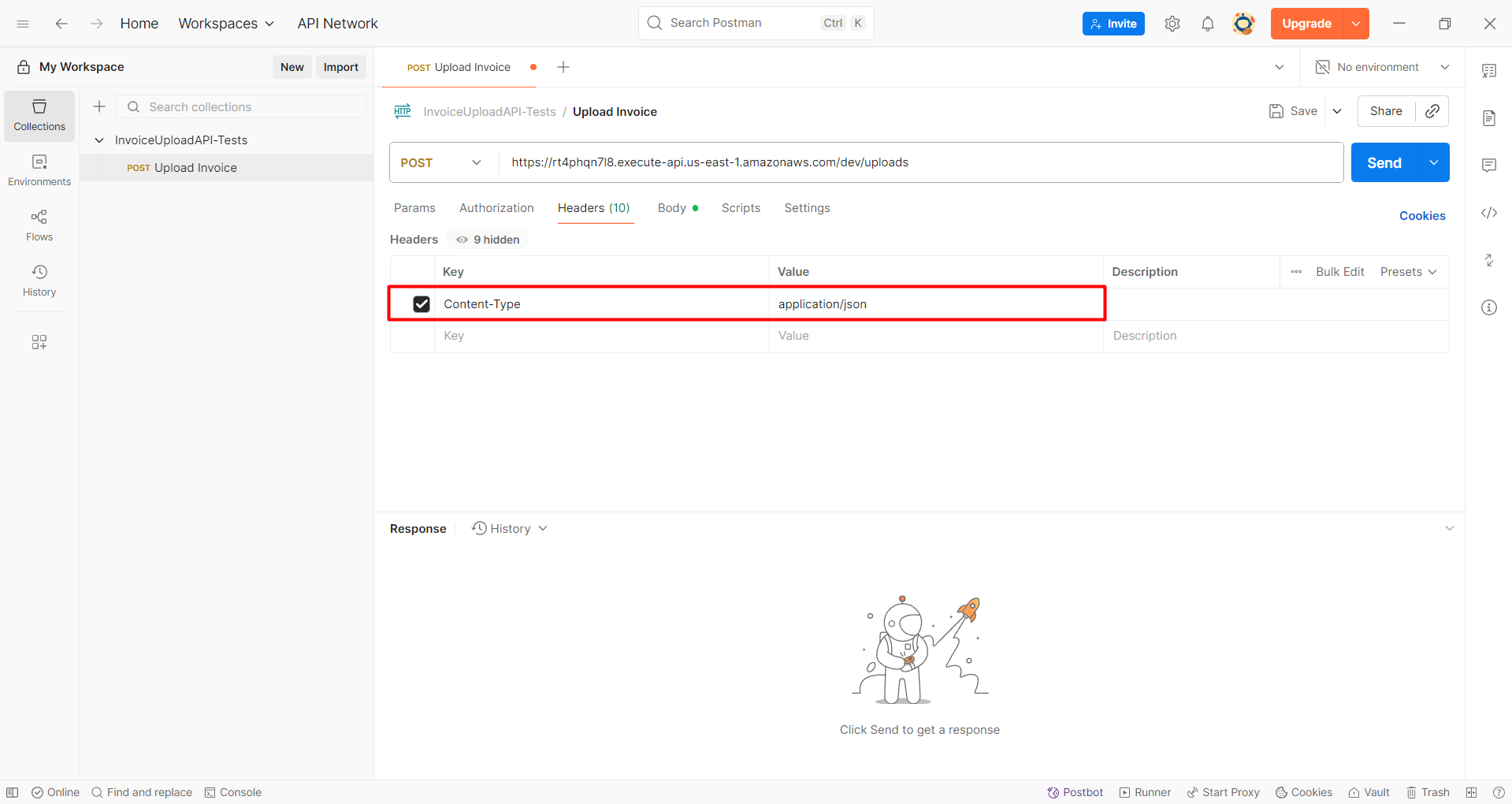
- Go to the Headers tab and configure as follows:
Content-Type: application/json
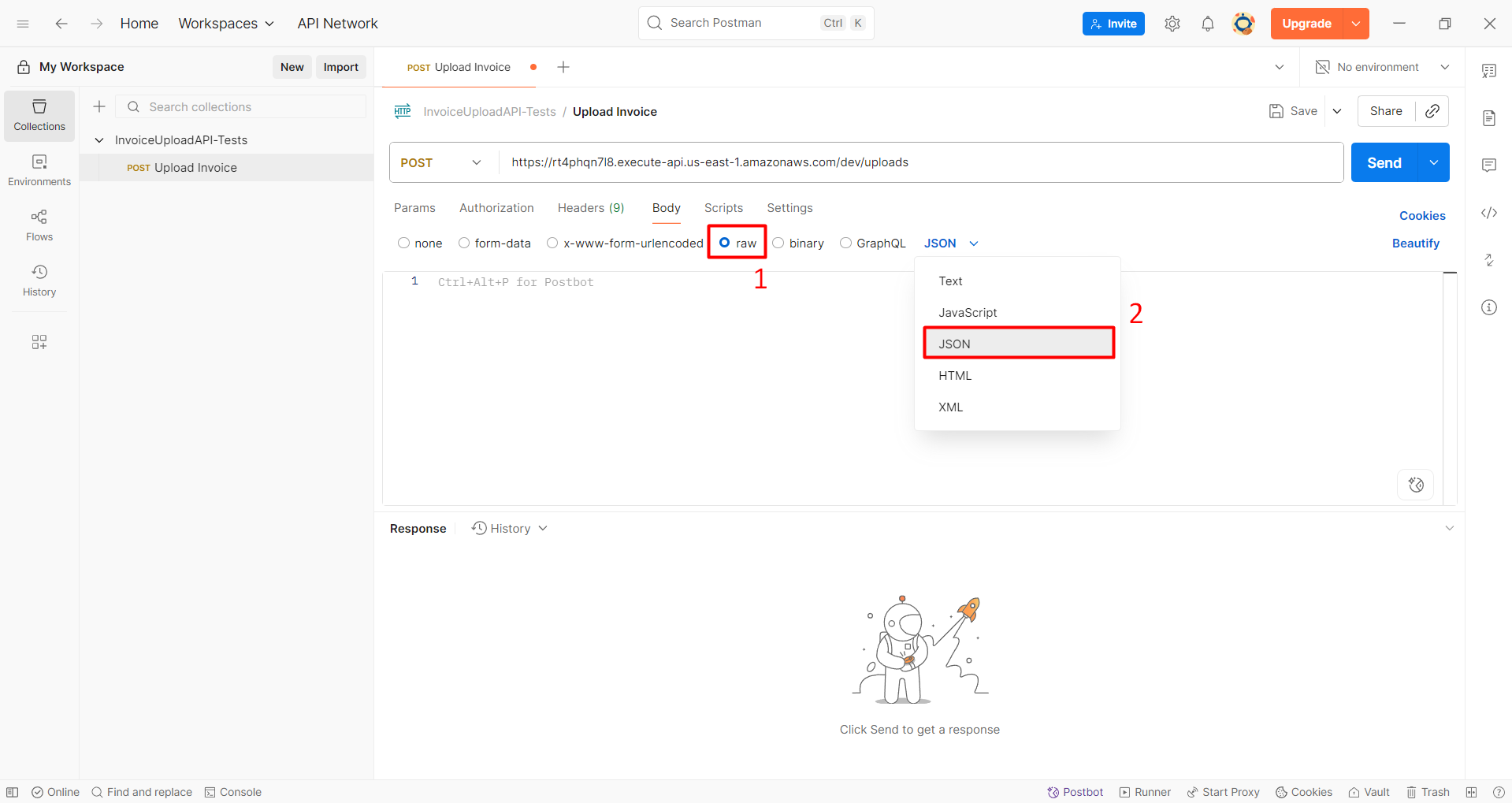
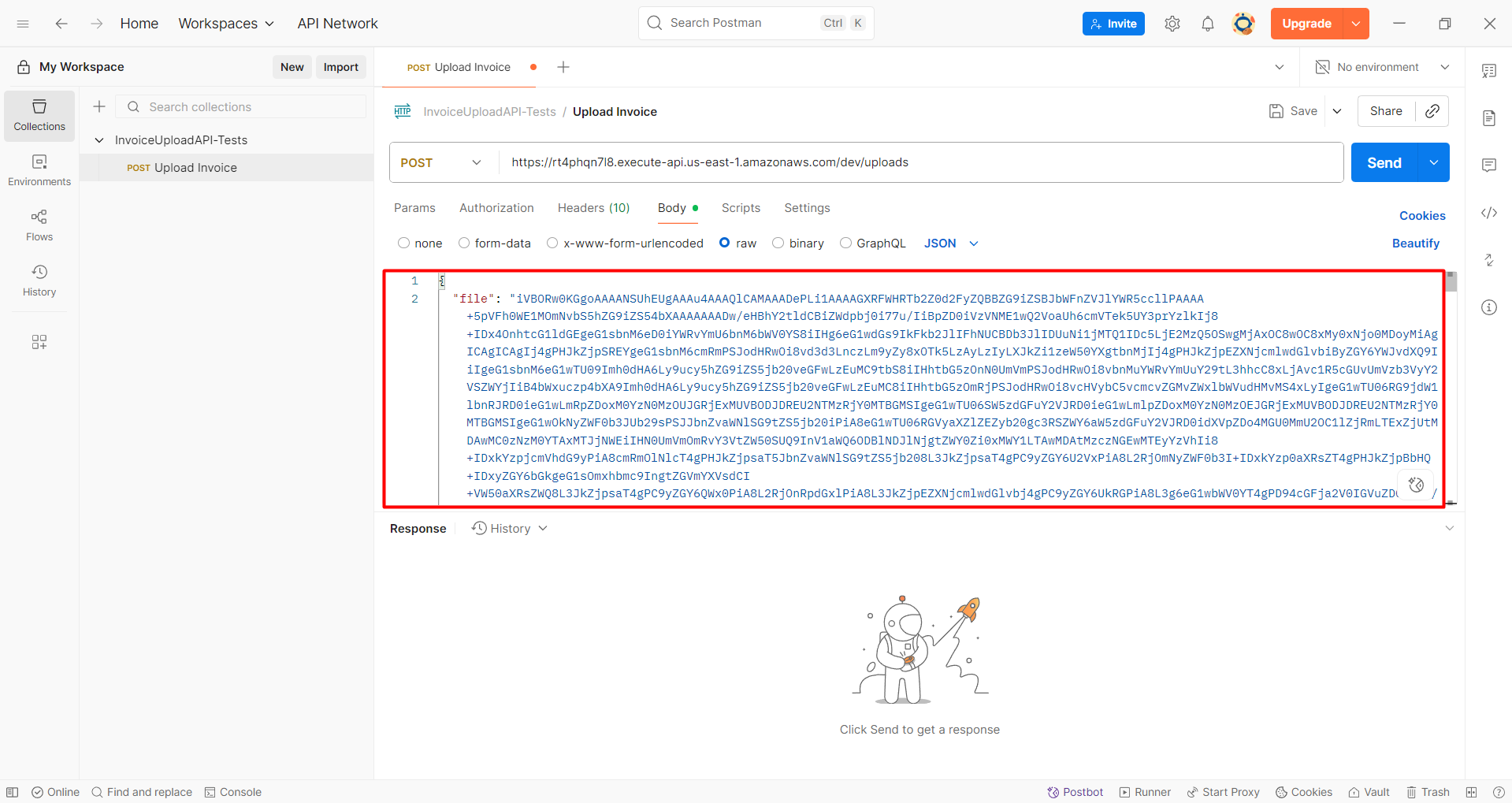
- Navigate to the Body tab → Select raw → Choose JSON.
- Paste the following JSON into Postman:
{
    "file": "",
    "filename": ""
}
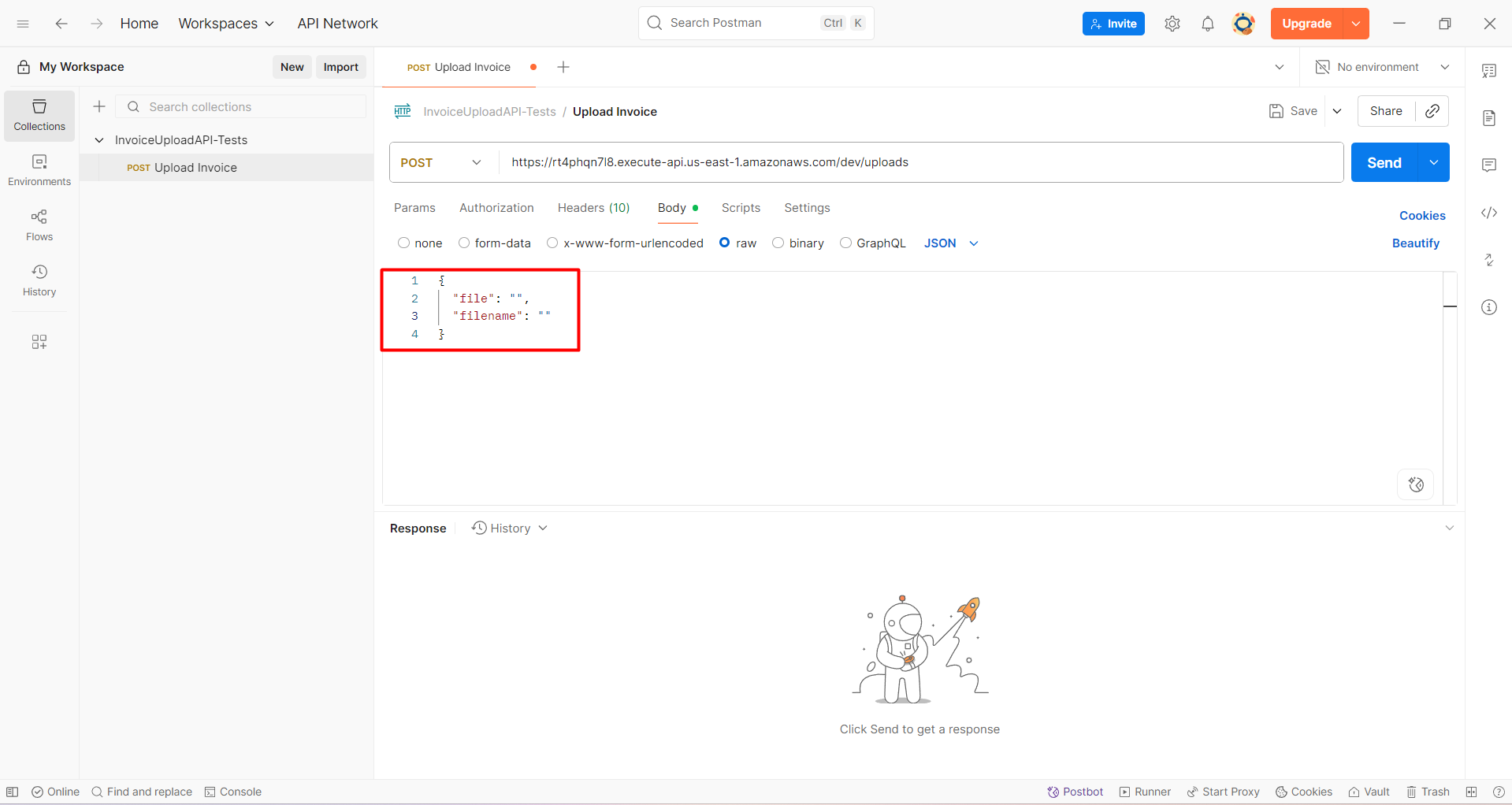
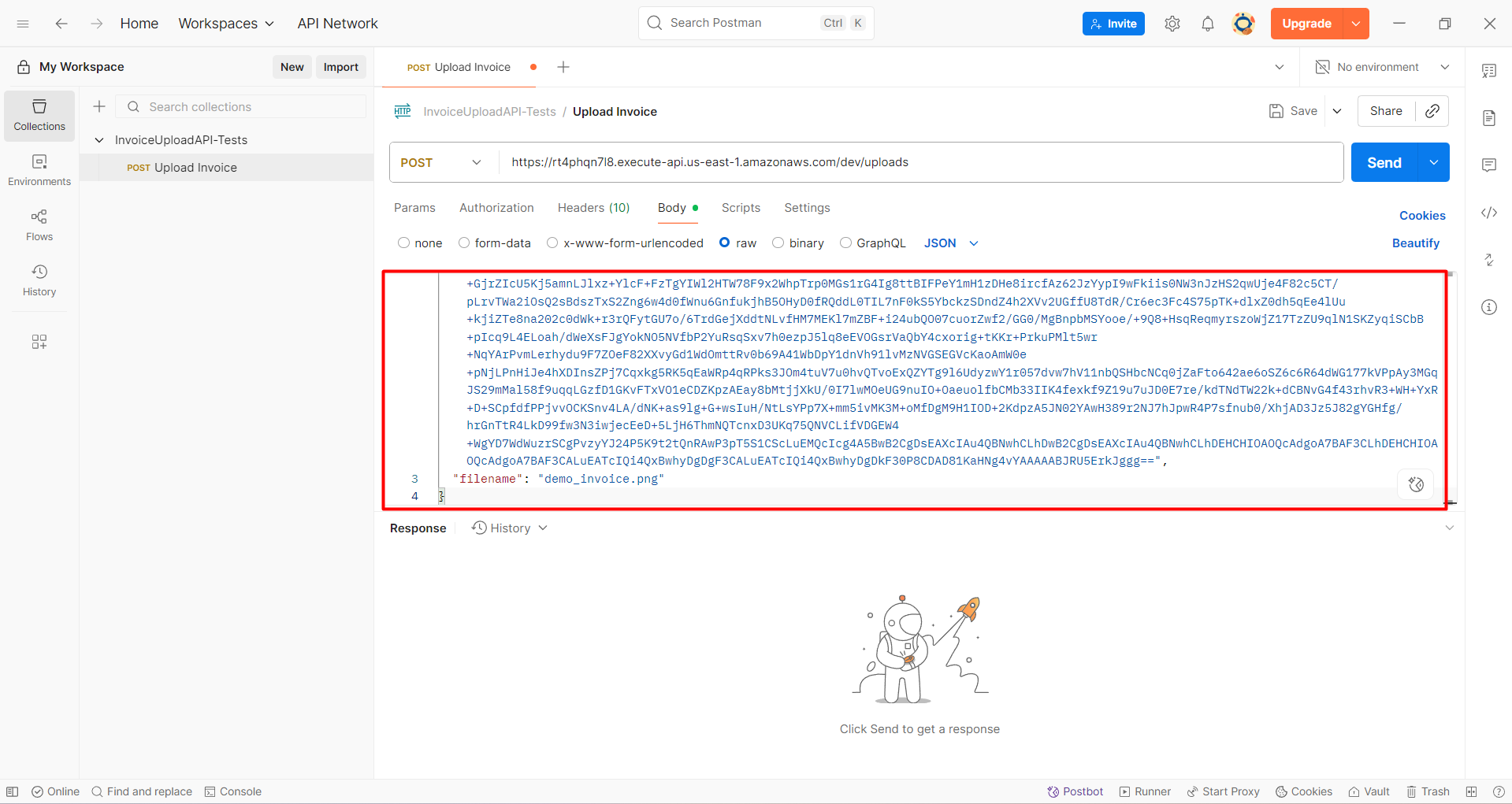
- Paste the Base64 string saved earlier in Notepad and specify the filename as follows:
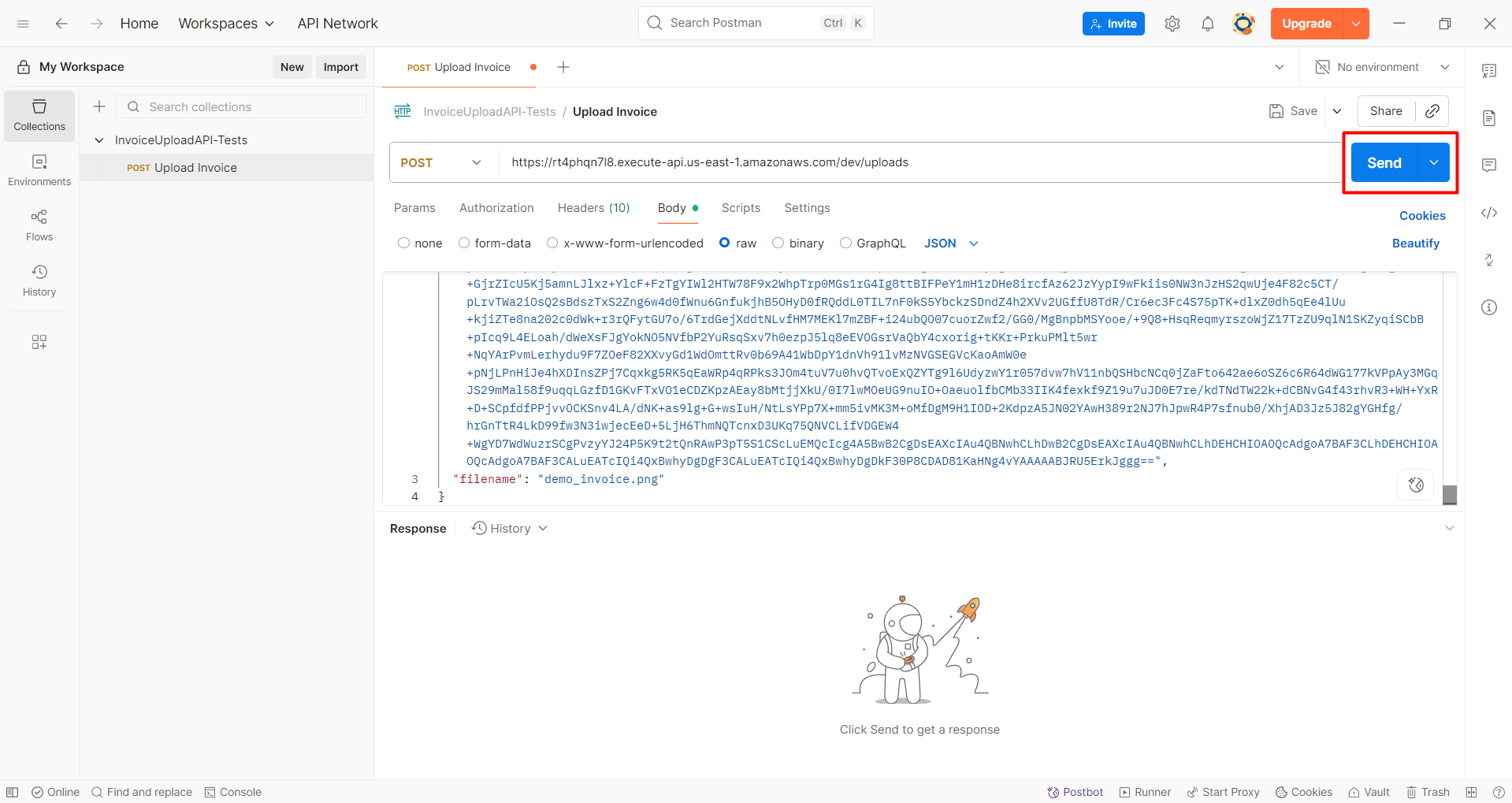
- Click the Send button to view the results.
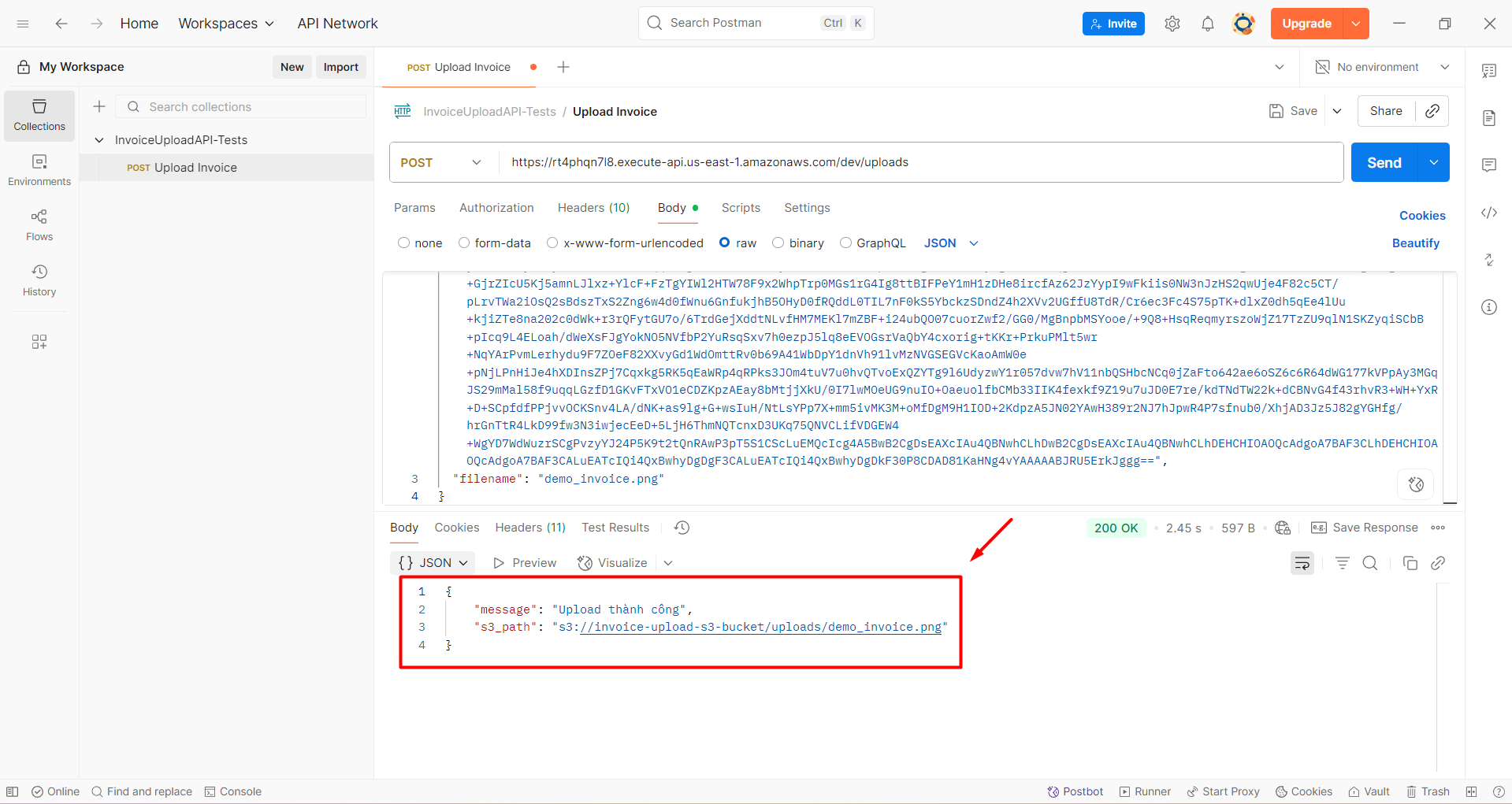
- A successful response will appear as follows:
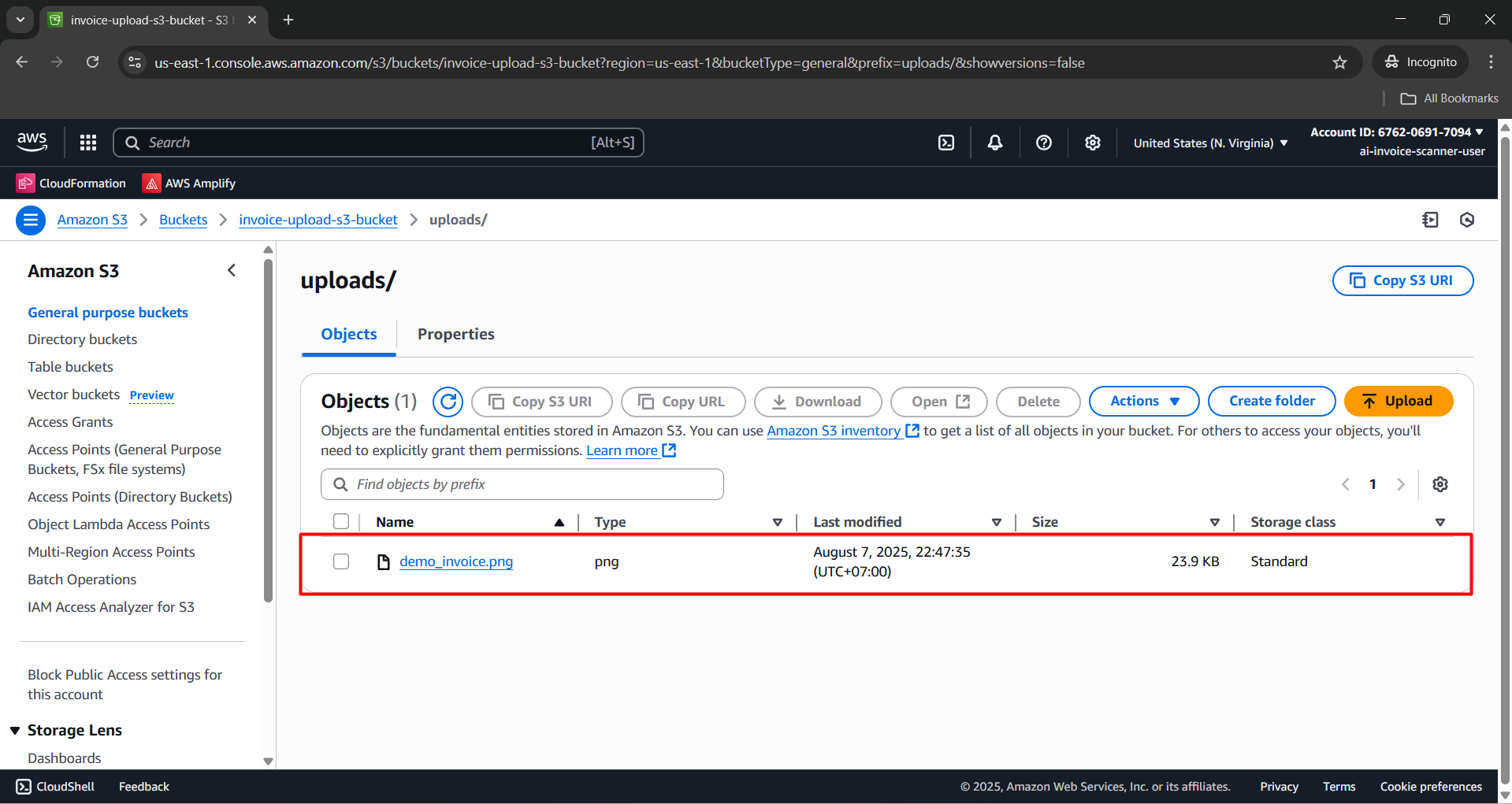
- Go to S3 → Navigate to the
uploads/folder → Verify the uploaded file.
- Access DynamoDB → Select Explore items → Choose the InvoiceData table.