Create API Gateway (POST)
Tổng quan
In this section, you will create a REST API Gateway to receive invoices uploaded by users through the POST /uploads endpoint. This API will integrate with Lambda Function #1 UploadInvoiceFileFunction, automatically process invoice images/files using AI, and store the results into DynamoDB.
Step 1: Create a REST API
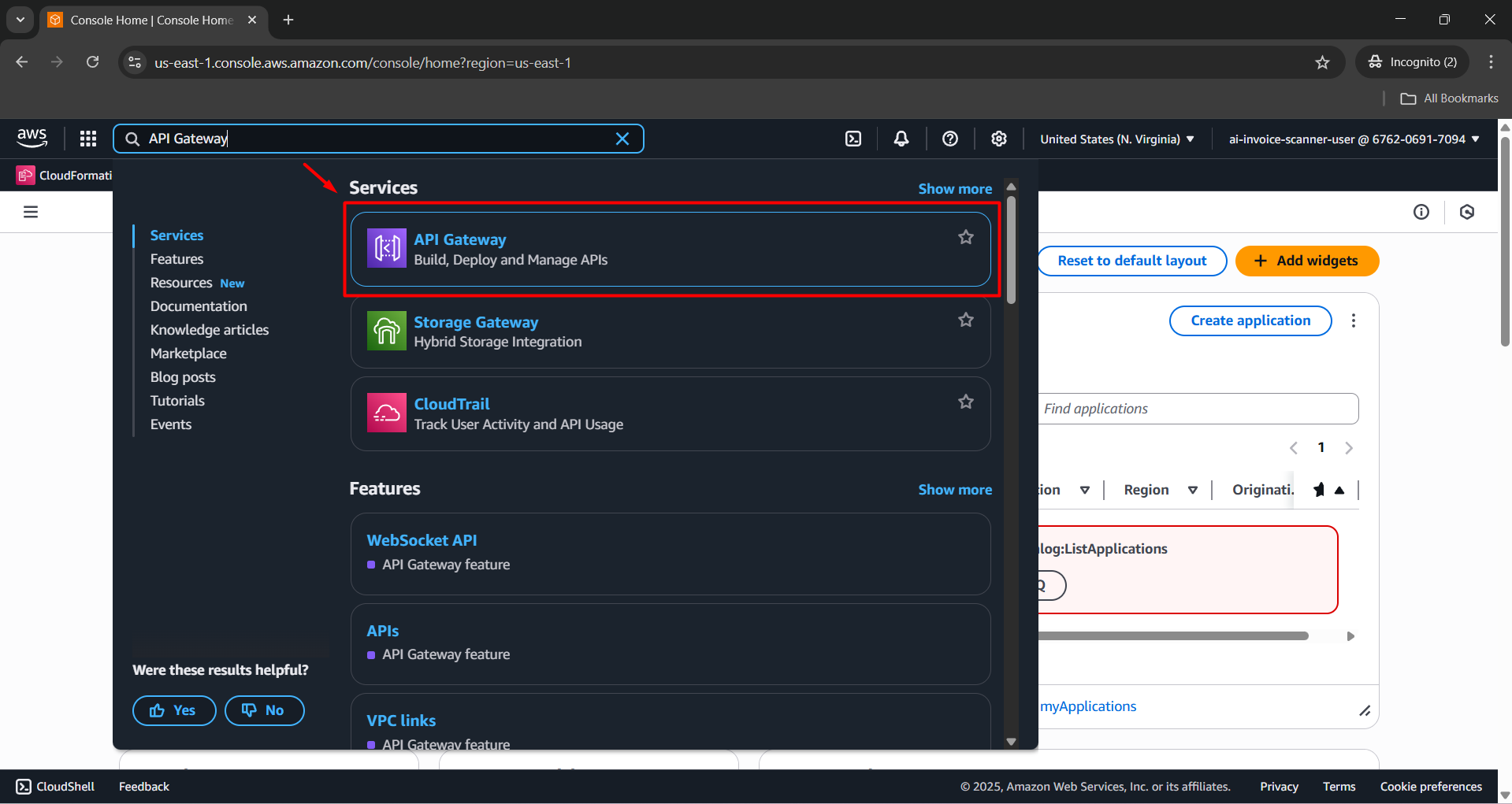
- Log in to the AWS Management Console, find and access API Gateway.
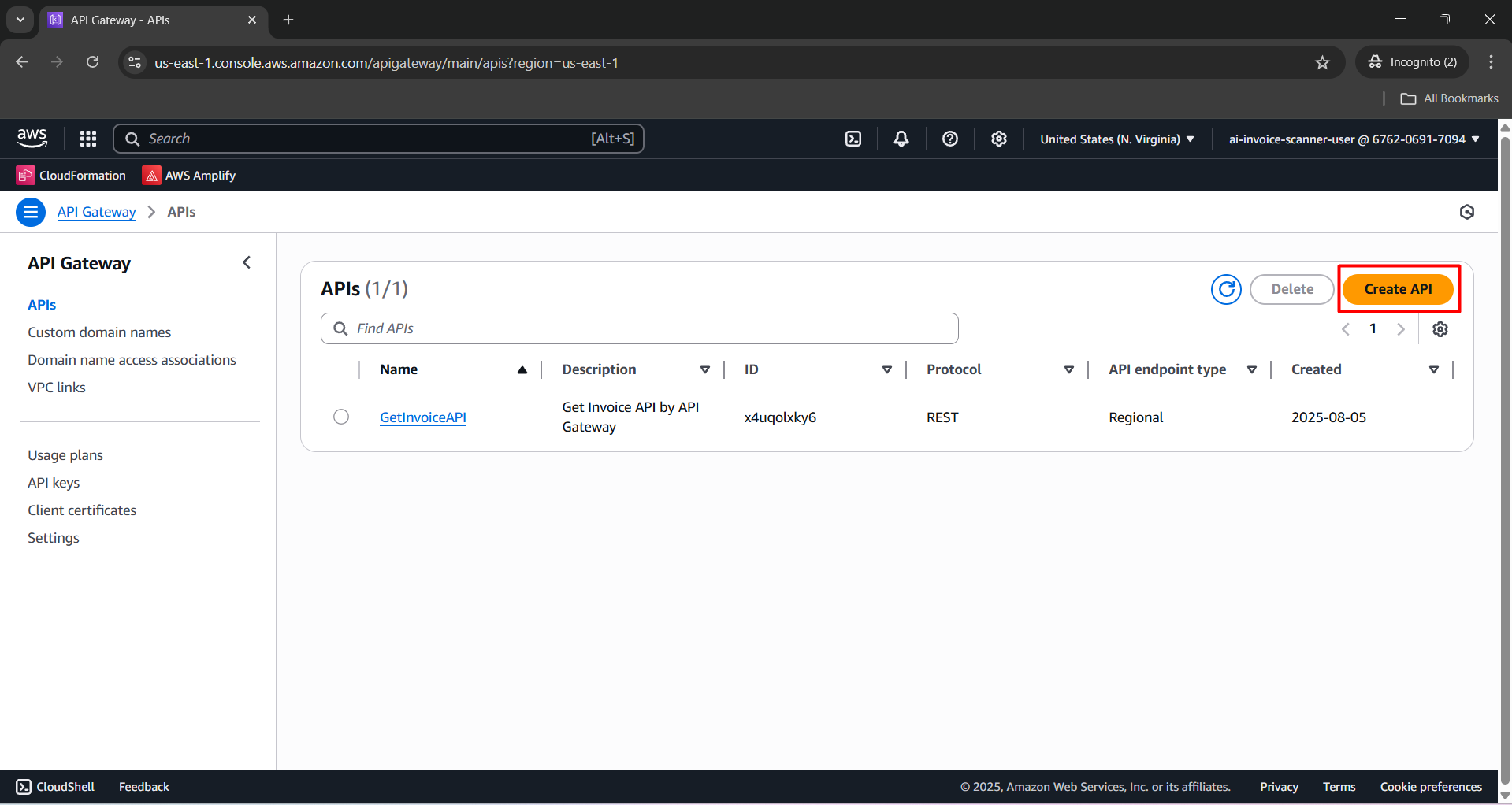
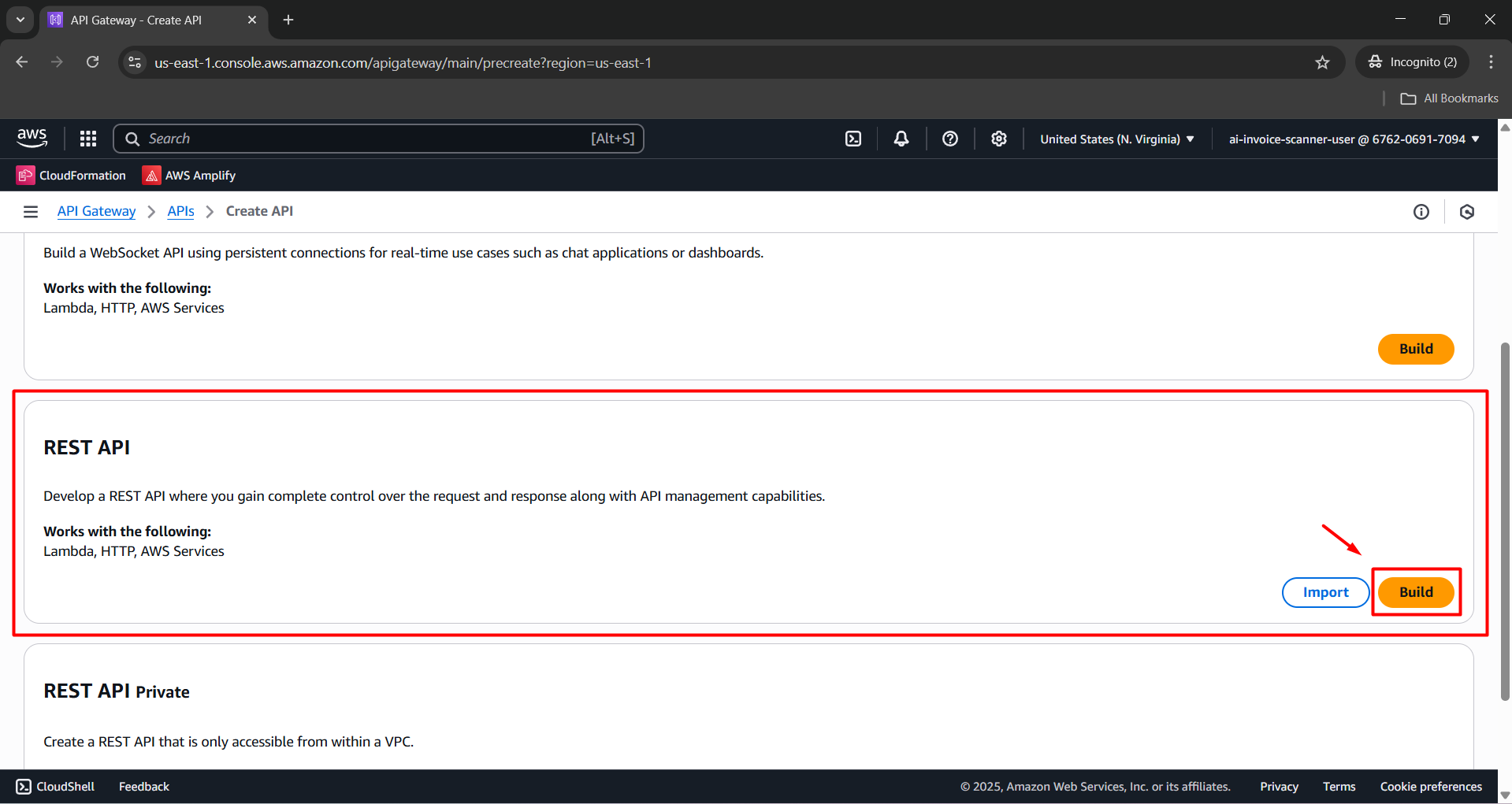
- Click Create API.
- Choose REST API type, then click Build.
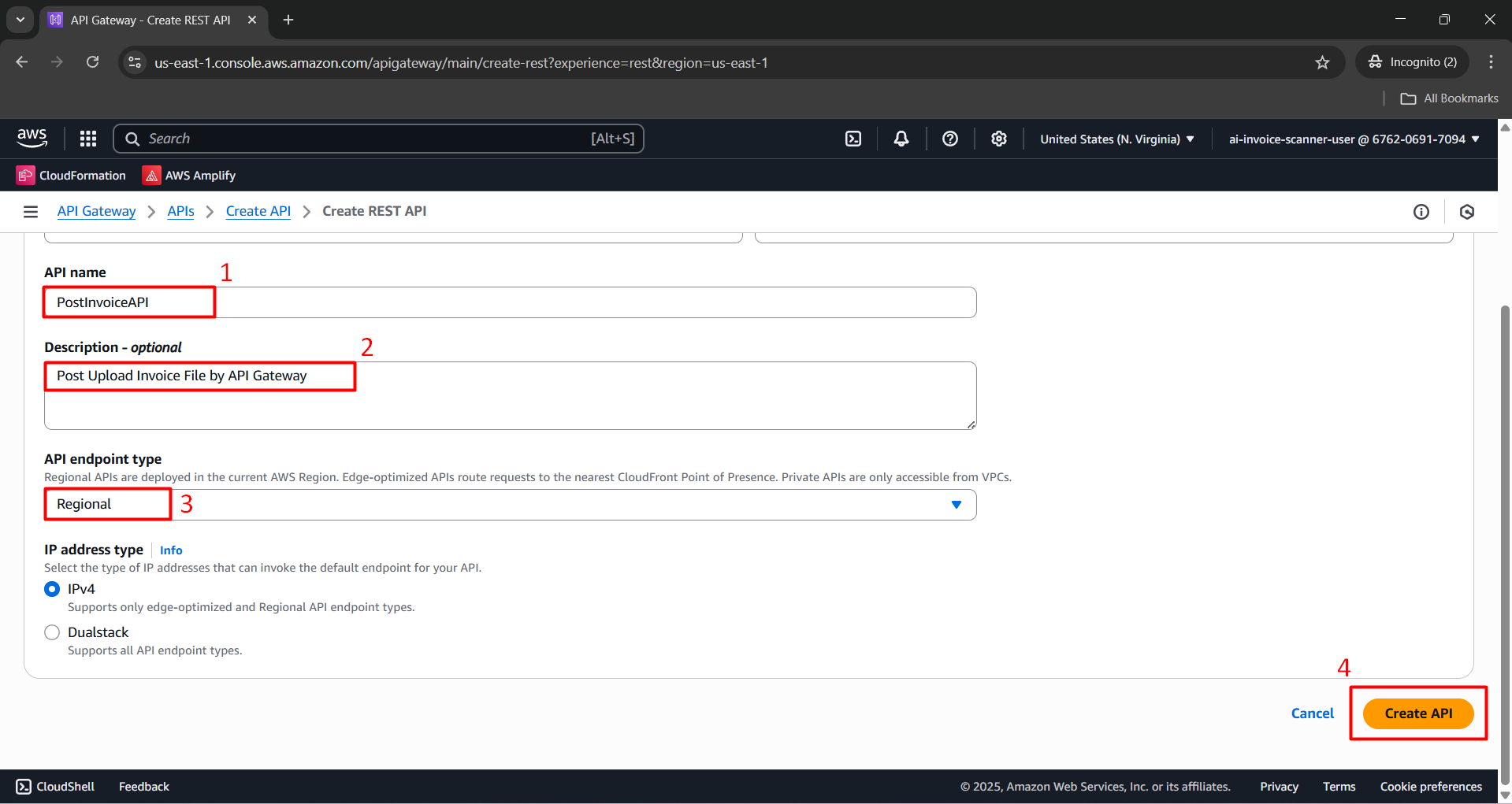
In the configuration section:
- API name:
PostInvoiceAPI - Description:
Post Upload Invoice File by API Gateway - Endpoint Type: Select Regional.
- API name:
Click Create API to finish.
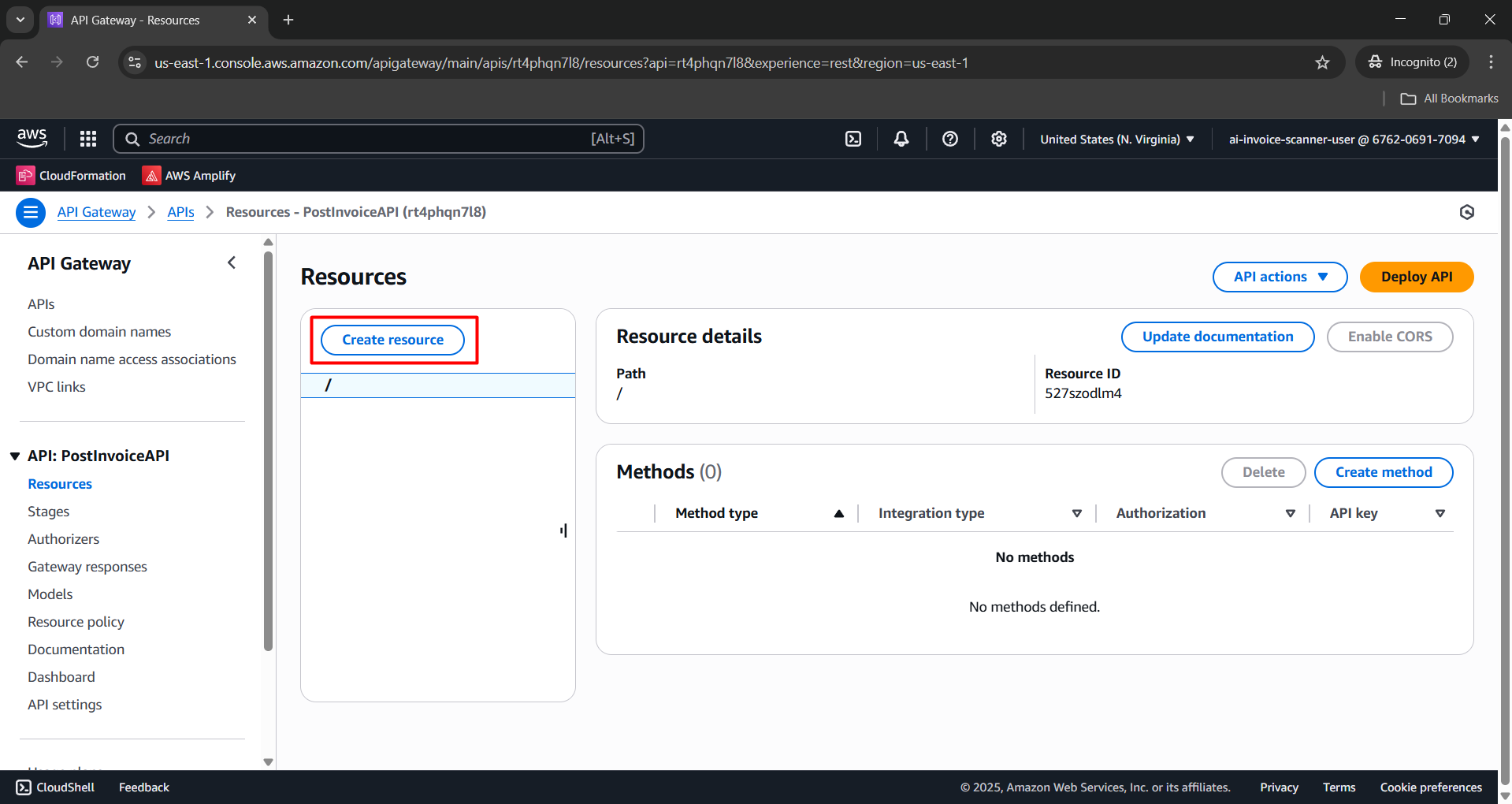
Step 2: Create Resource
Resource: /uploads
- In PostInvoiceAPI, select Create resource.
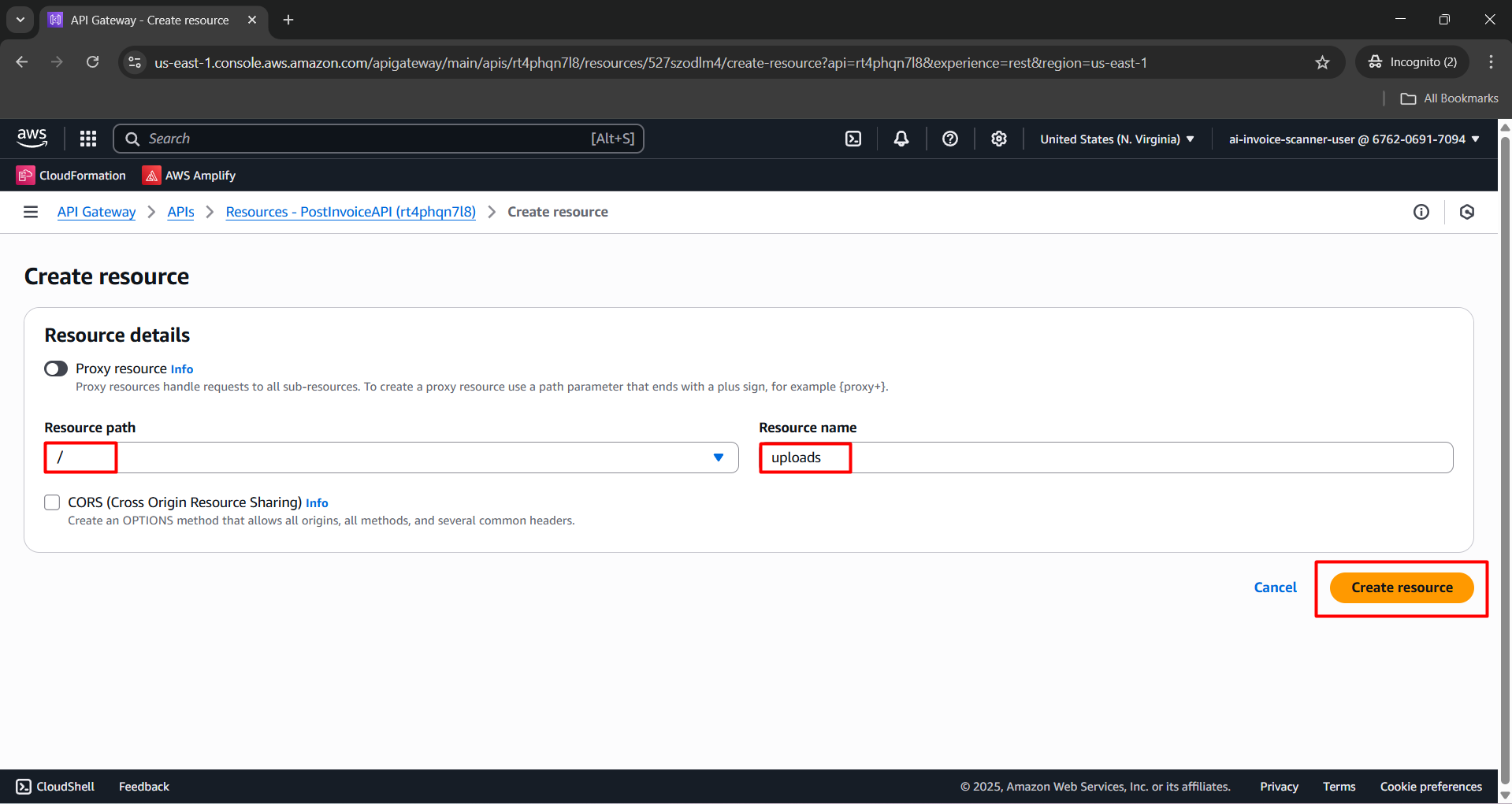
Enter information:
- Resource path:
/ - Resource name:
uploads
- Resource path:
Click Create resource.
Step 3: Create Method
Method: POST
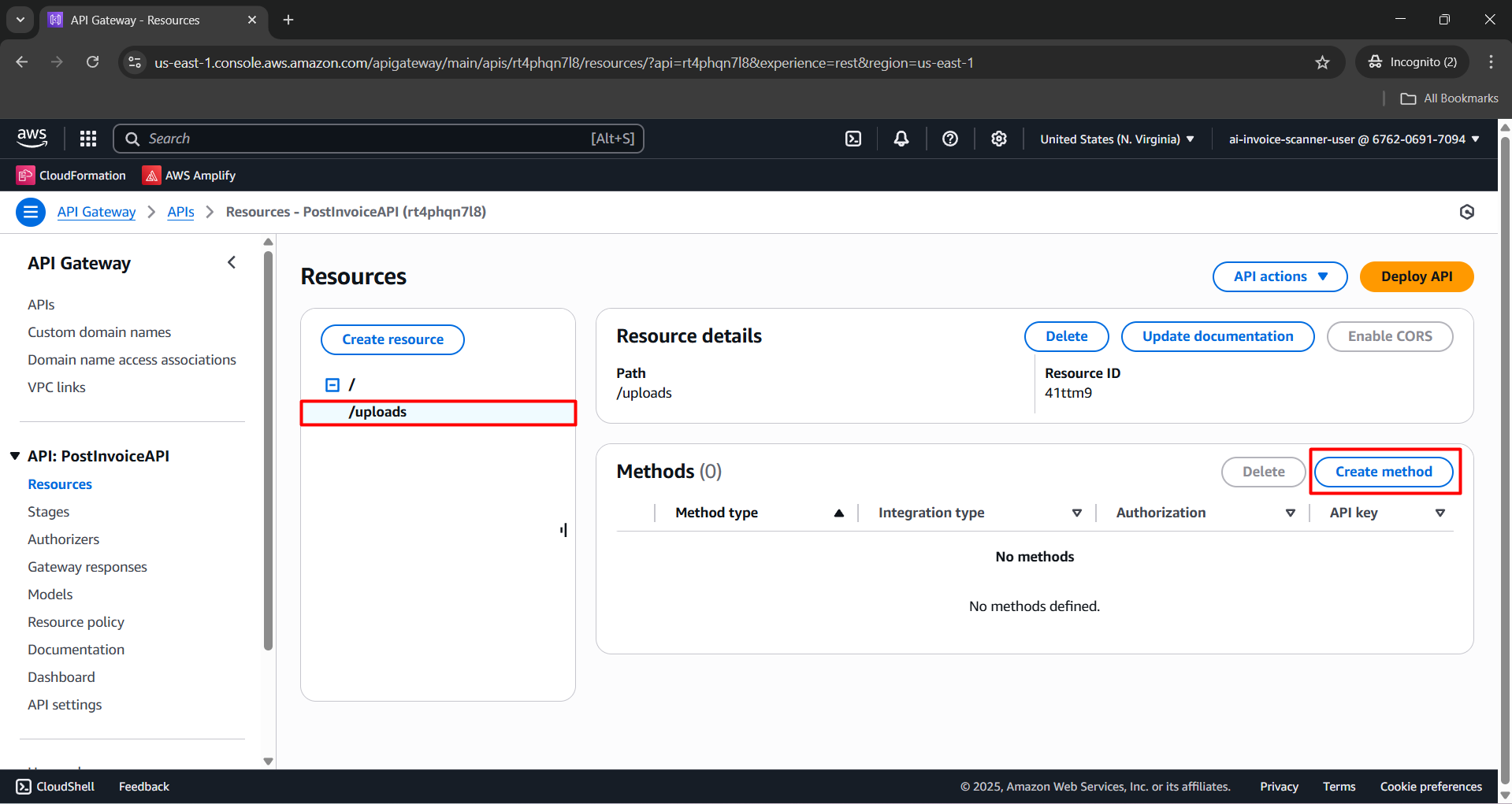
In the resource tree, select
/uploads.Click Create method.
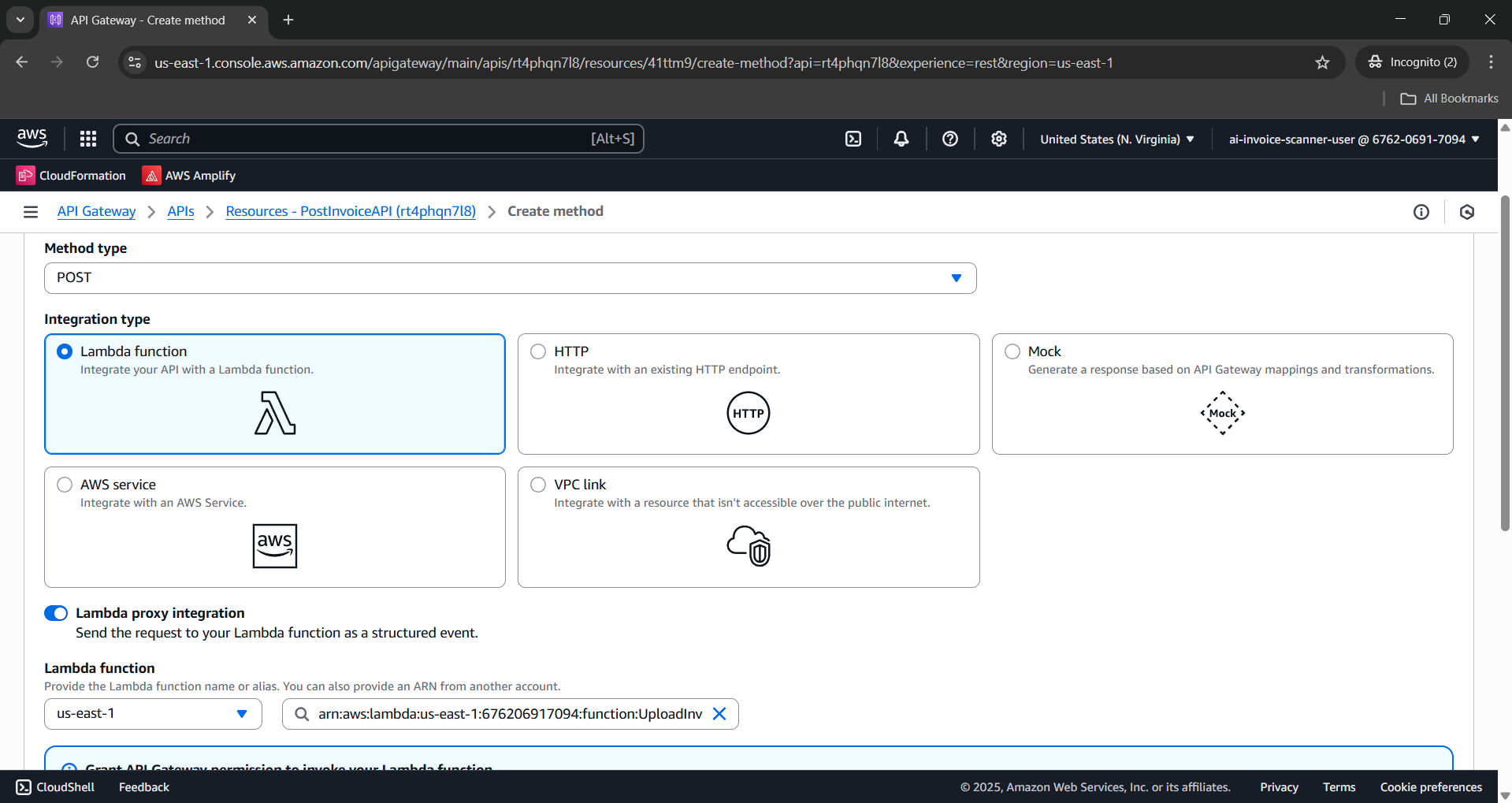
Configure in Create method:
- Method type: POST.
- Integration type: Lambda function.
- Lambda proxy integration: Enabled.
- Lambda function: UploadInvoiceFileFunction.
- Click Create method.
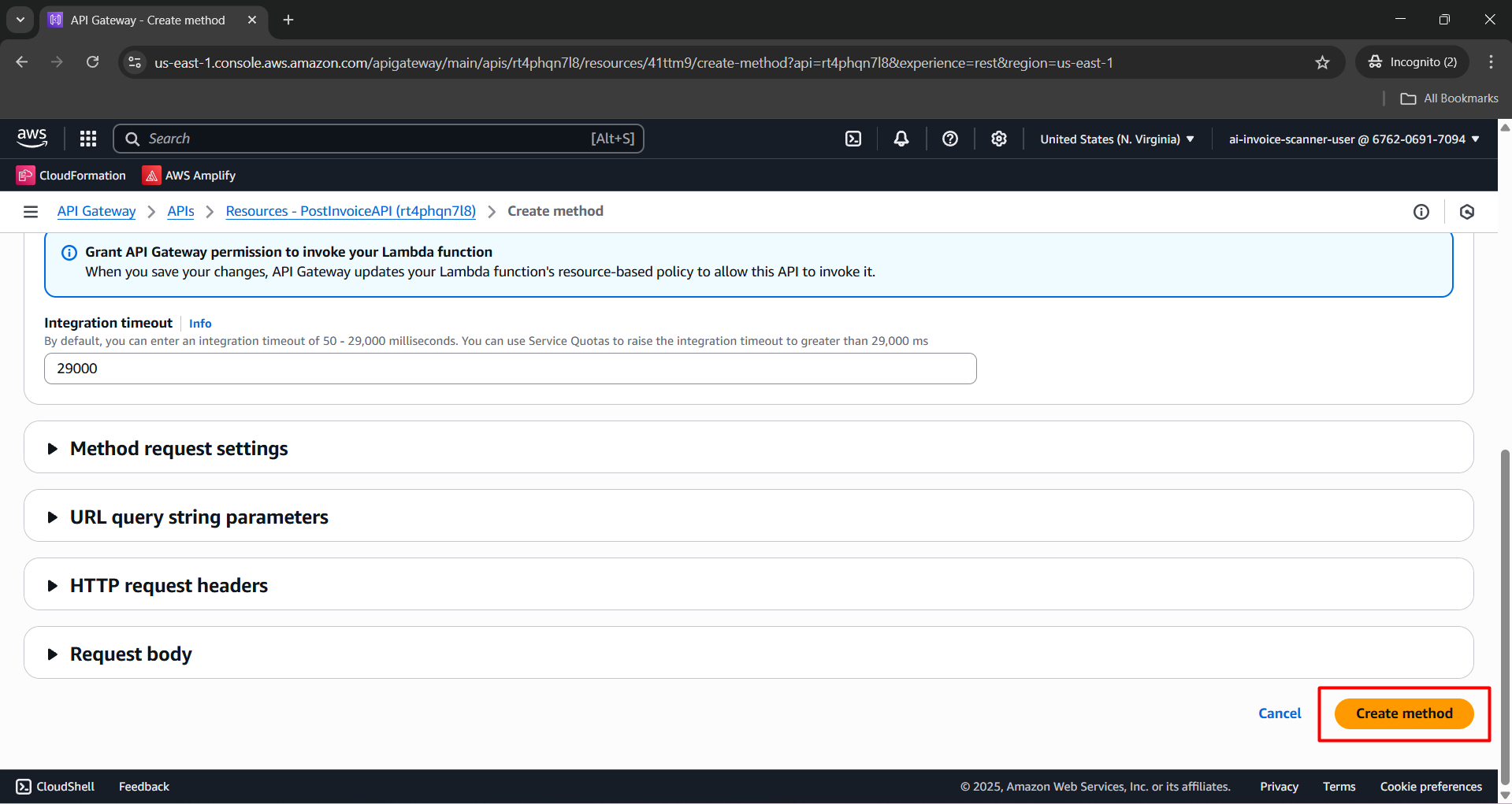
Method: PUT
In the resource tree, select
/uploads.Click Create method.
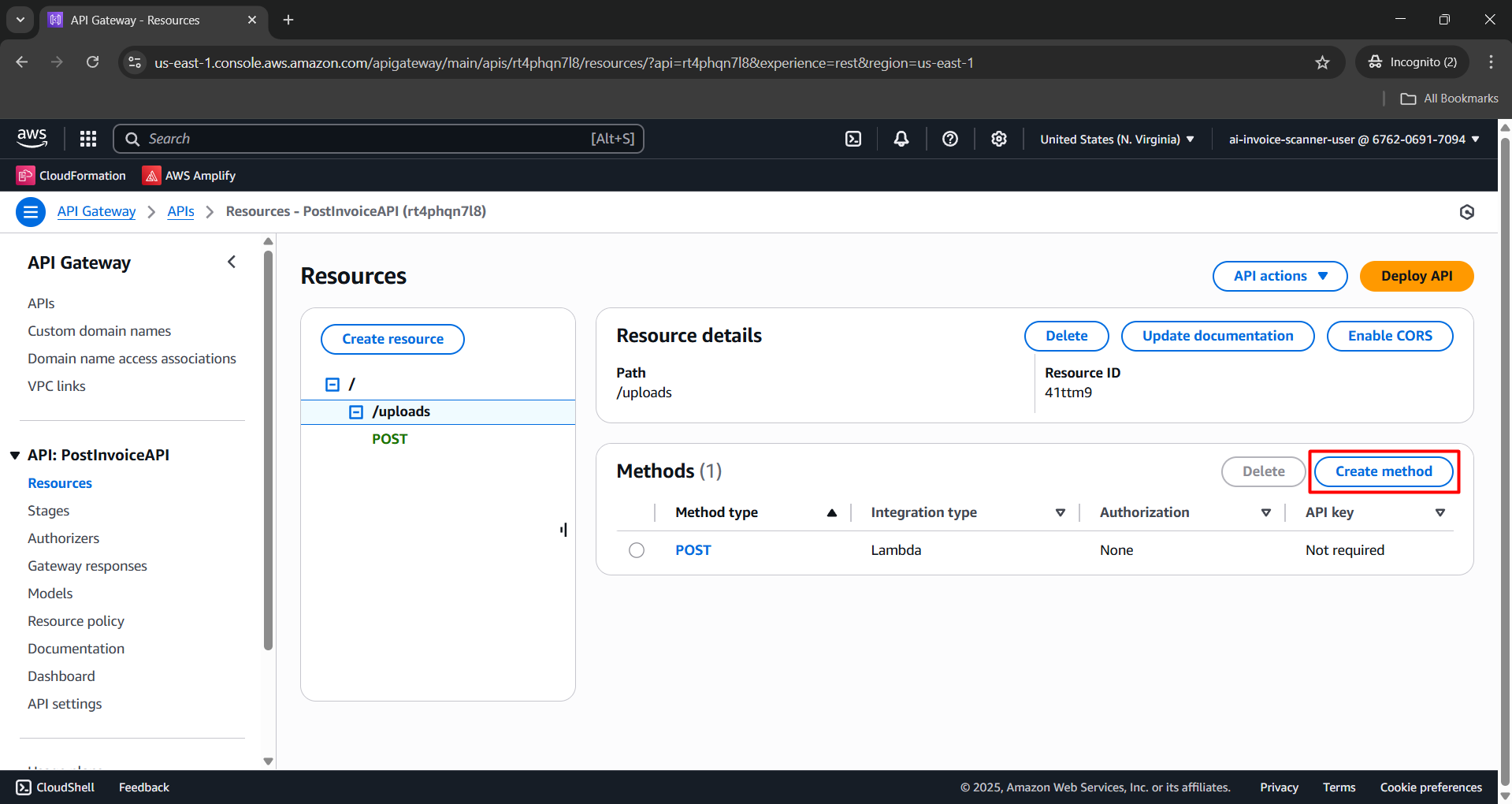
Configure in Create method:
- Method type: PUT.
- Integration type: Lambda function.
- Lambda proxy integration: Enabled.
- Lambda function: UploadInvoiceFileFunction.
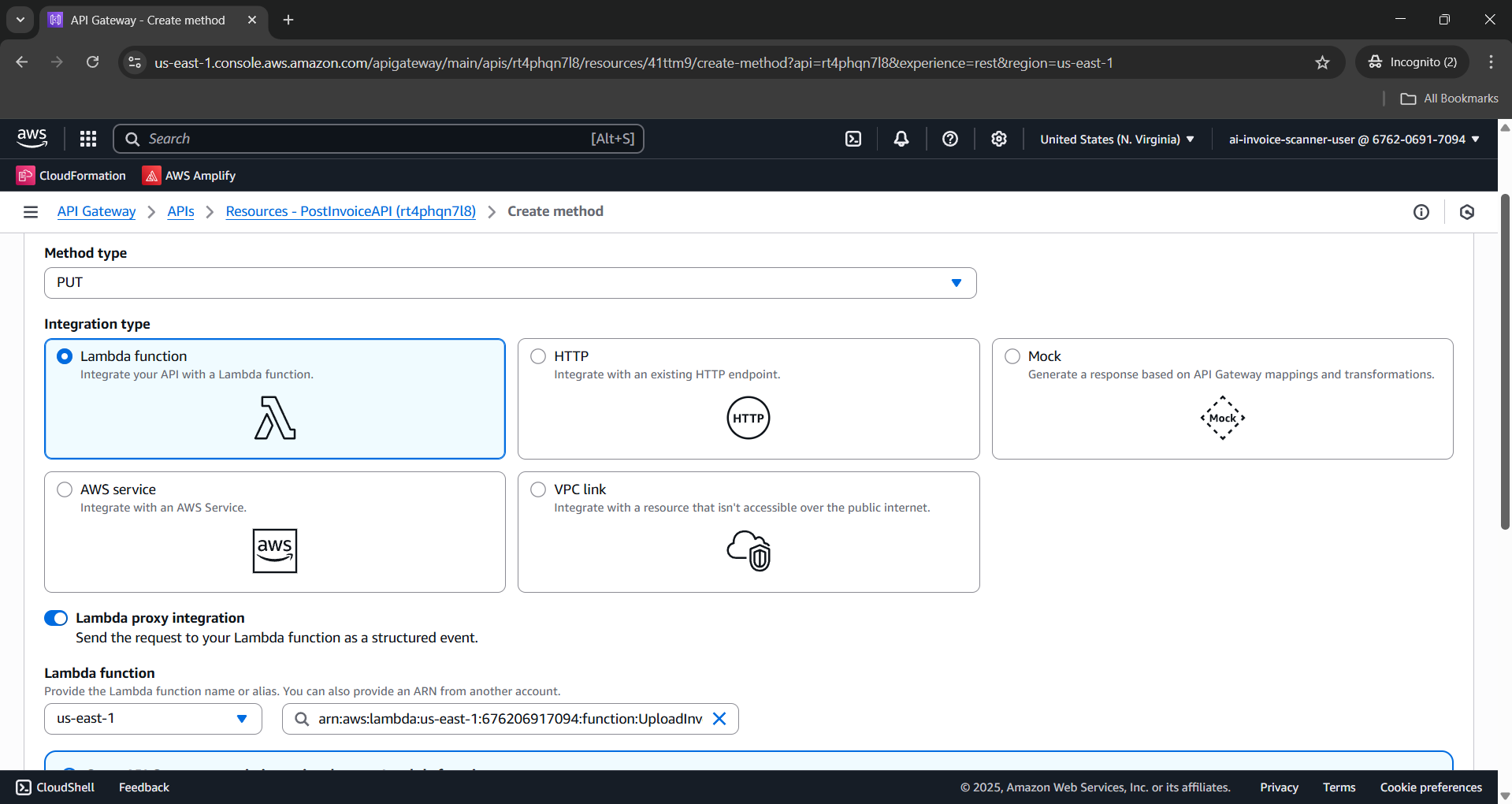
- Click Create method.
Step 4: Enable CORS for methods
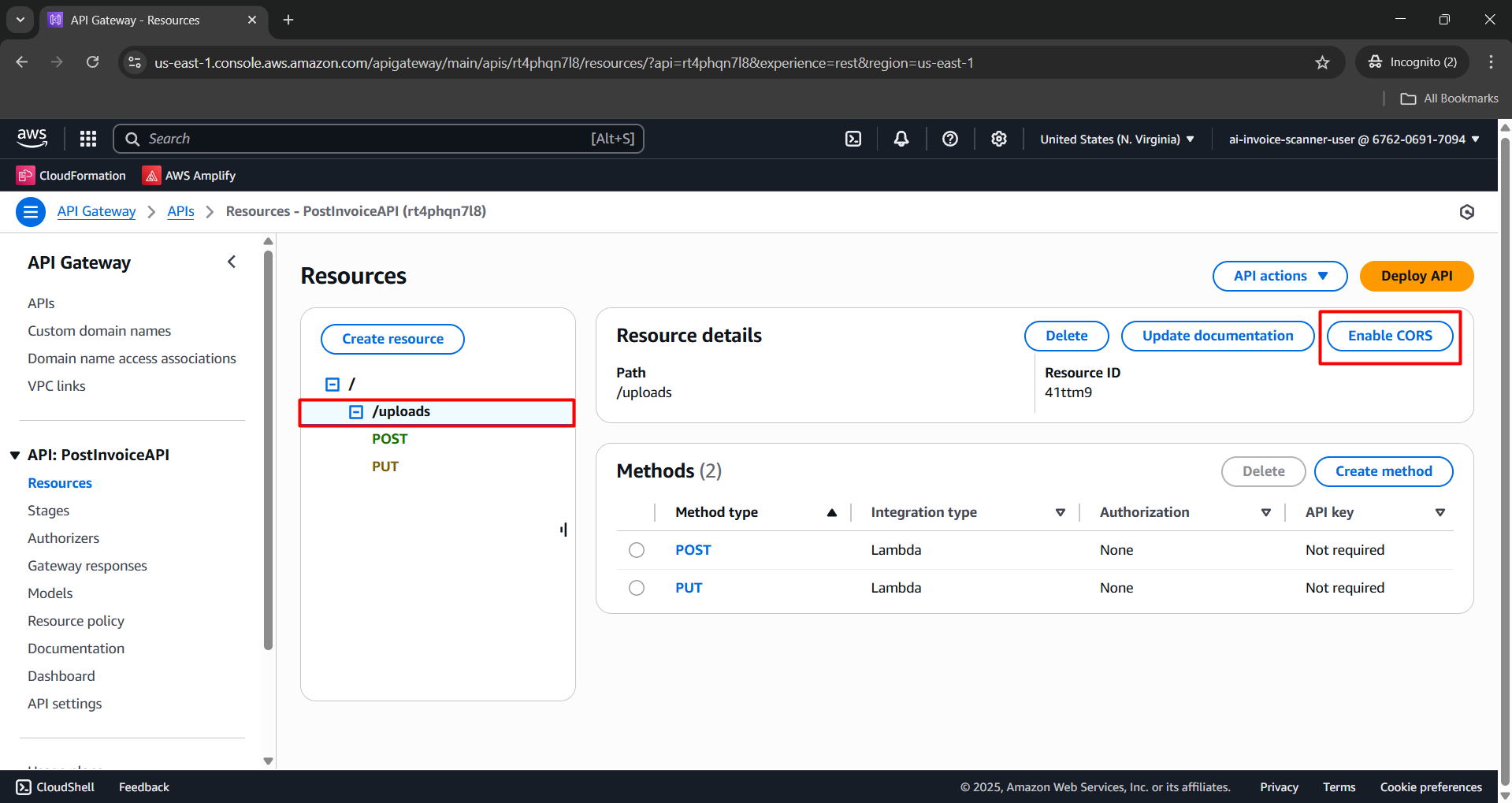
- In the resource tree of PostInvoiceAPI, select resource
/uploads. - Click Enable CORS.
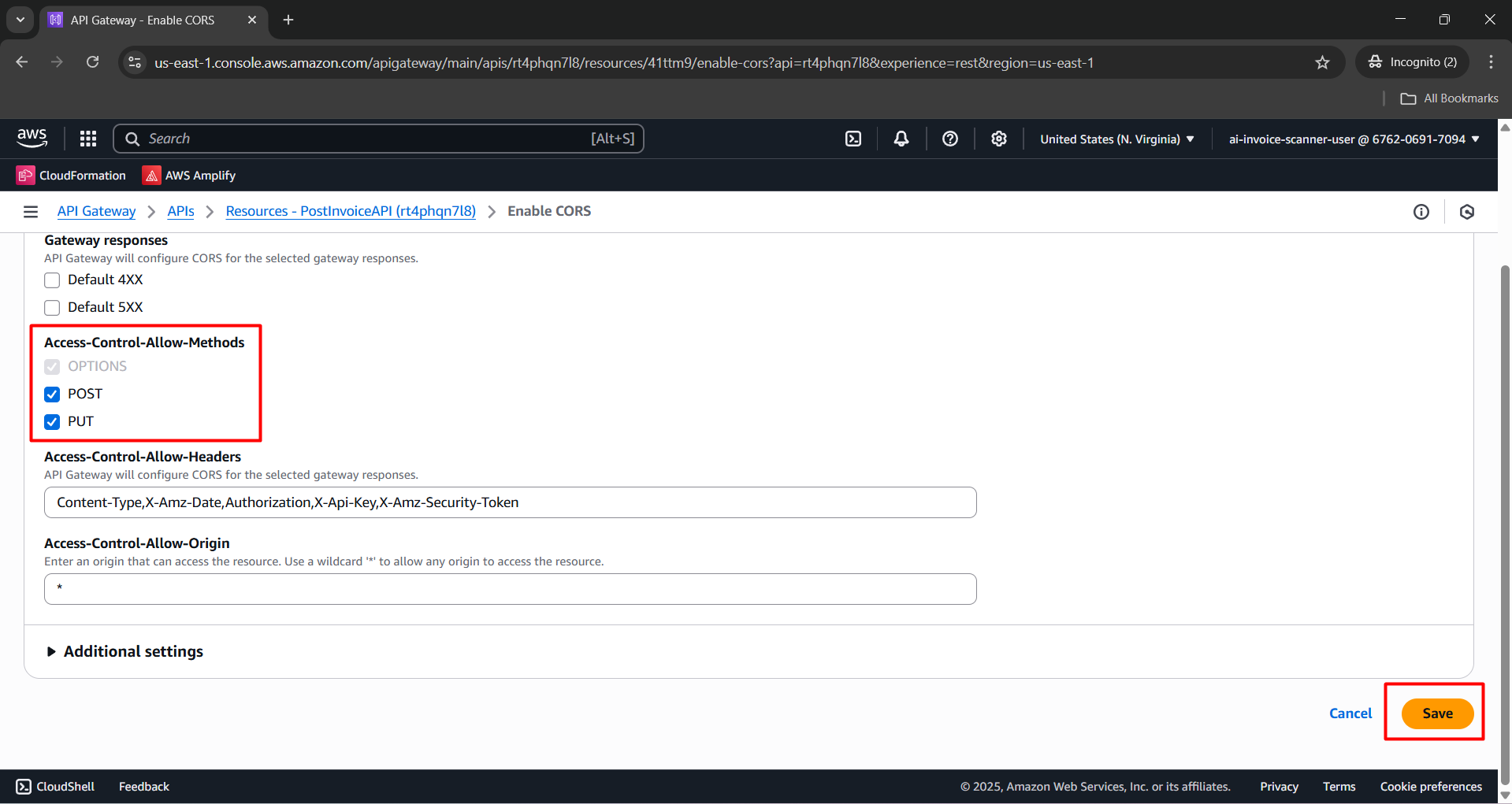
In Access-Control-Allow-Methods, enable CORS for:
- POST
- PUT
Click Save.
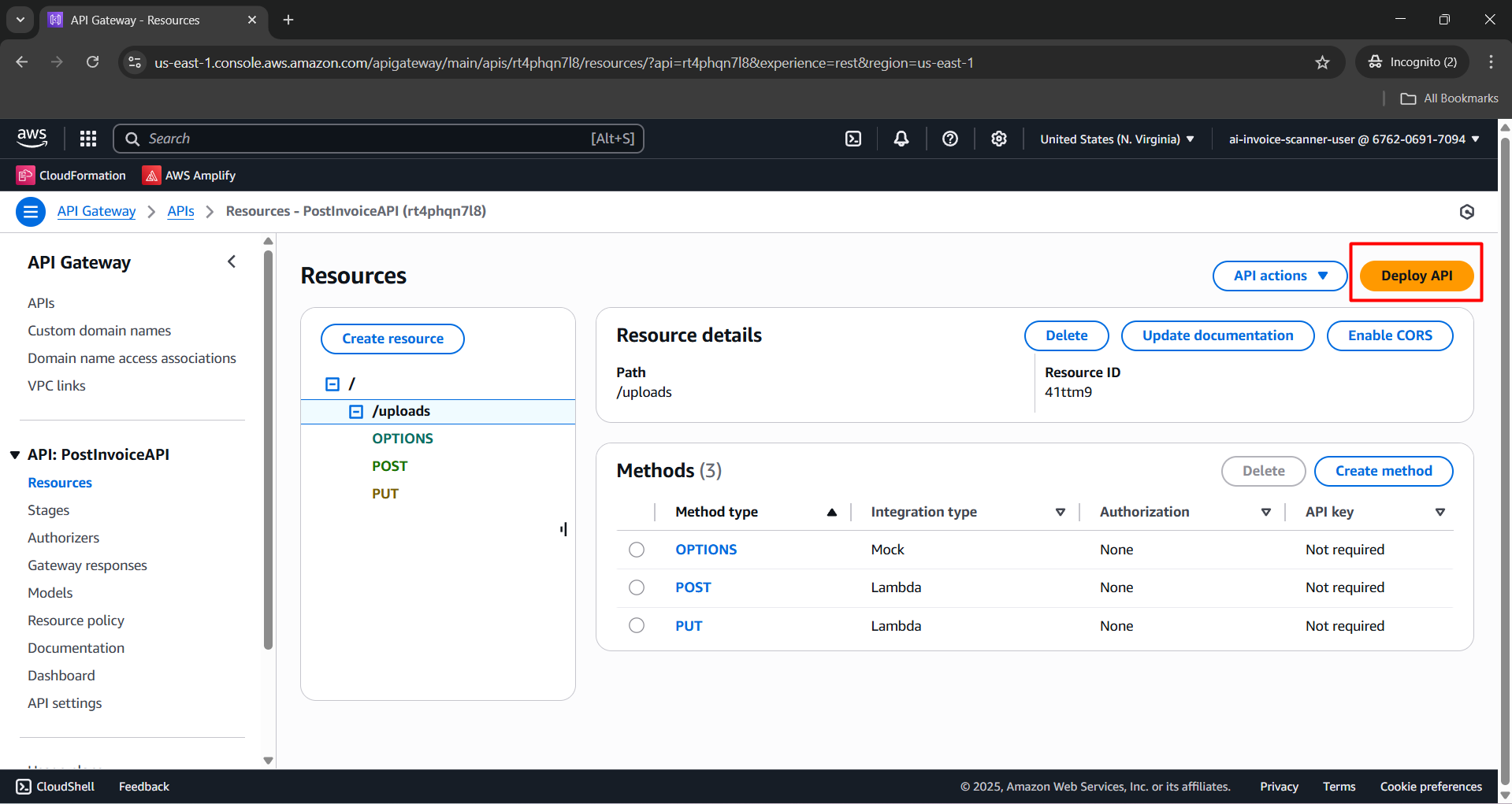
Step 5: Deploy the API
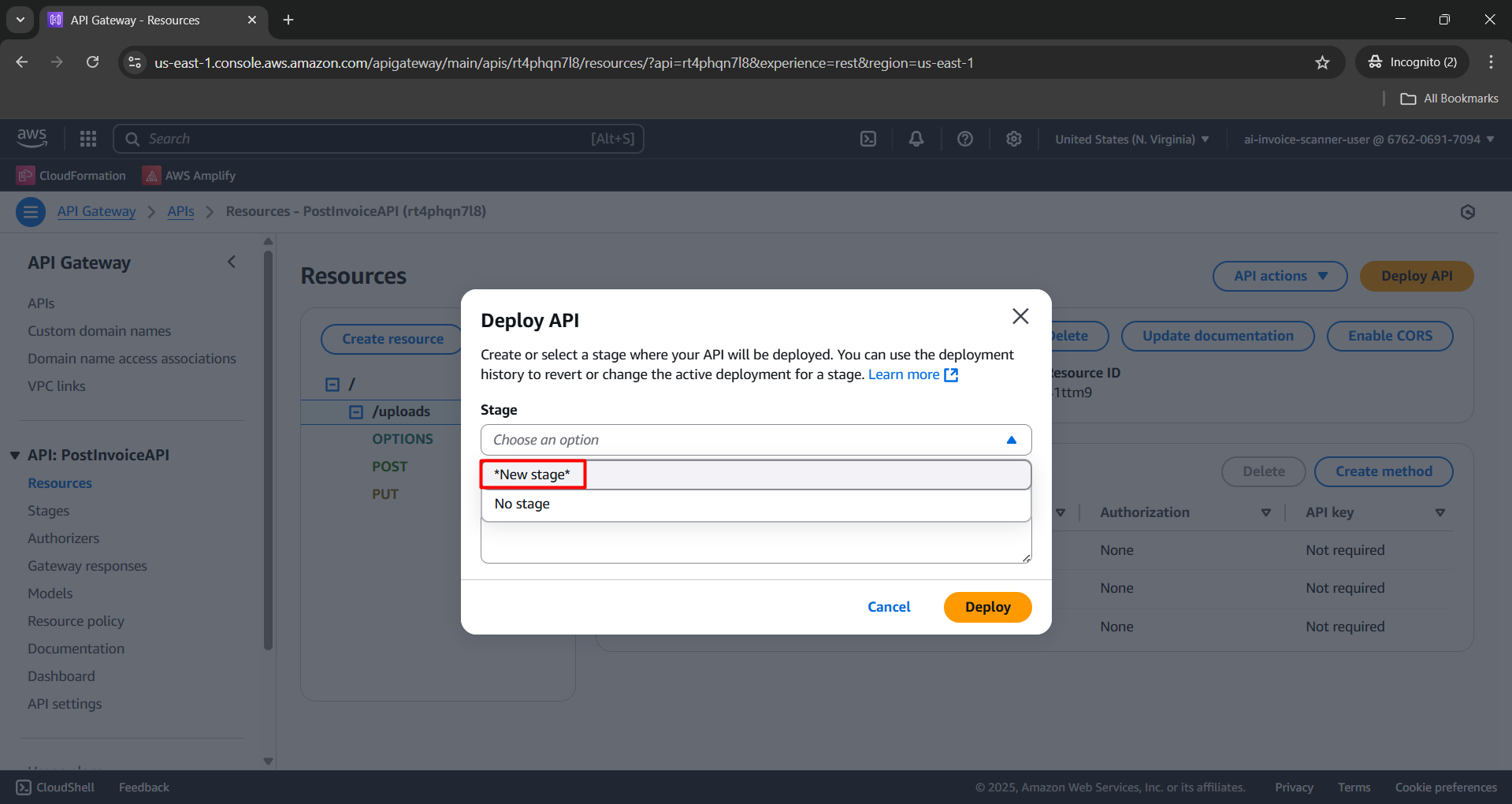
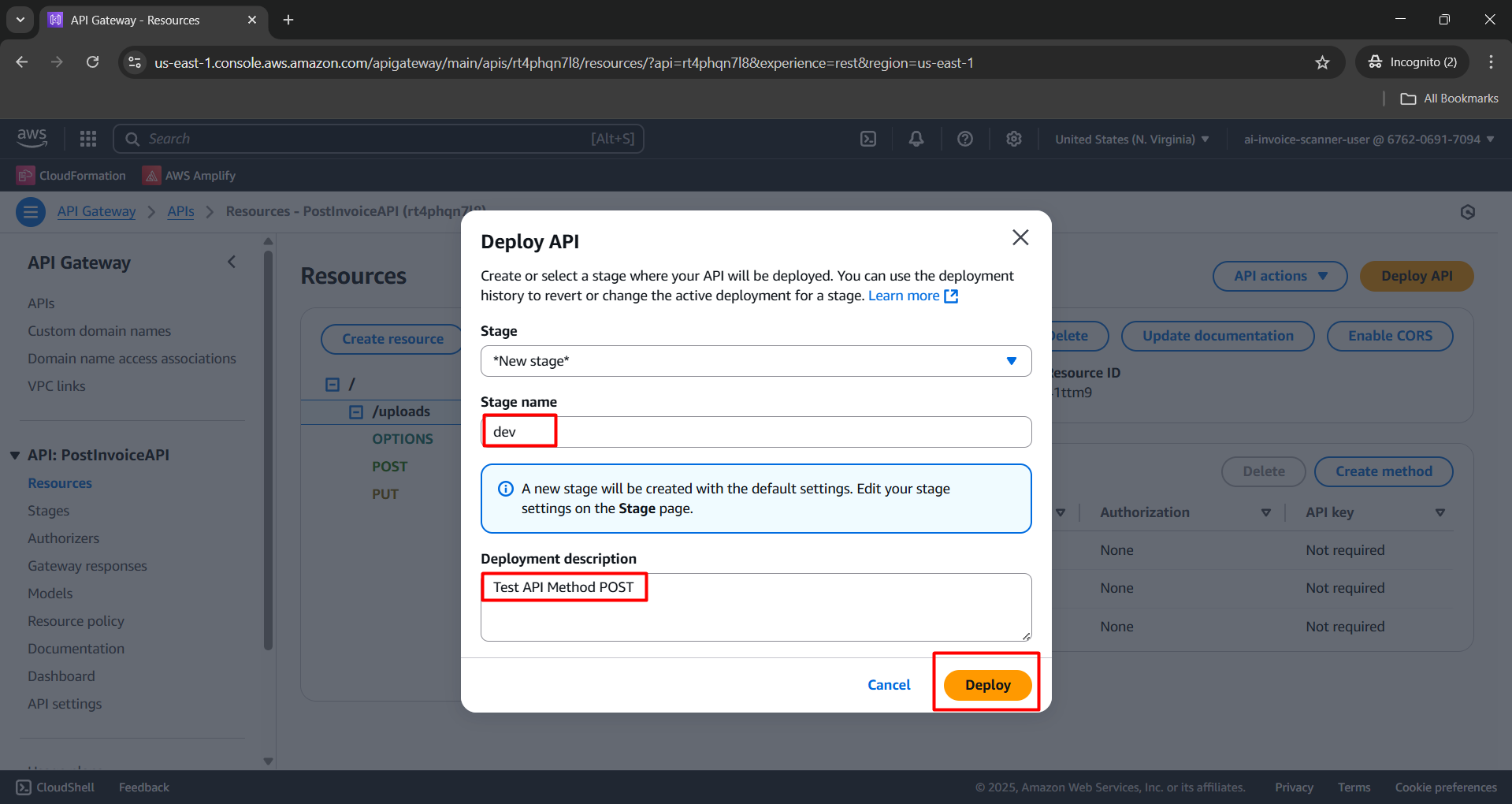
- Click Deploy API.
In the Deploy API modal:
- Stage: [New Stage].
- Stage name:
dev. - Deployment description:
Test API Method POST. - Click Deploy.