Create API Gateway (GET)
Tổng quan
This section guides you through creating a REST API named GetInvoiceAPI with routes for querying and updating invoice data. Each route is connected to a Lambda function and has CORS enabled, then deployed with a dev stage.
Step 1: Create REST API
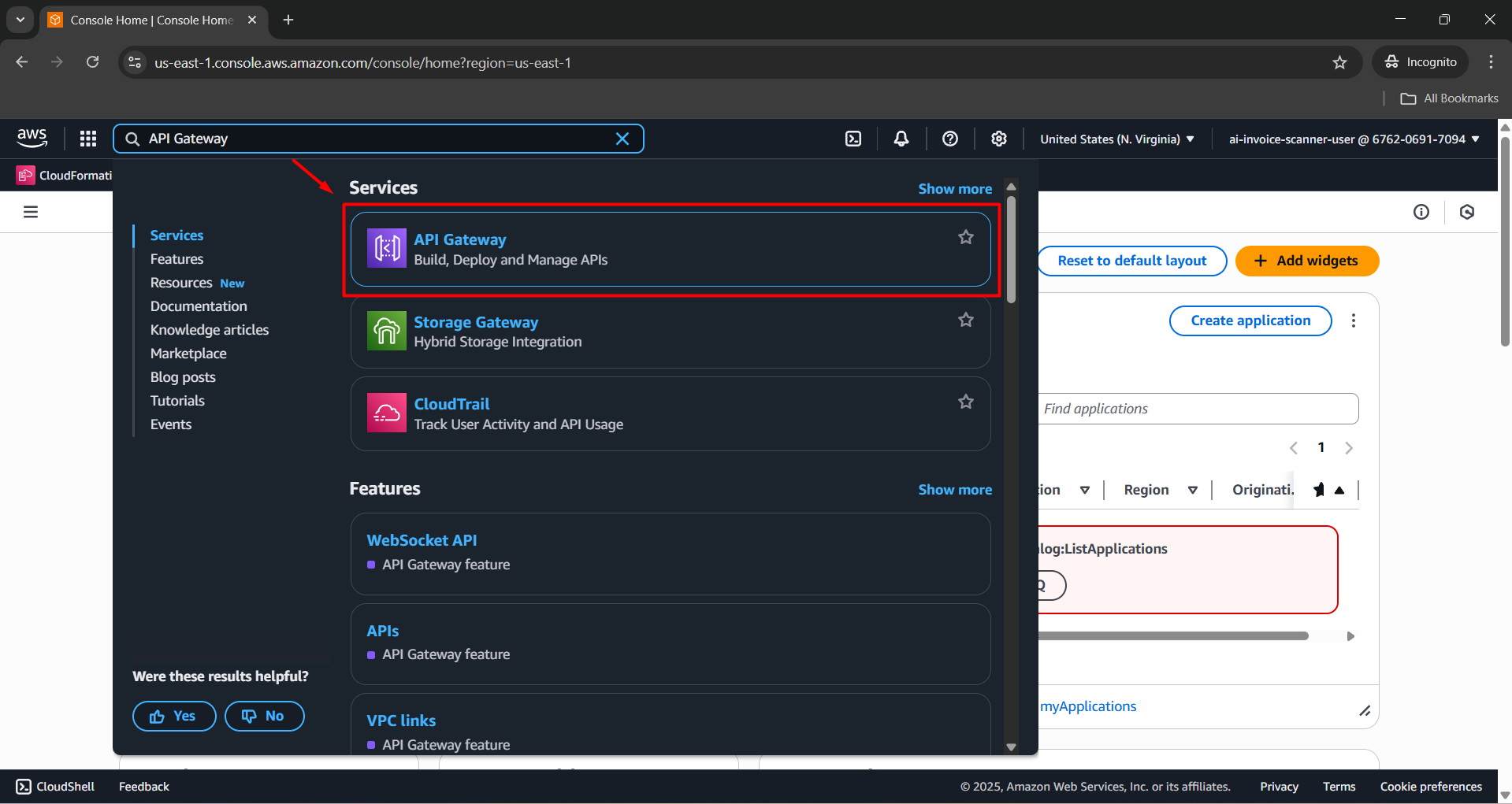
- Sign in to the AWS Management Console, search for and open API Gateway.
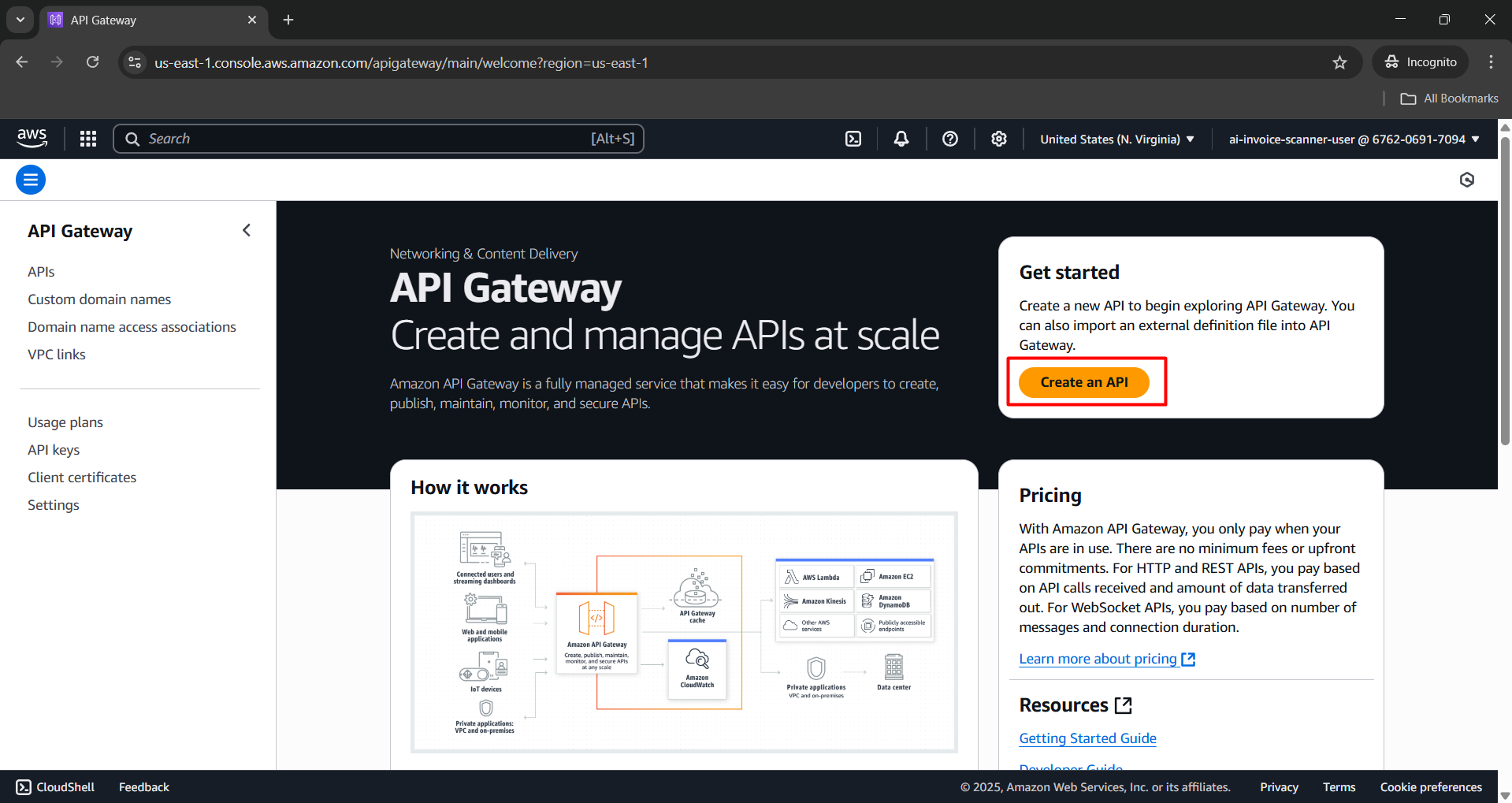
- Click Create an API.
- Select REST API, then click Build.
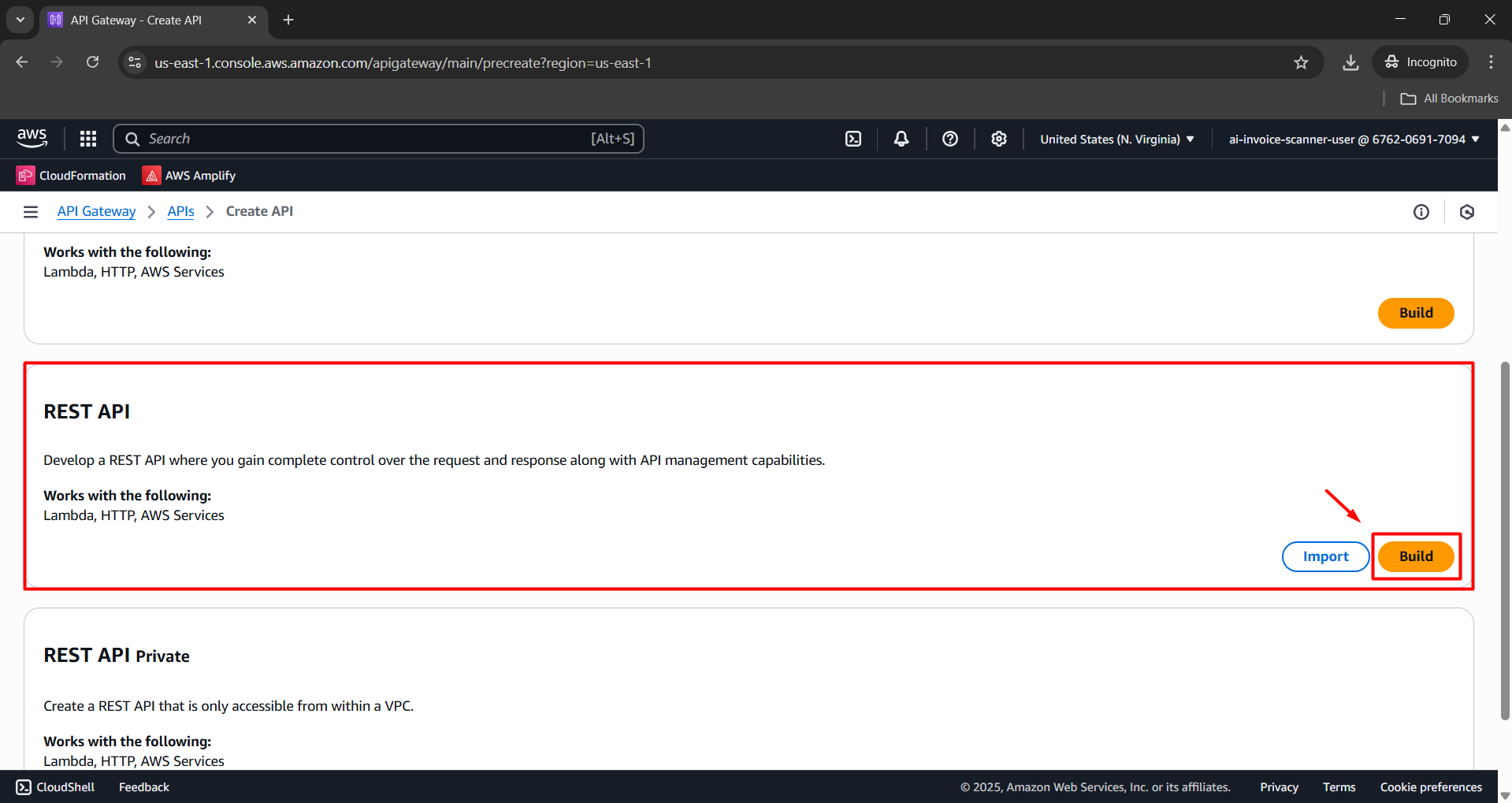
Configure the following:
- API name:
GetInvoiceAPI - Description:
Post Invoice File by API Gateway - Endpoint Type: Select Regional.
- API name:
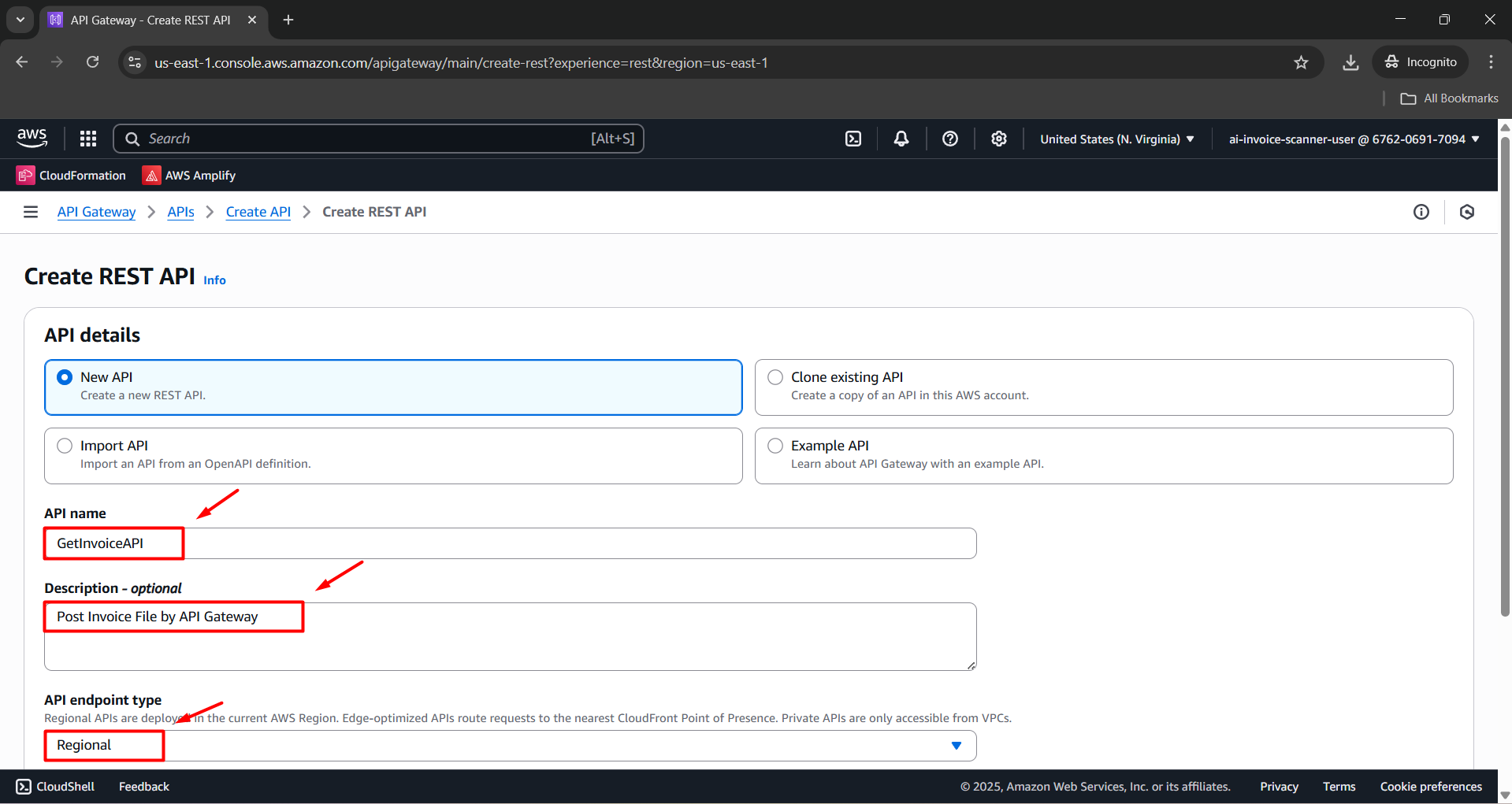
- Click Create API to finish.
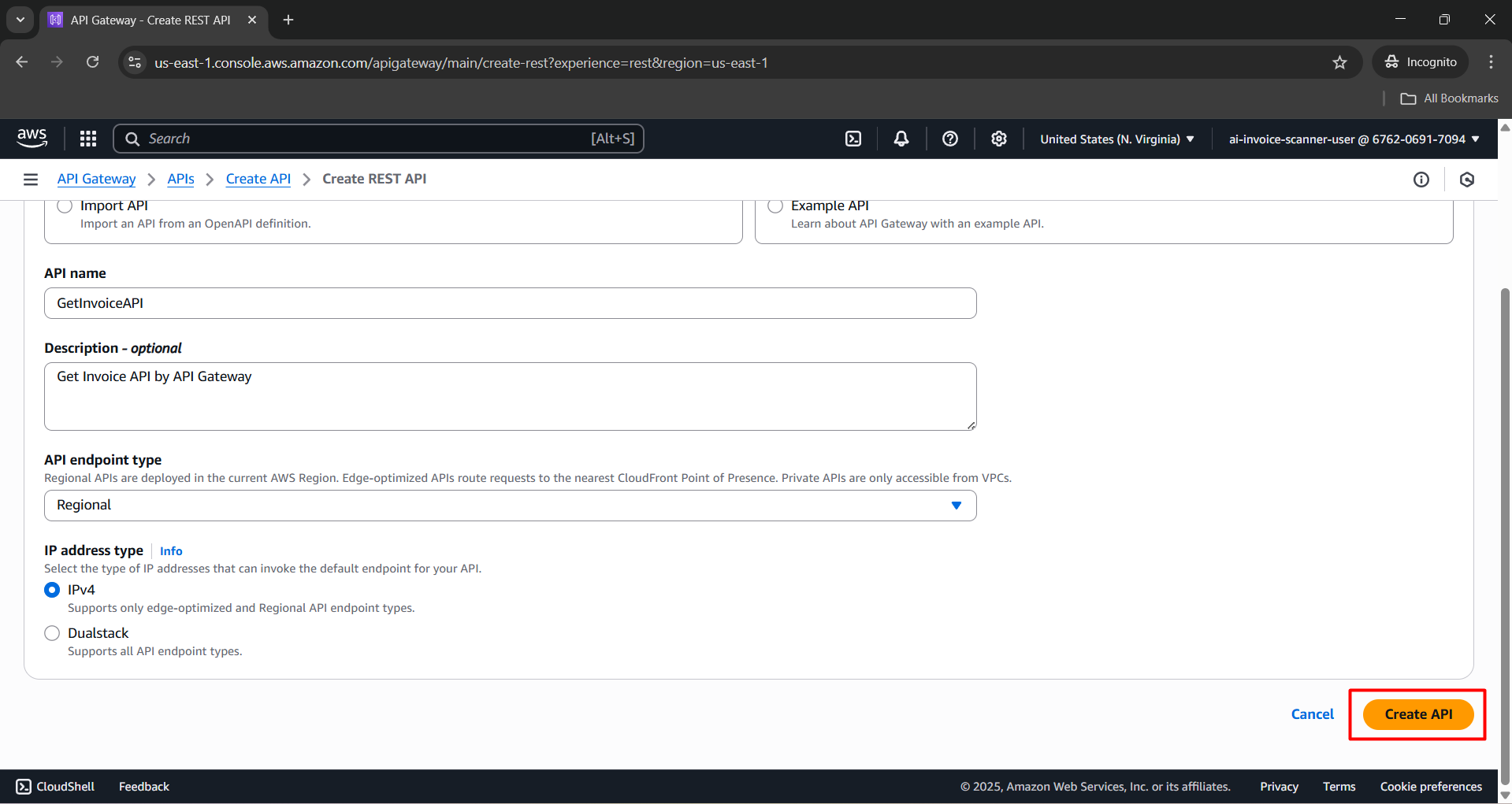
Step 2: Create Resources & Methods
Resource: /invoice
- In GetInvoiceAPI, choose Create resource.
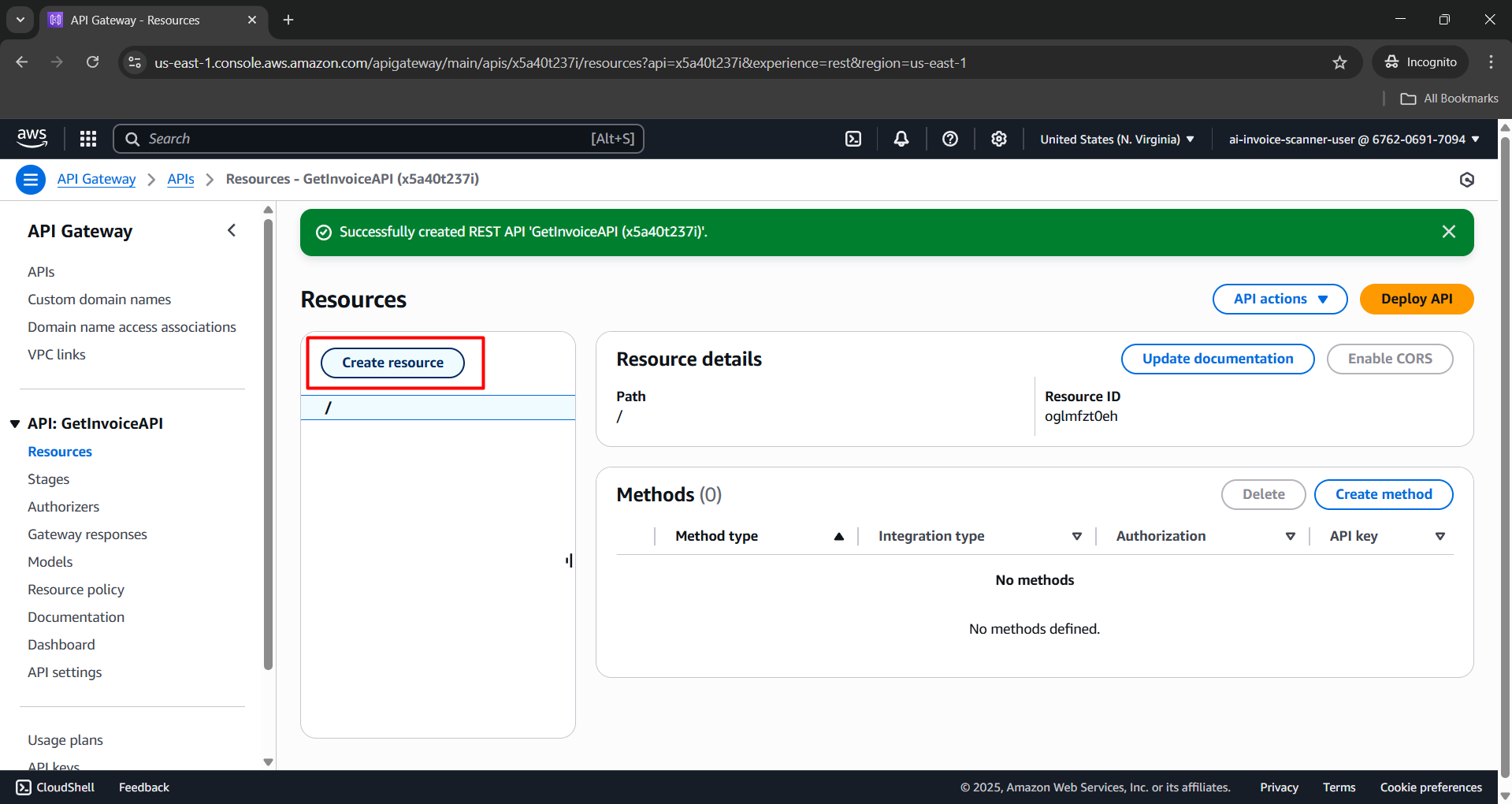
Enter:
- Resource path:
/ - Resource name:
invoice
- Resource path:
Click Create resource.
- After creating /invoice, select it in the resource tree.
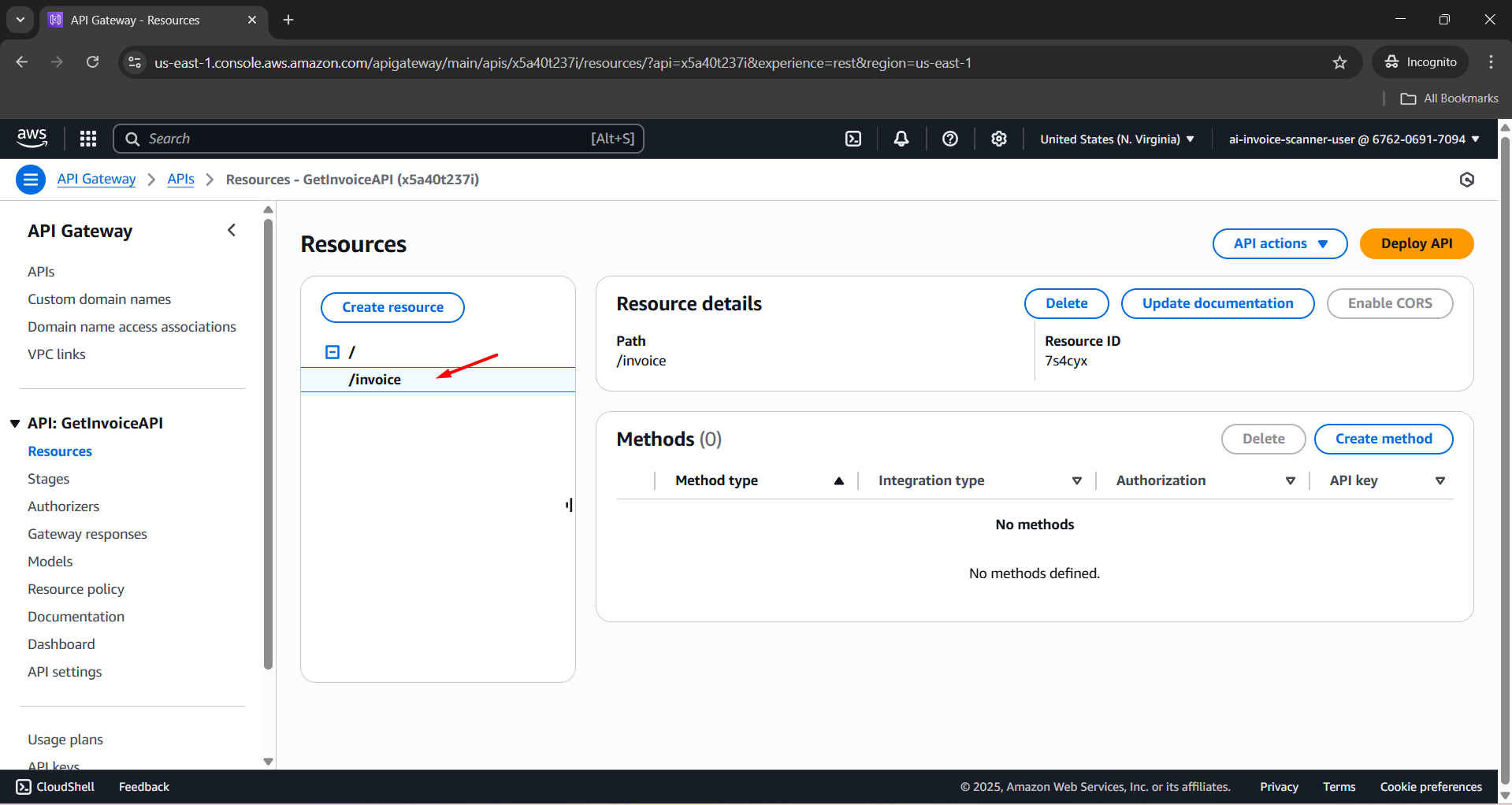
- Click Create method.
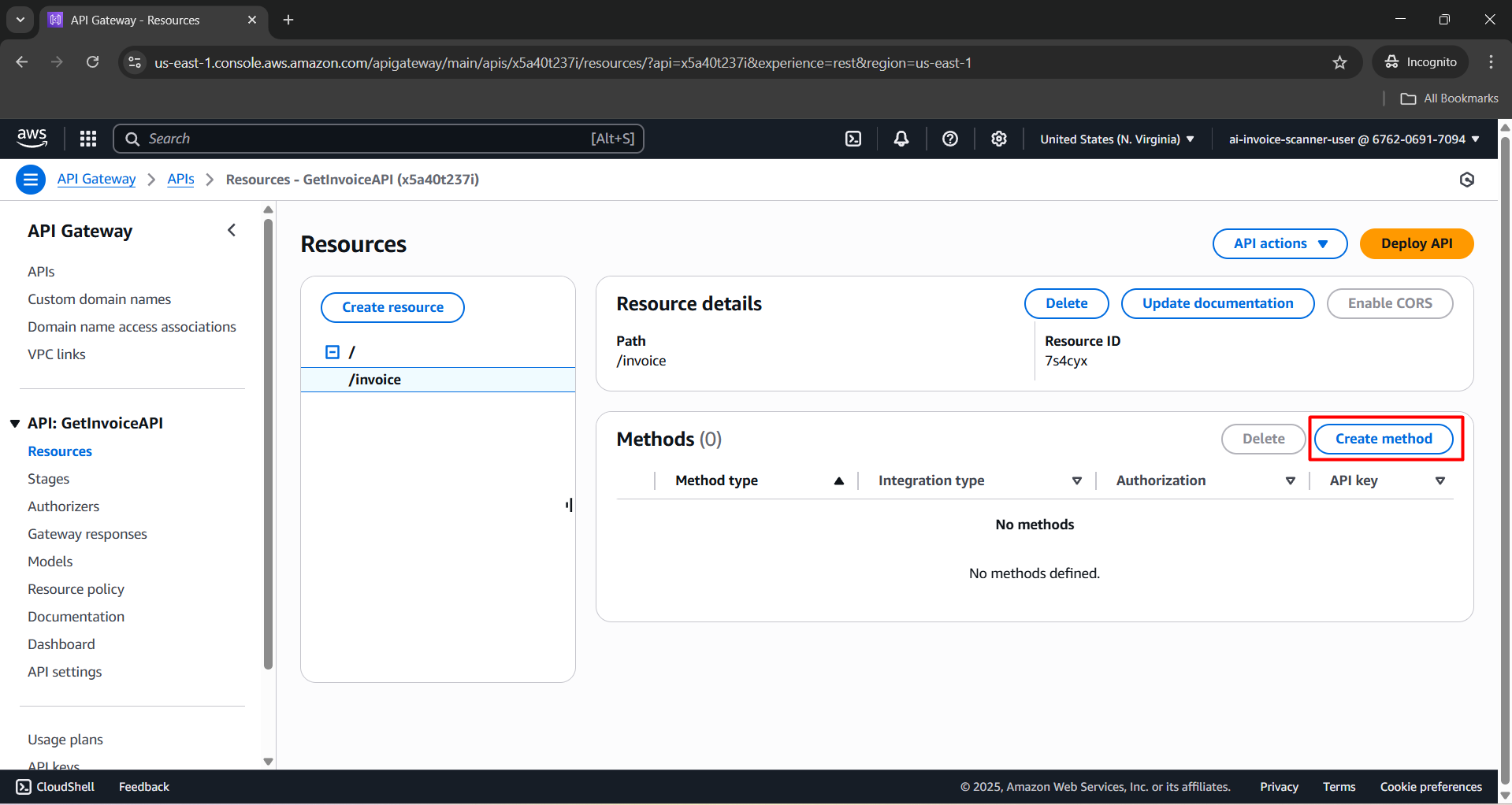
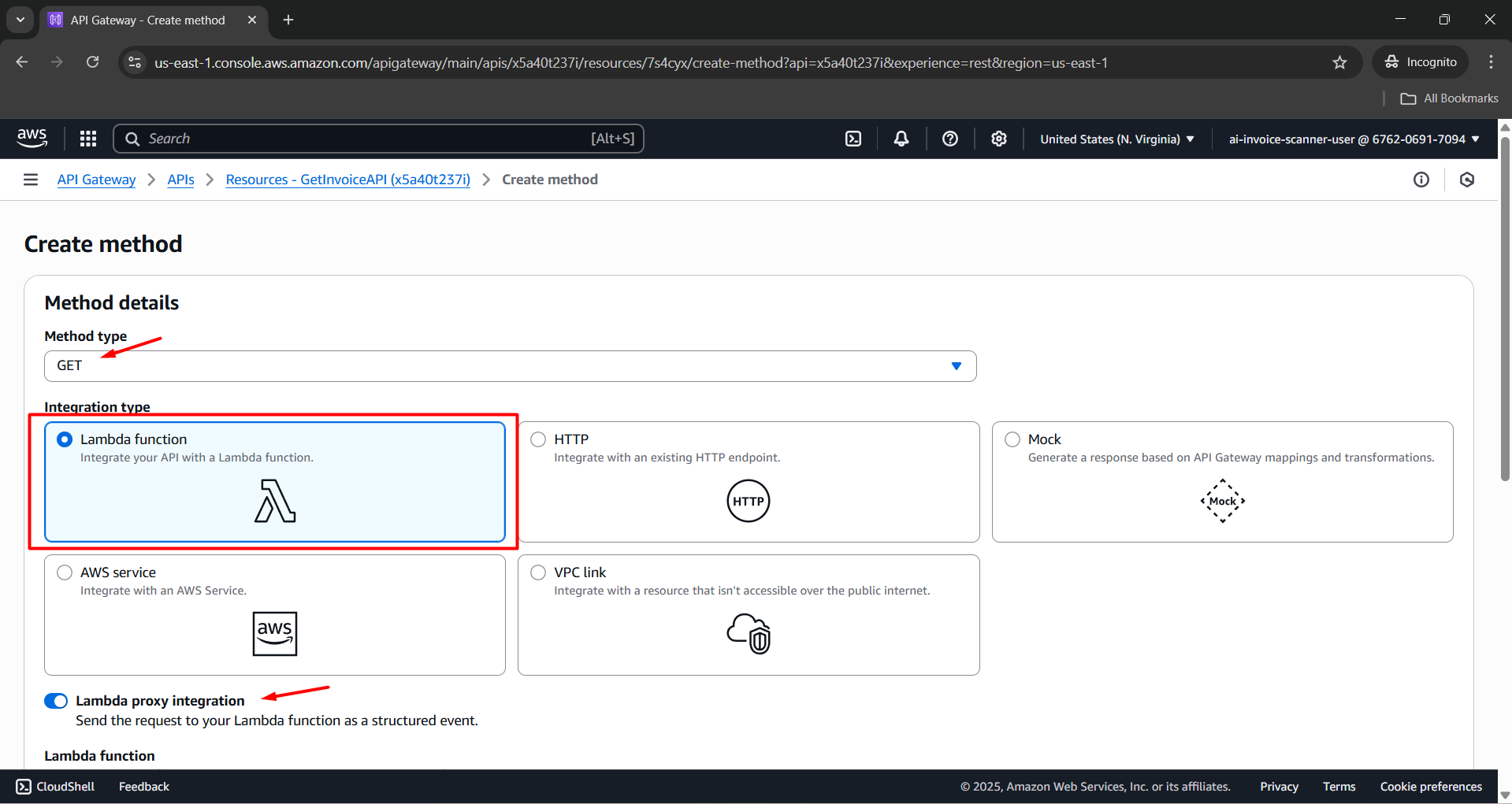
Configure in Create method:
- Method type: GET.
- Integration type: Lambda function.
- Lambda proxy integration: Enabled.
- Lambda function: FetchInvoiceDetailsFunction.
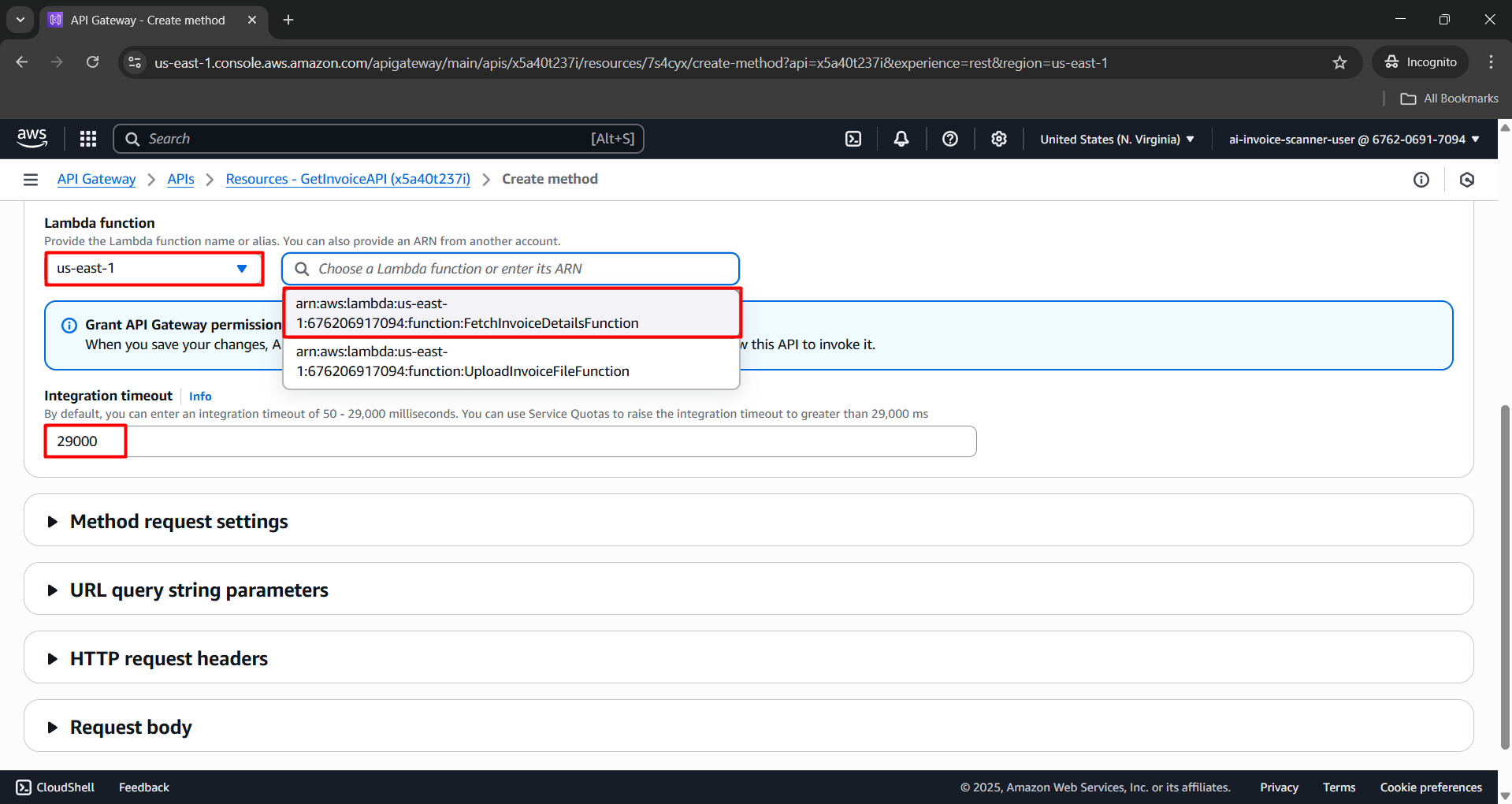
- Click Create method.
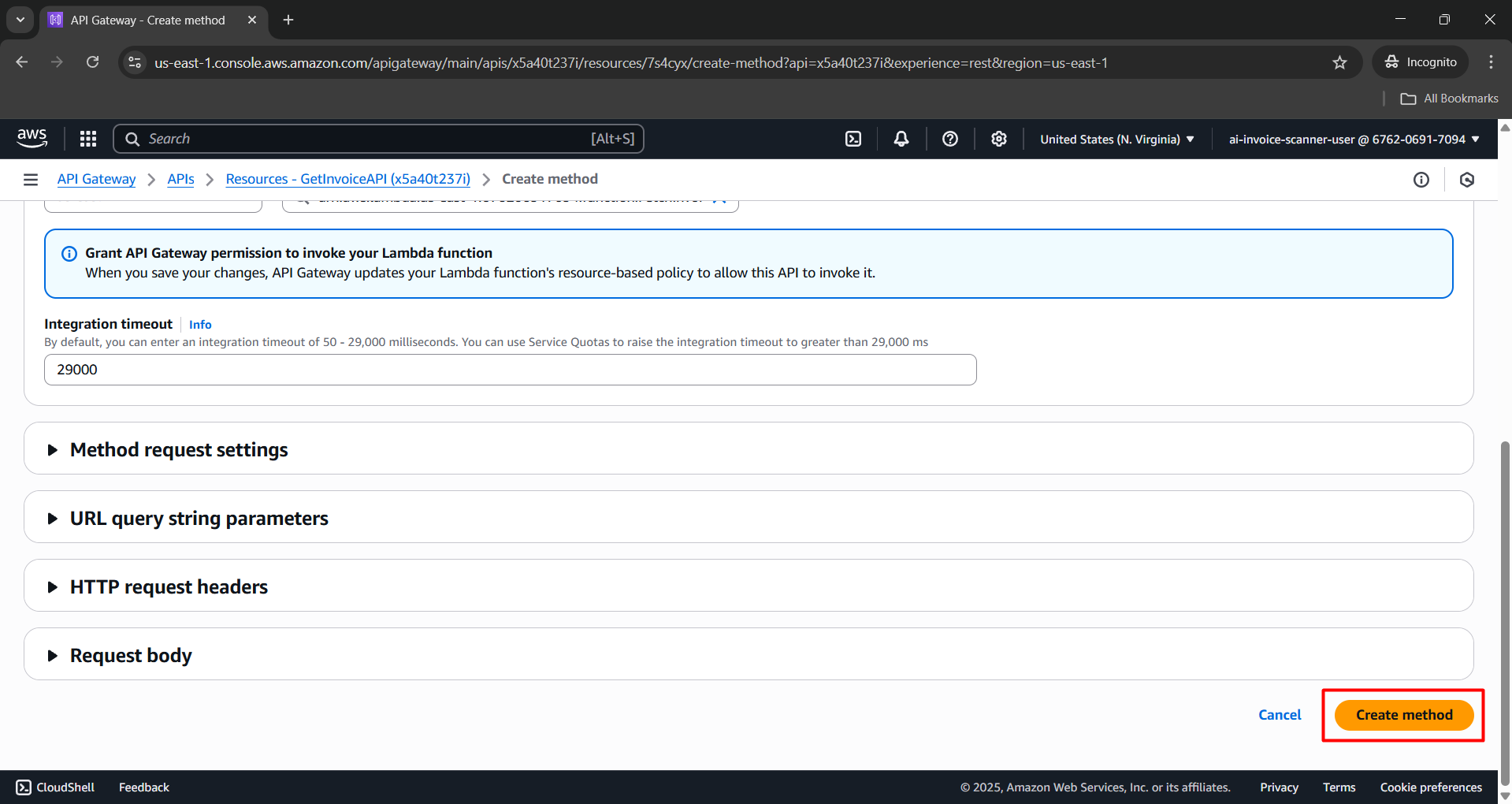
- The API Gateway will be created and redirected to the API Gateway details configuration page.
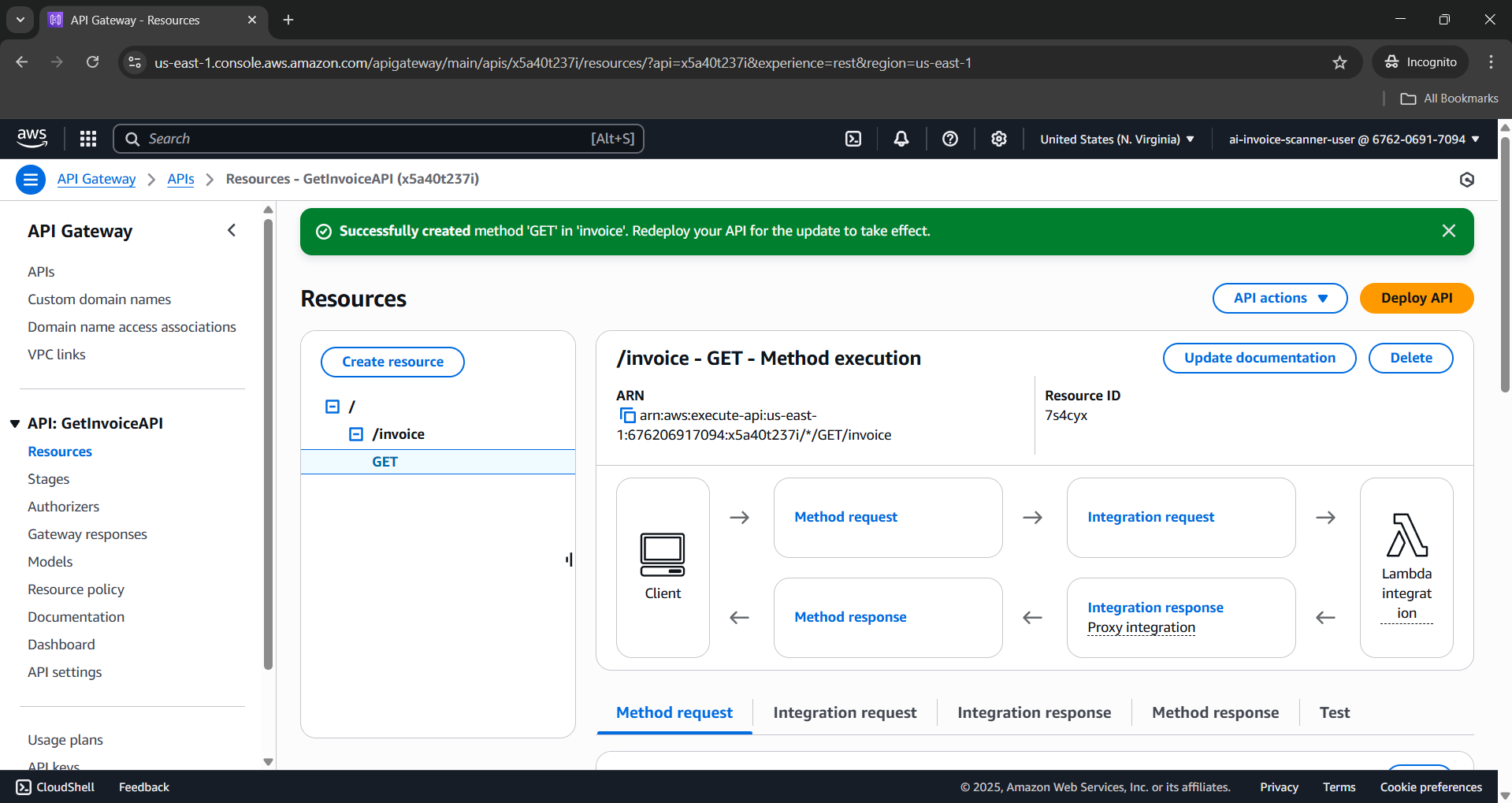
Resource: /invoice/{id}
- In the resource tree, select the
/invoiceresource.
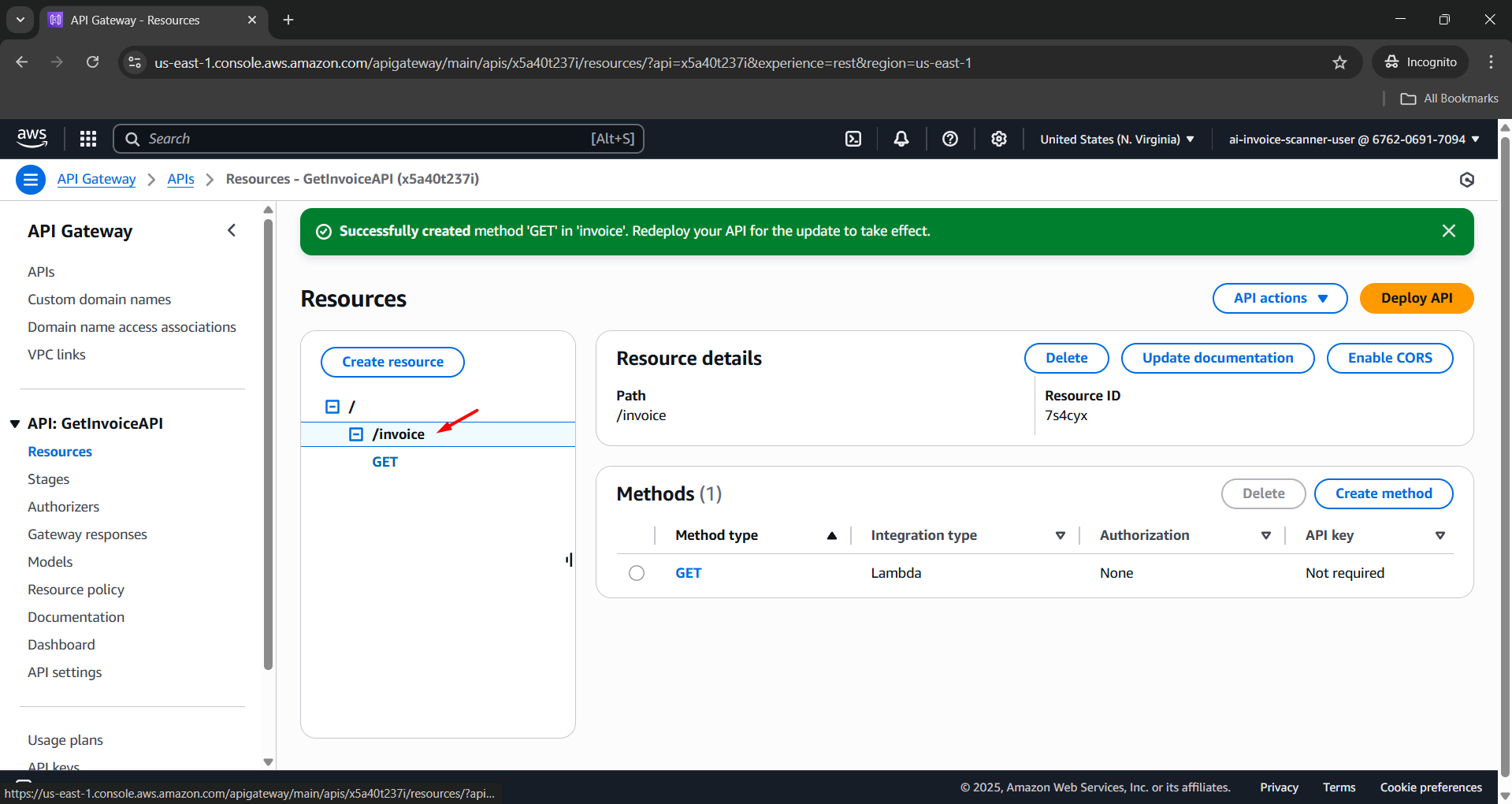
- In the resource tree, select the
/invoiceresource.
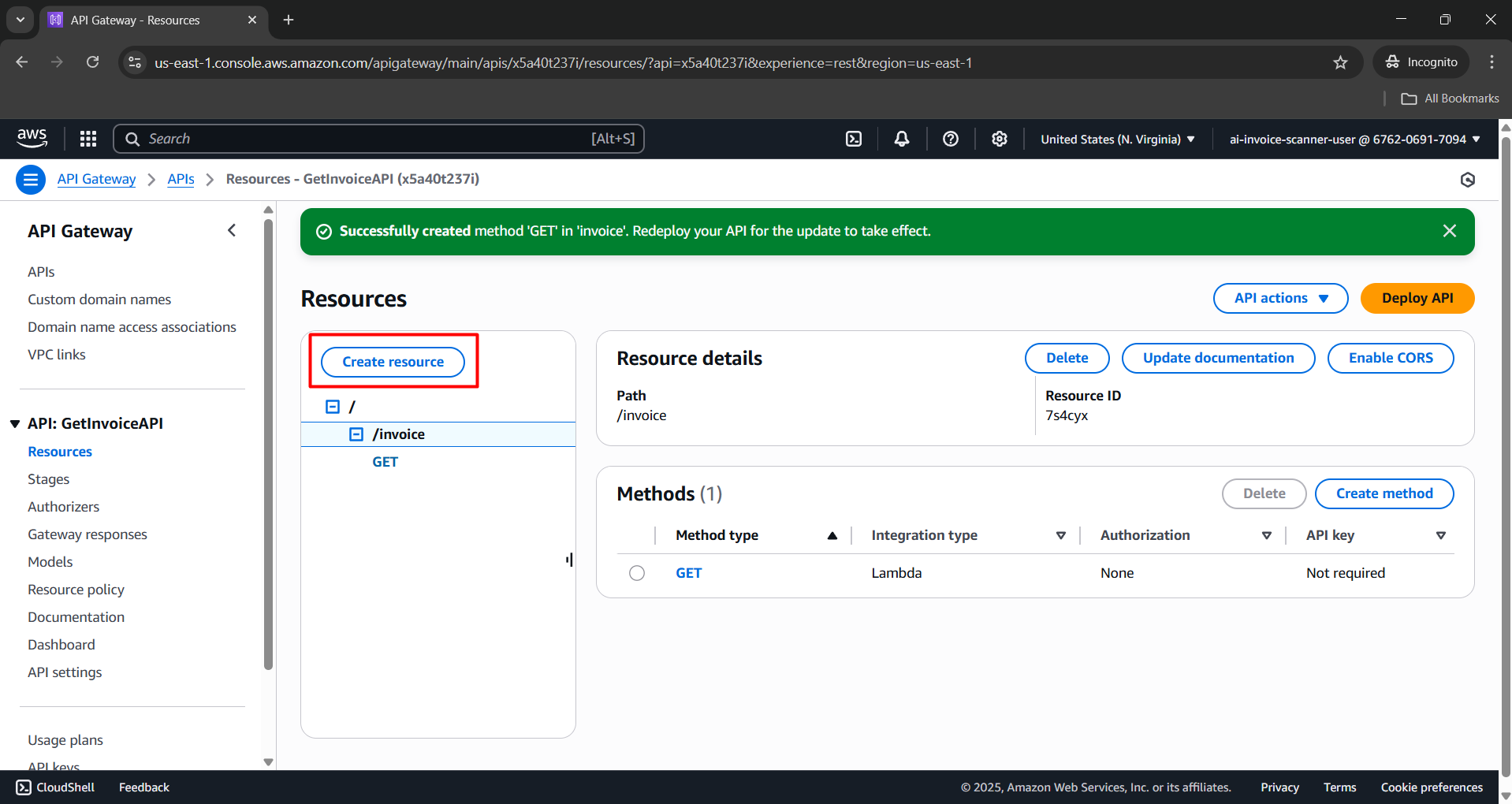
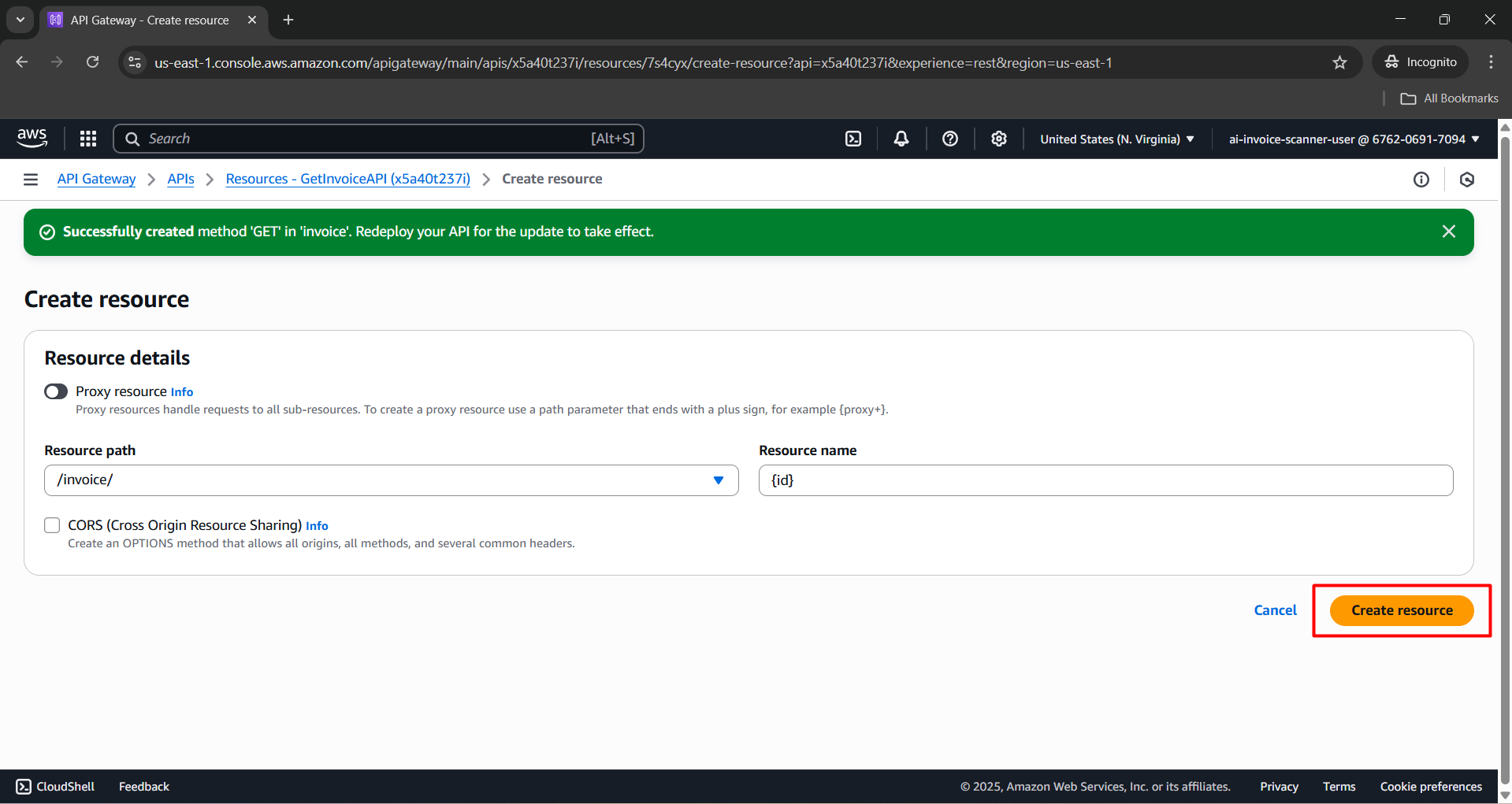
Enter the following:
- Resource path:
/invoice/ - Resource name:
{id}
- Resource path:
Click Create resource.
- After the
/invoice/{id}resource is created, select it again in the resource tree.
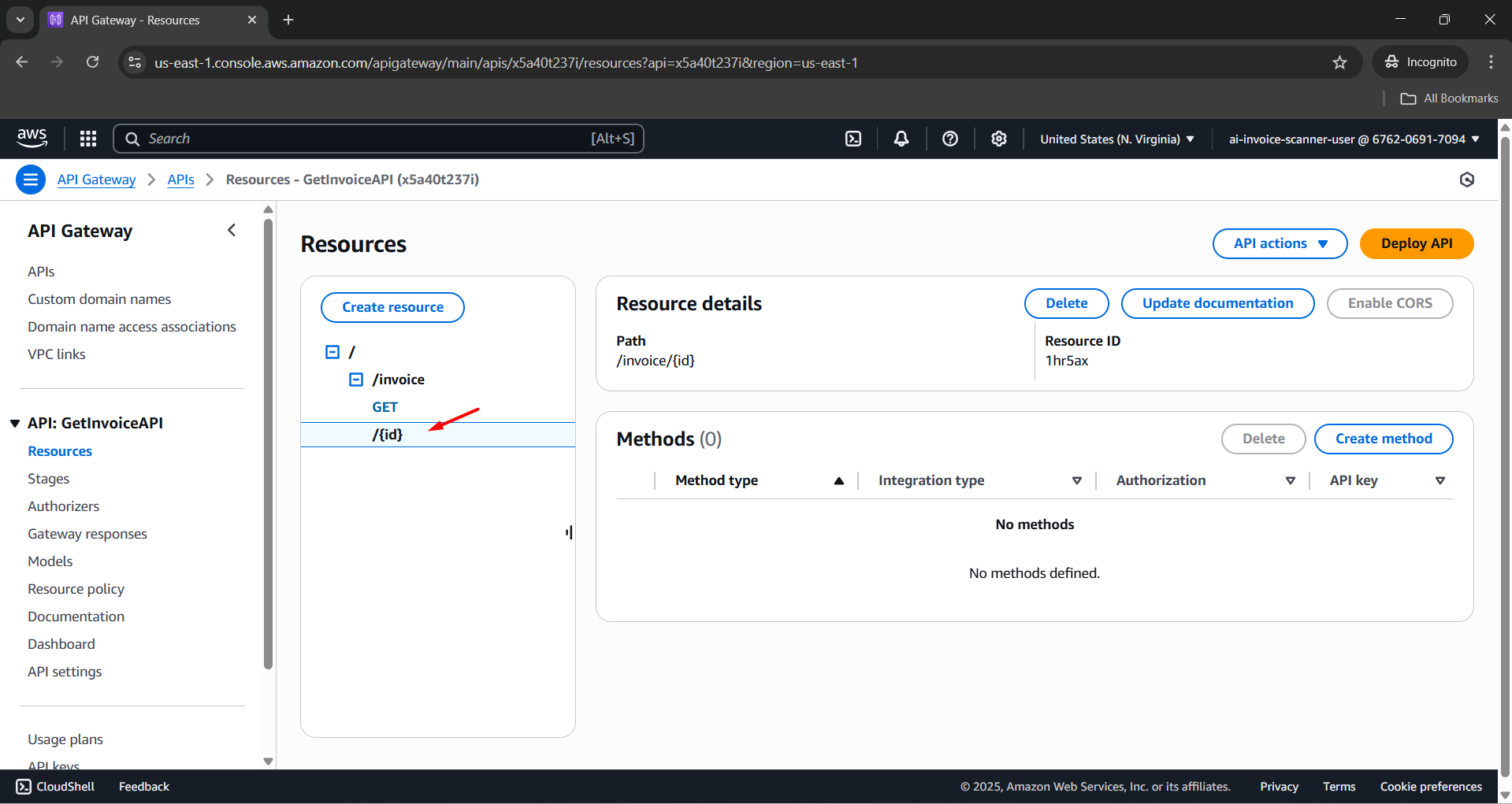
- Click Create method.
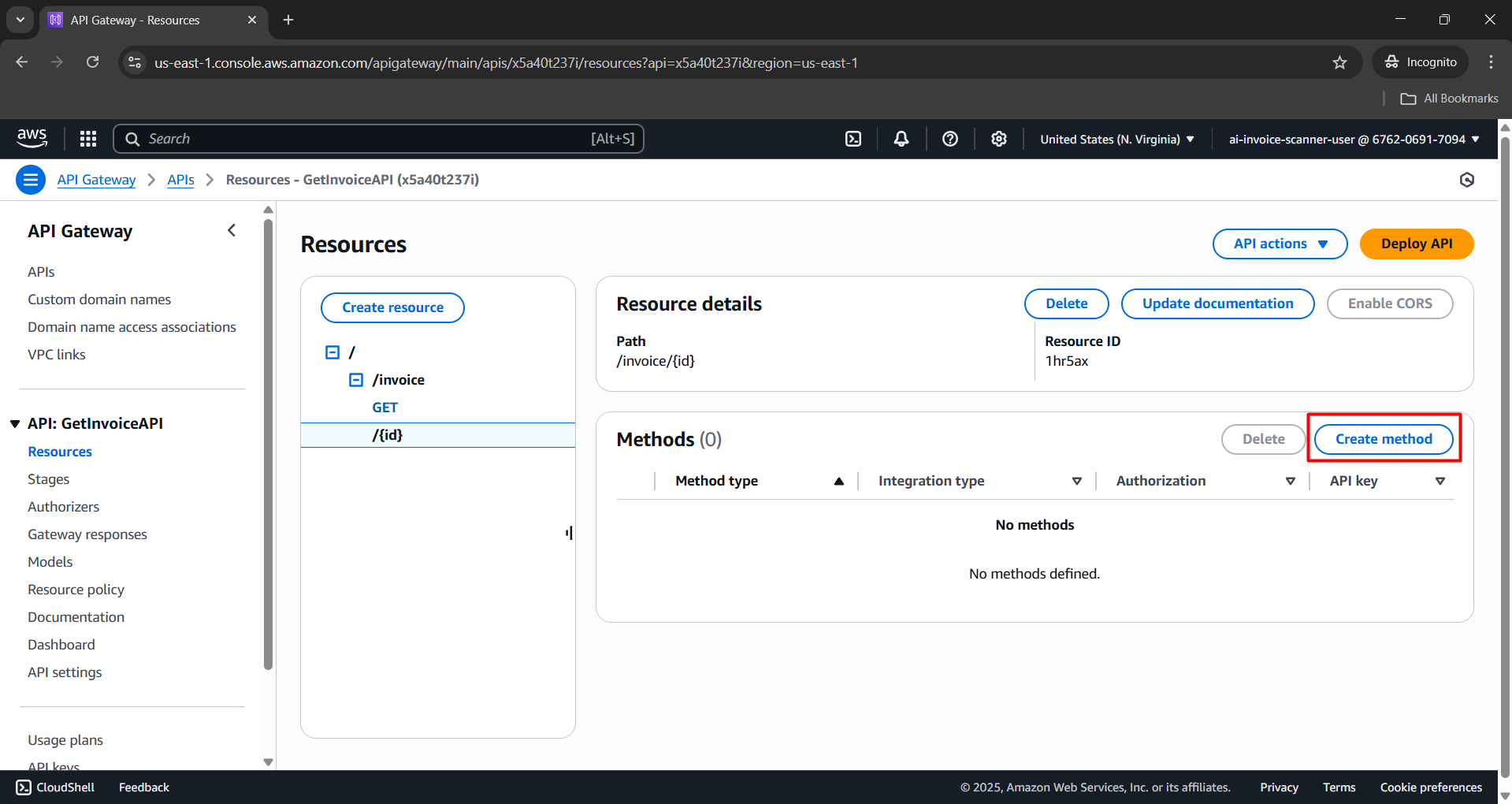
Configure the Create method section:
- Method type: GET.
- Integration type: Lambda function.
- Lambda proxy integration: Enabled.
- Lambda function: FetchInvoiceDetailsFunction.
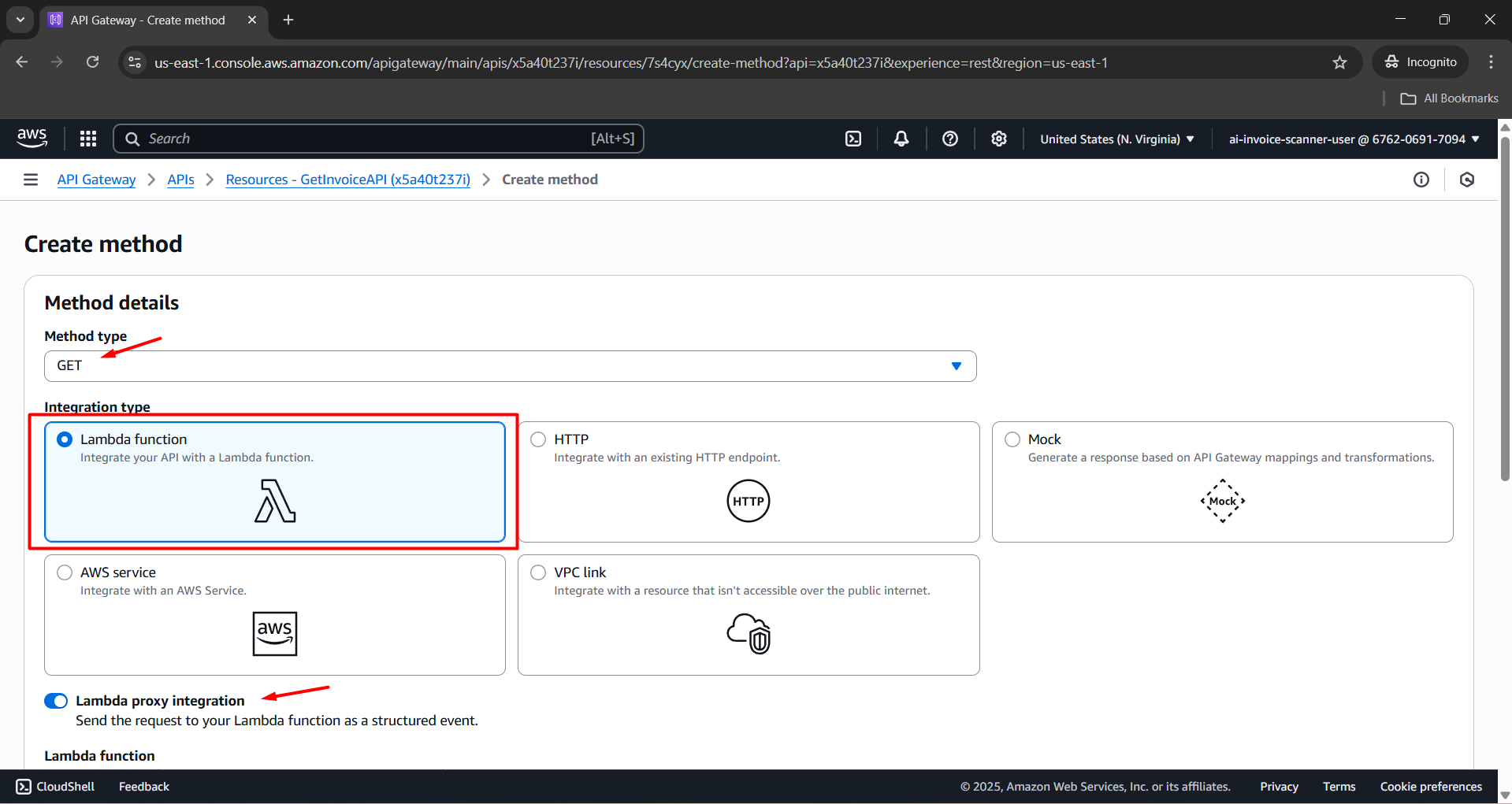
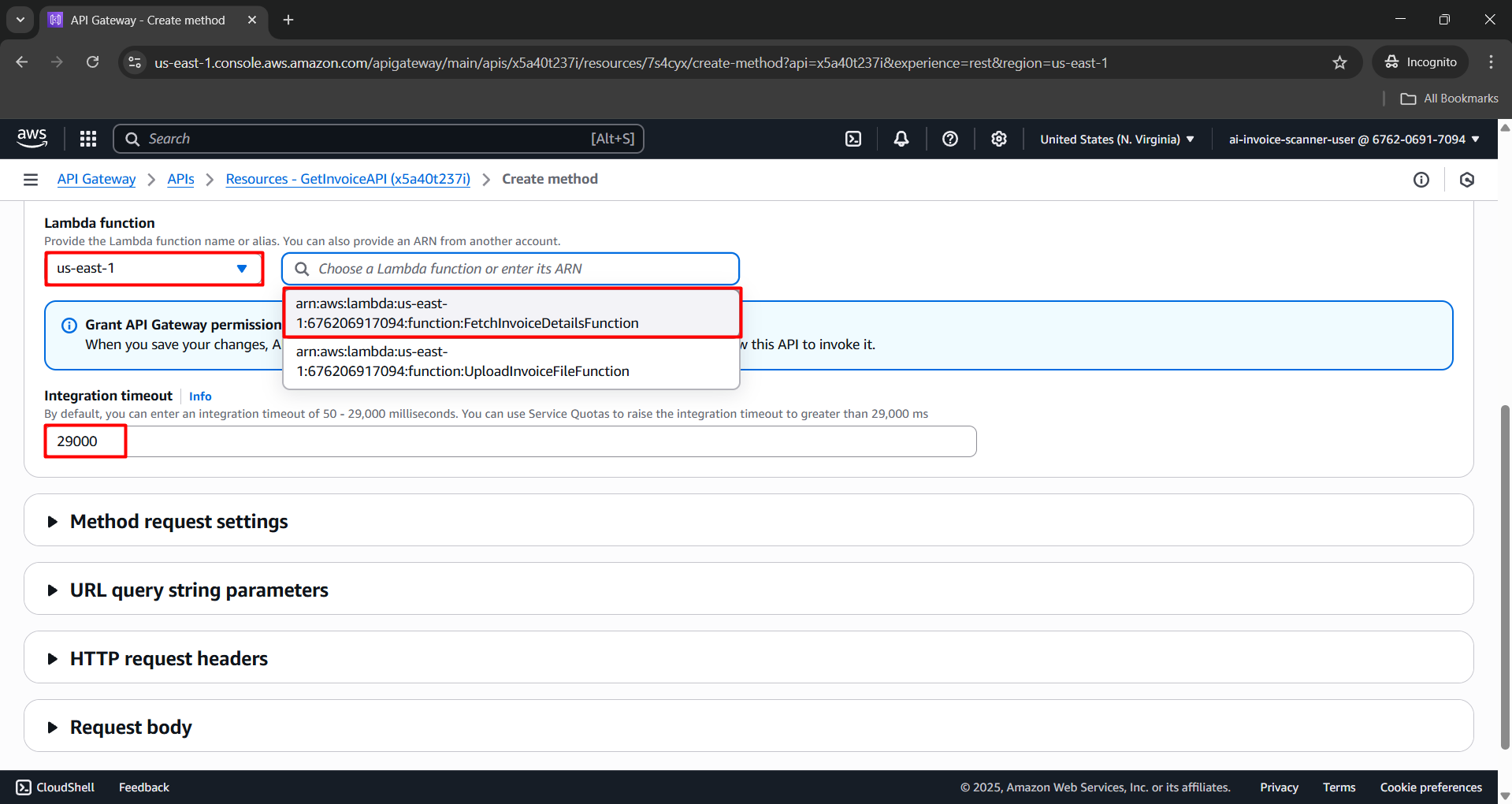
- Click Create method.
Proceed to add a PATCH method.
- Select the resource in the tree and click Create method again.
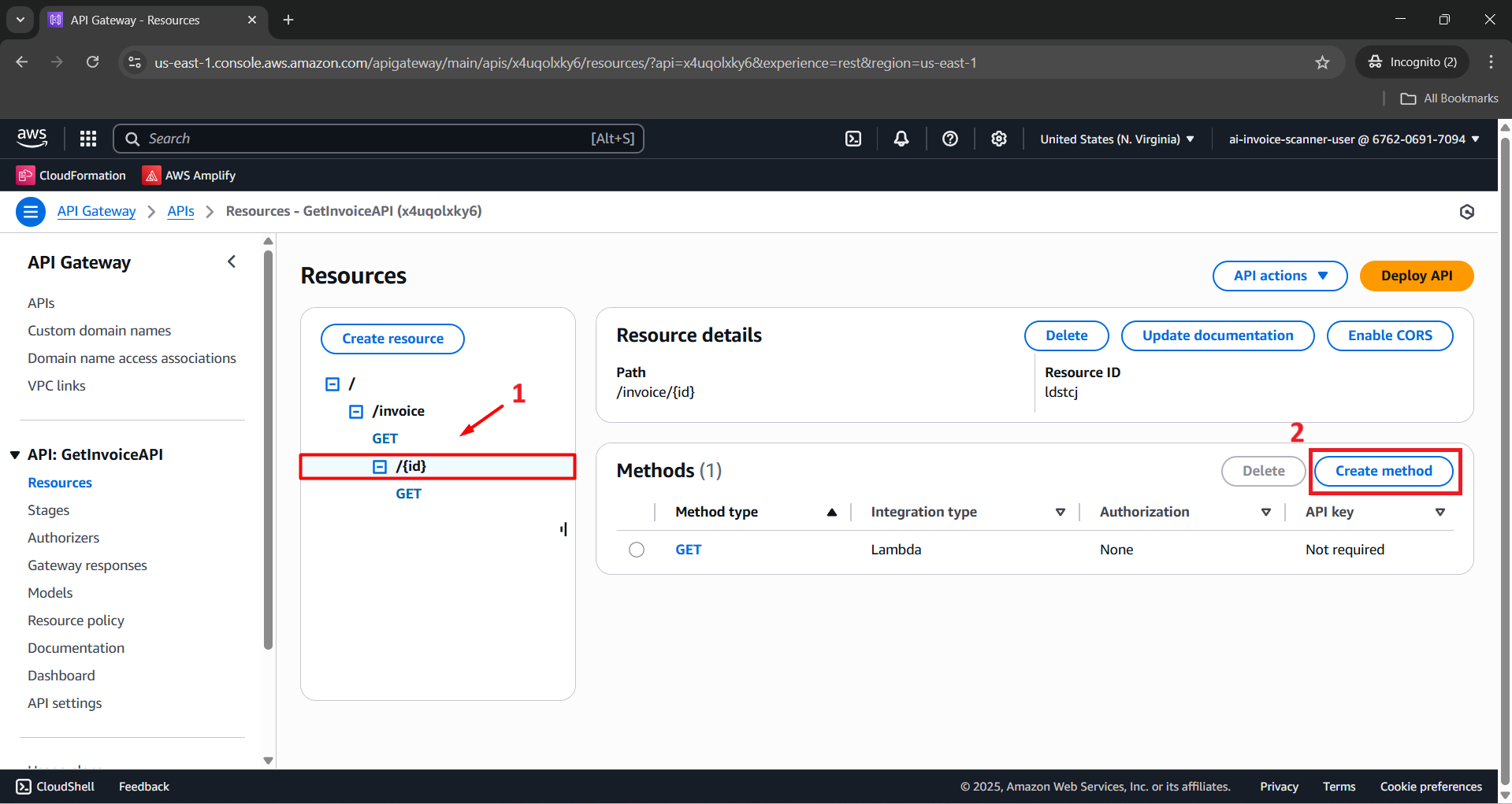
- Configure similarly:

    - **Method type**: PATCH
    - **Integration type**: Lambda Function
    - **Use Lambda Proxy integration**: Enabled
    - **Lambda Function**: FetchInvoiceDetailsFunction
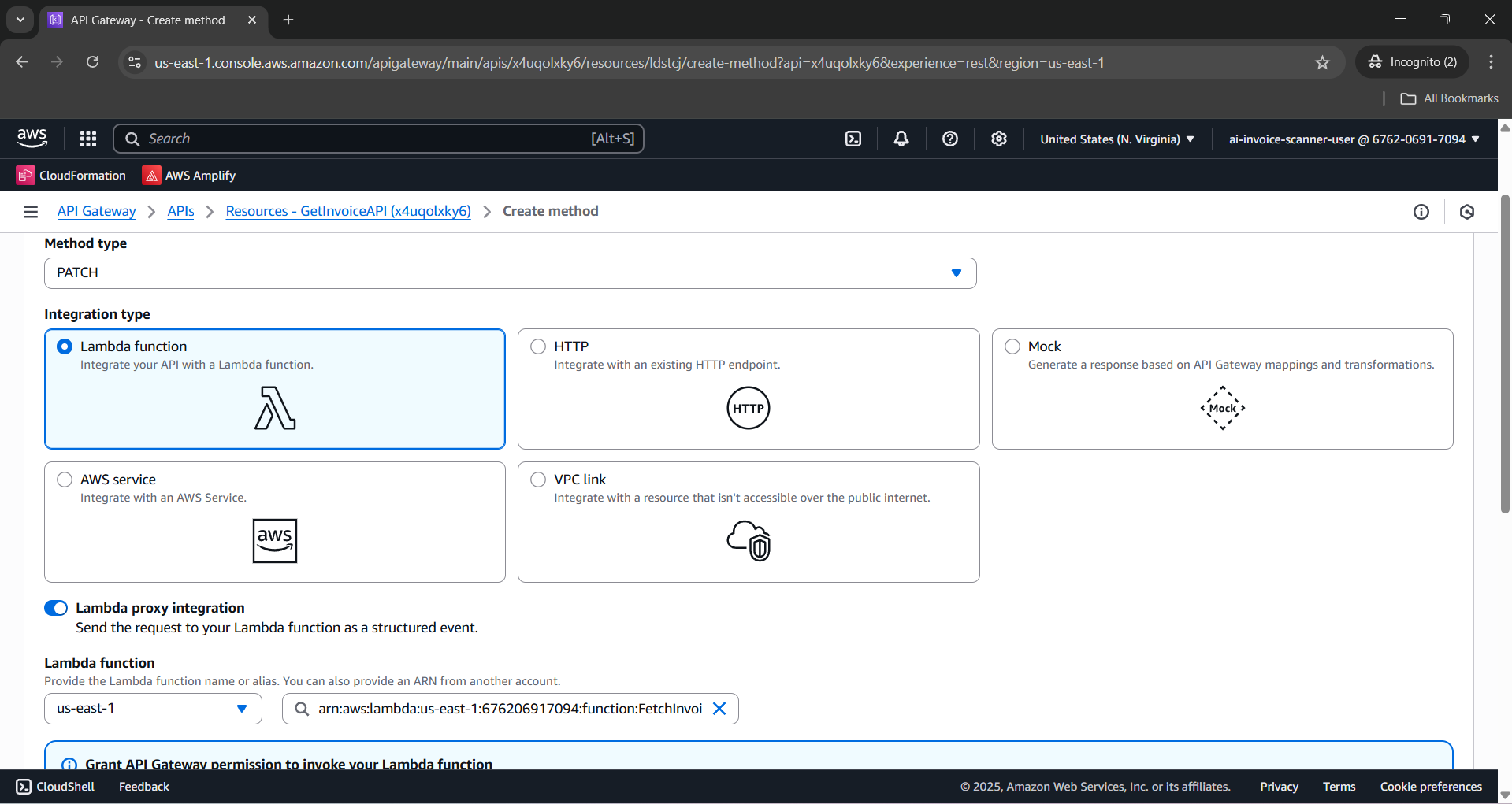
- Click Create method.
Resource: /invoice/starred
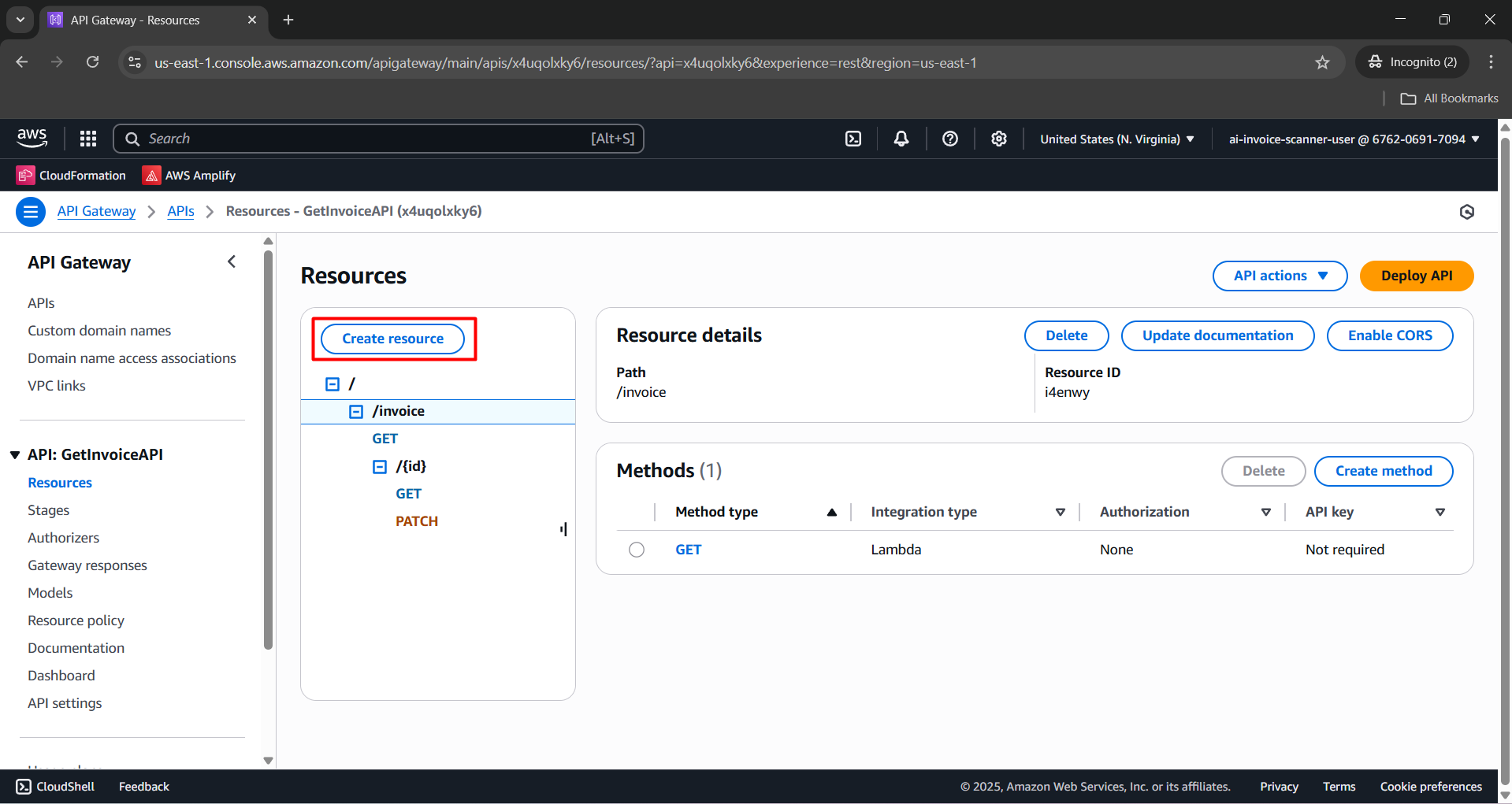
- In the GetInvoiceAPI, select the
/invoiceresource.
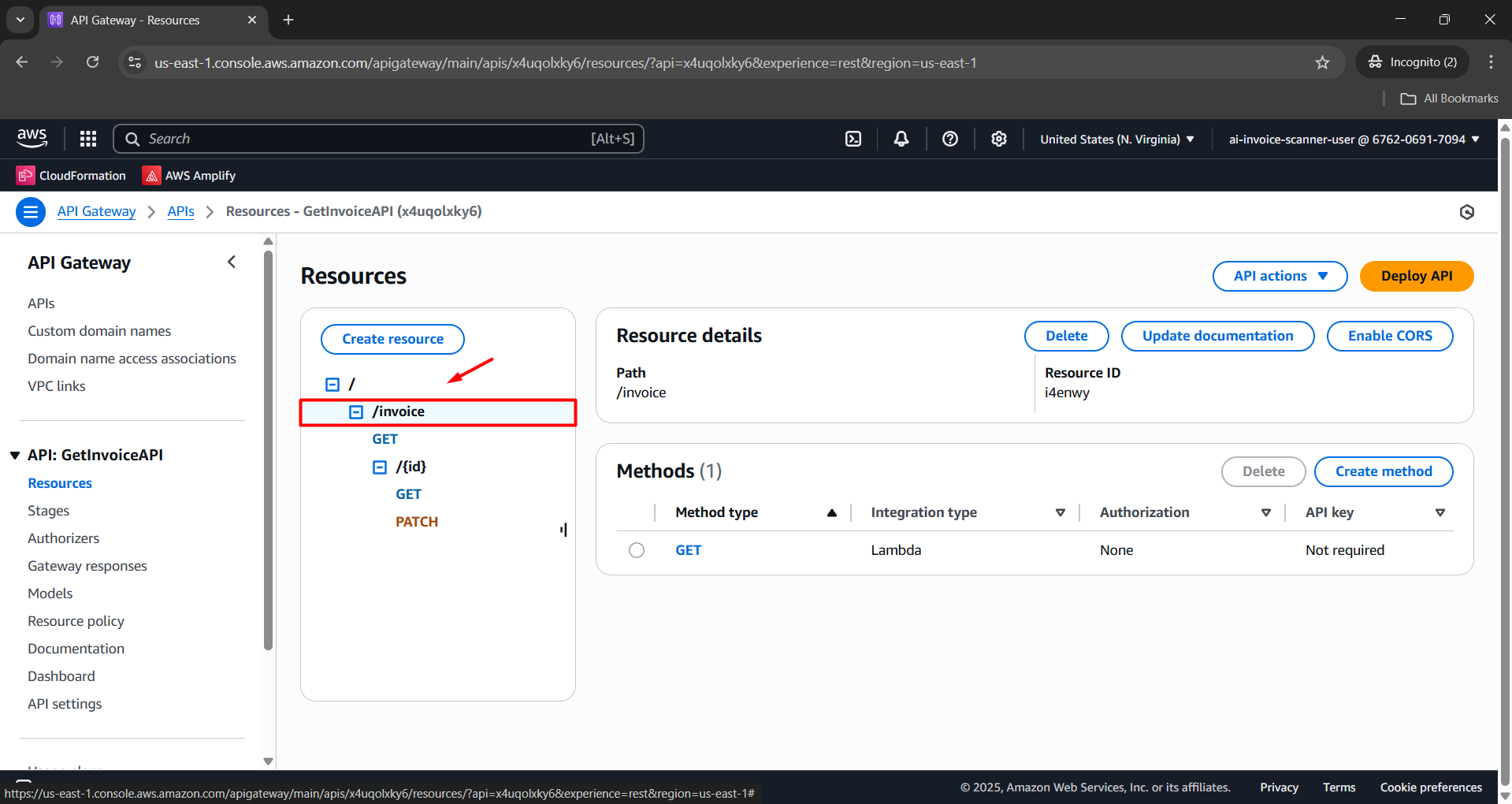
- Click Create resource.
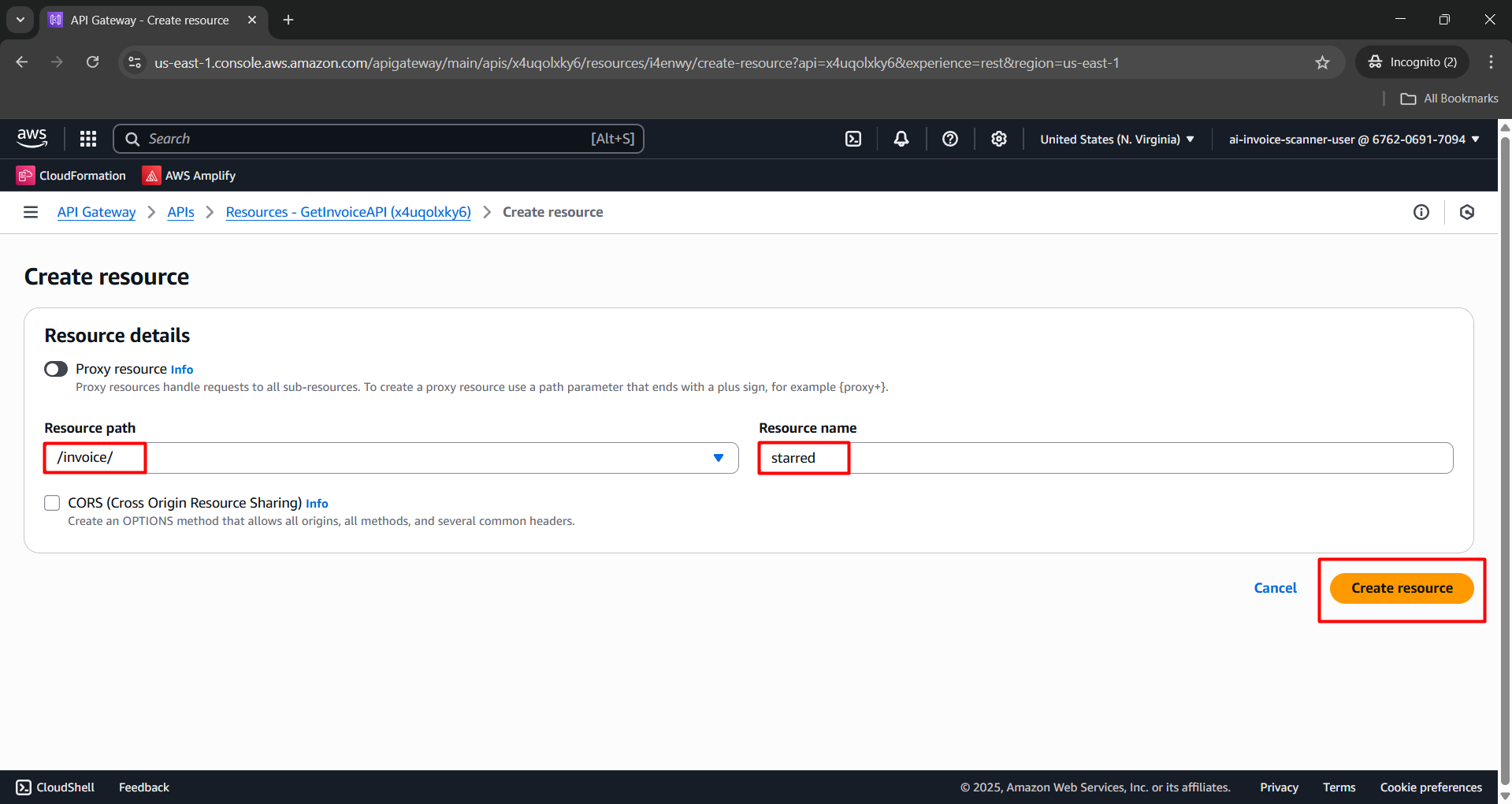
Configure:
- Resource path:
/invoice/ - Resource name:
starred
- Resource path:
Click Create resource.
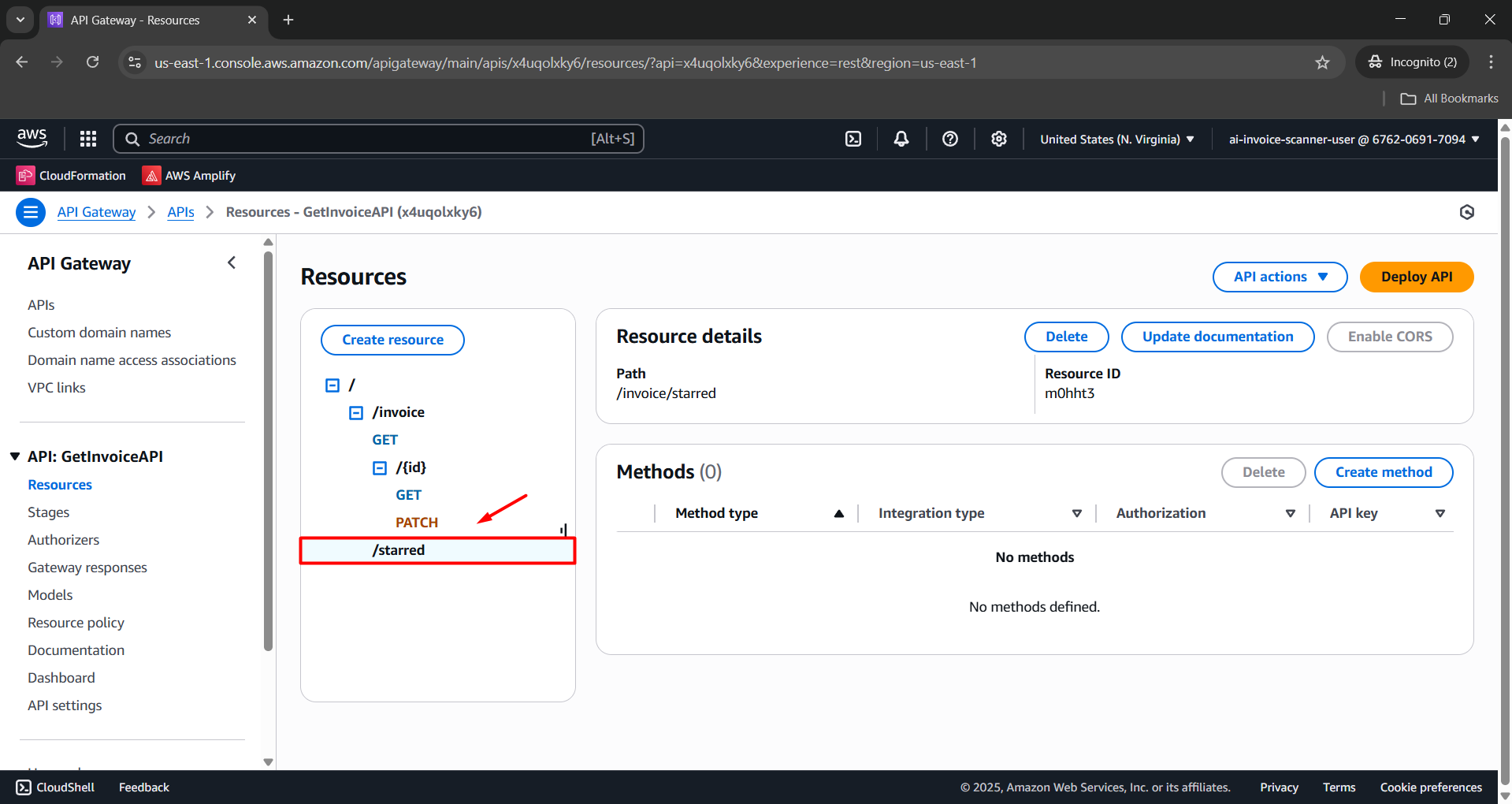
- After the resource is created, select
/invoice/starredin the tree.
- Click Create method.
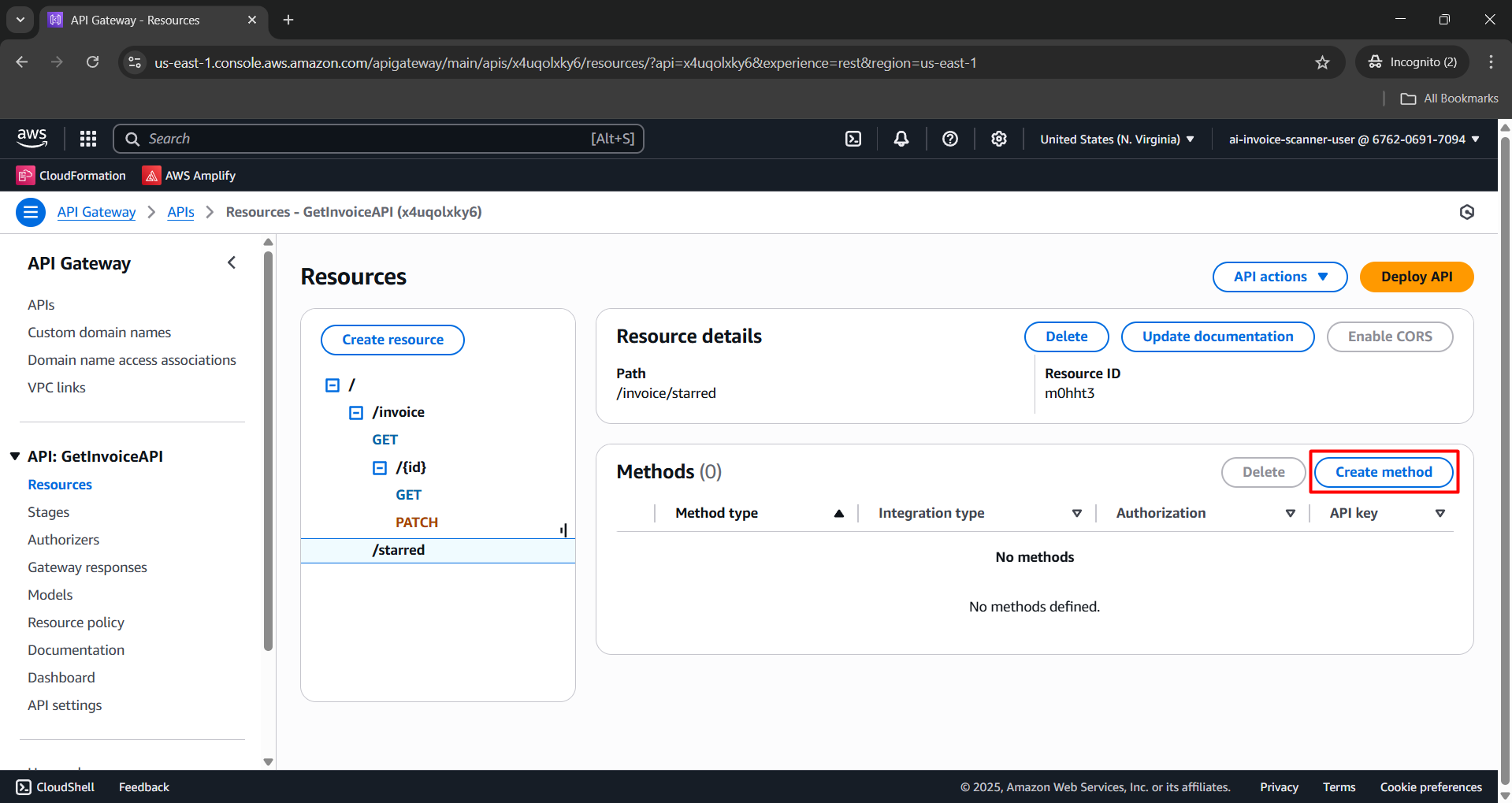
Configure the Create method:
- Method type: GET.
- Integration type: Lambda function.
- Lambda proxy integration: Enabled.
- Lambda function: FetchInvoiceDetailsFunction.
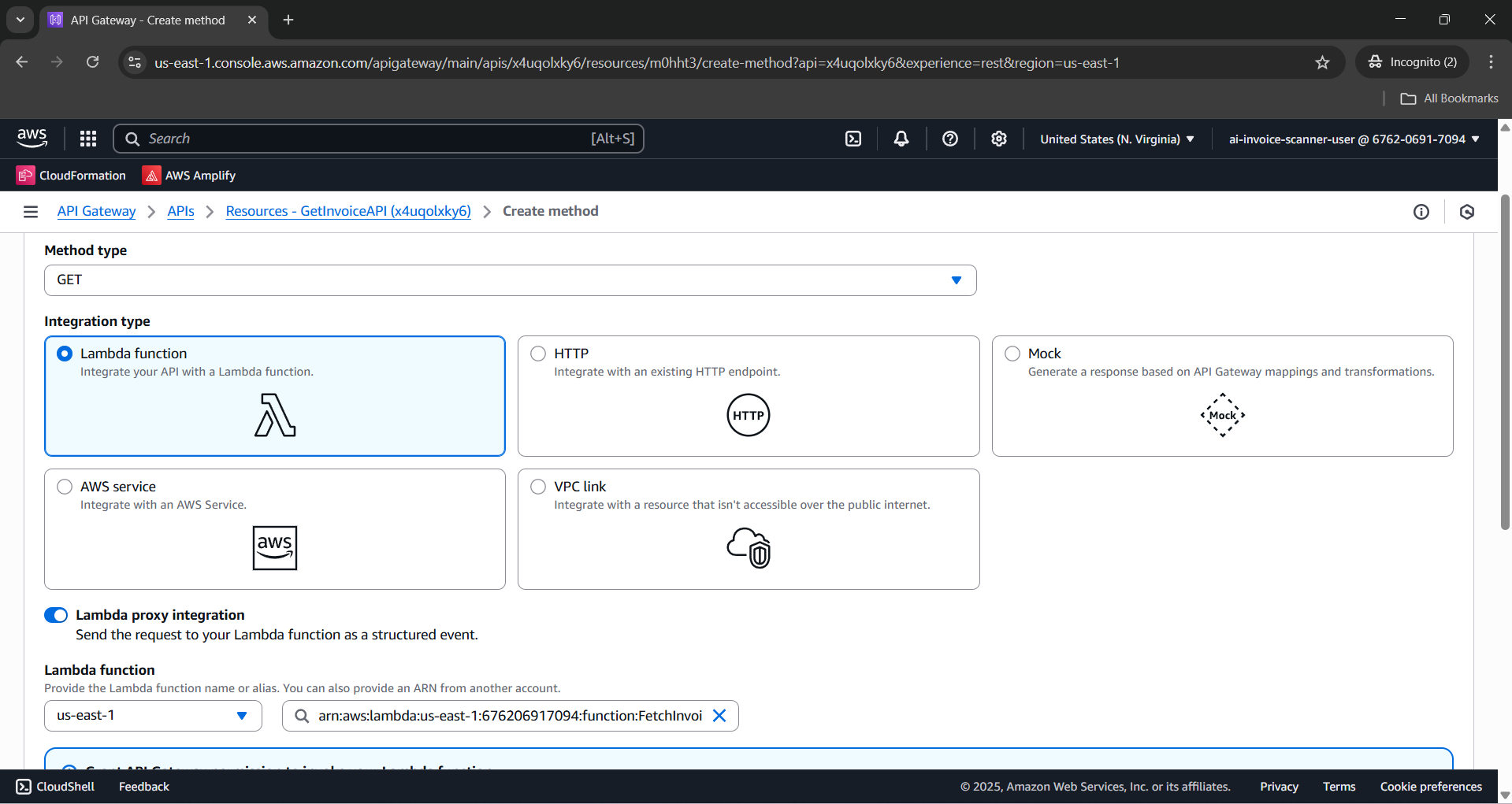
- Click Create method.
Resource: /invoice/starred/{id}
- In GetInvoiceAPI, select
/invoice/starred.
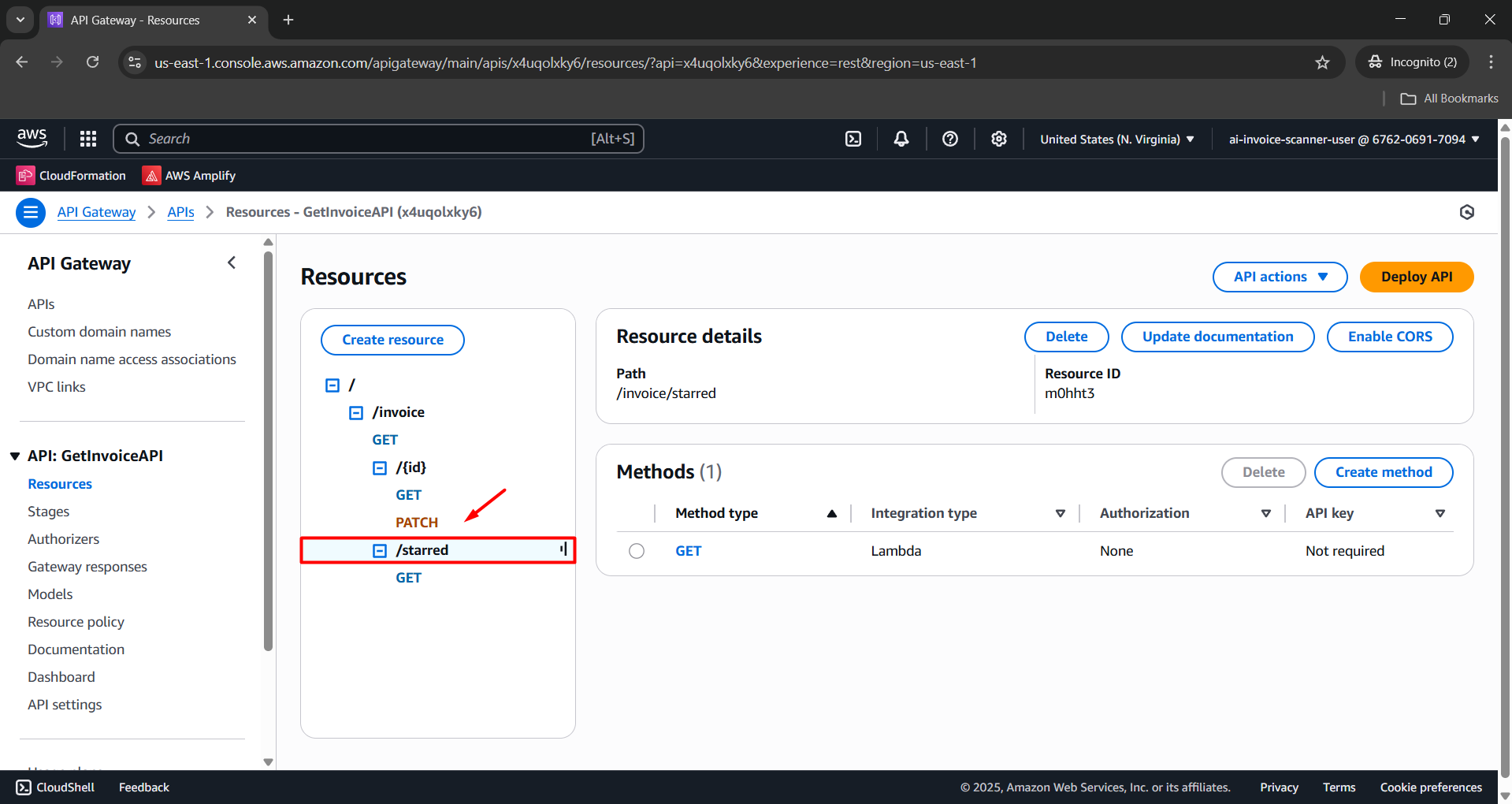
- Click Create resource.
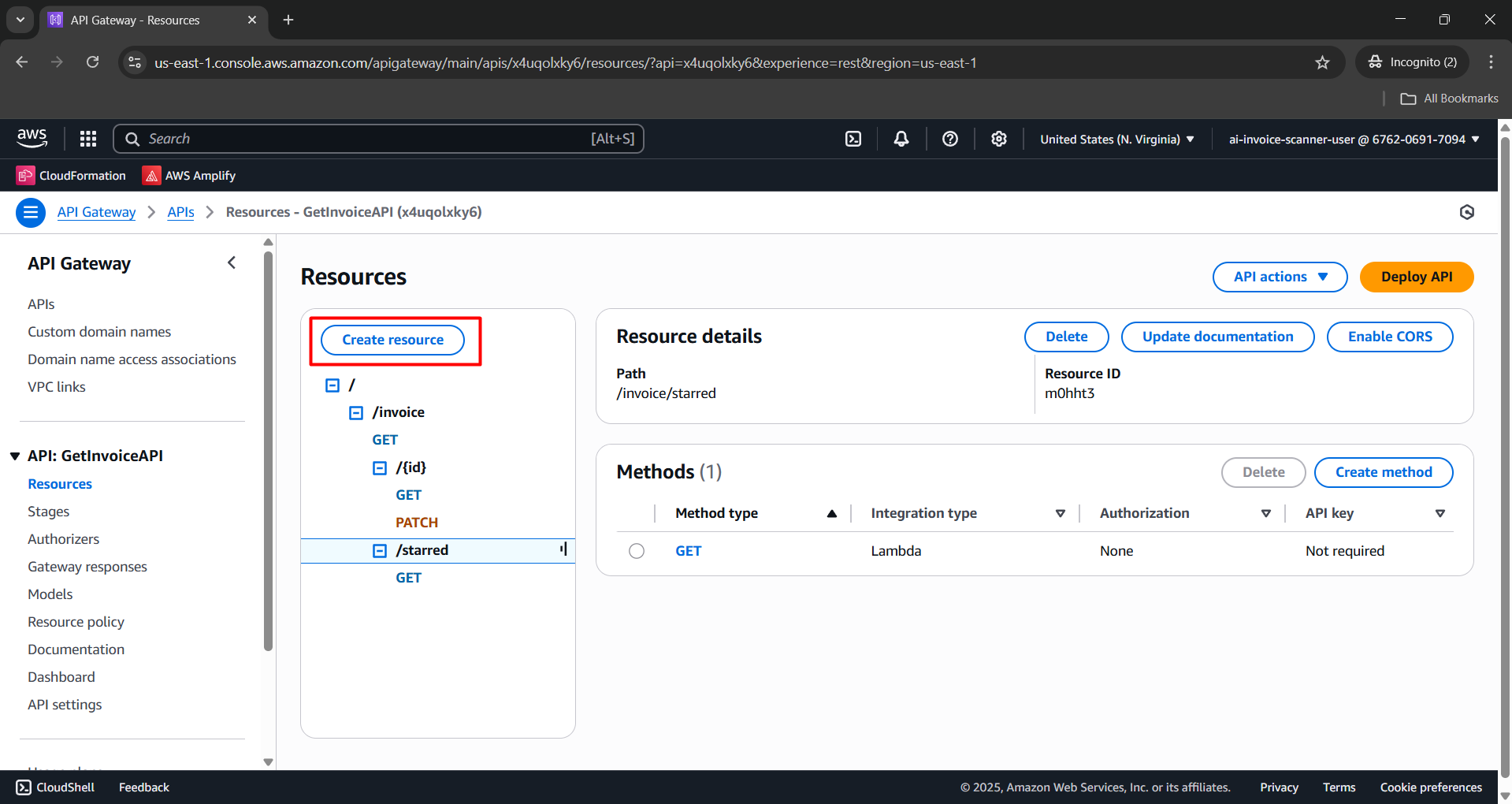
Configure:
- Resource path:
/invoice/starred/ - Resource name:
{id}
- Resource path:
Click Create resource.
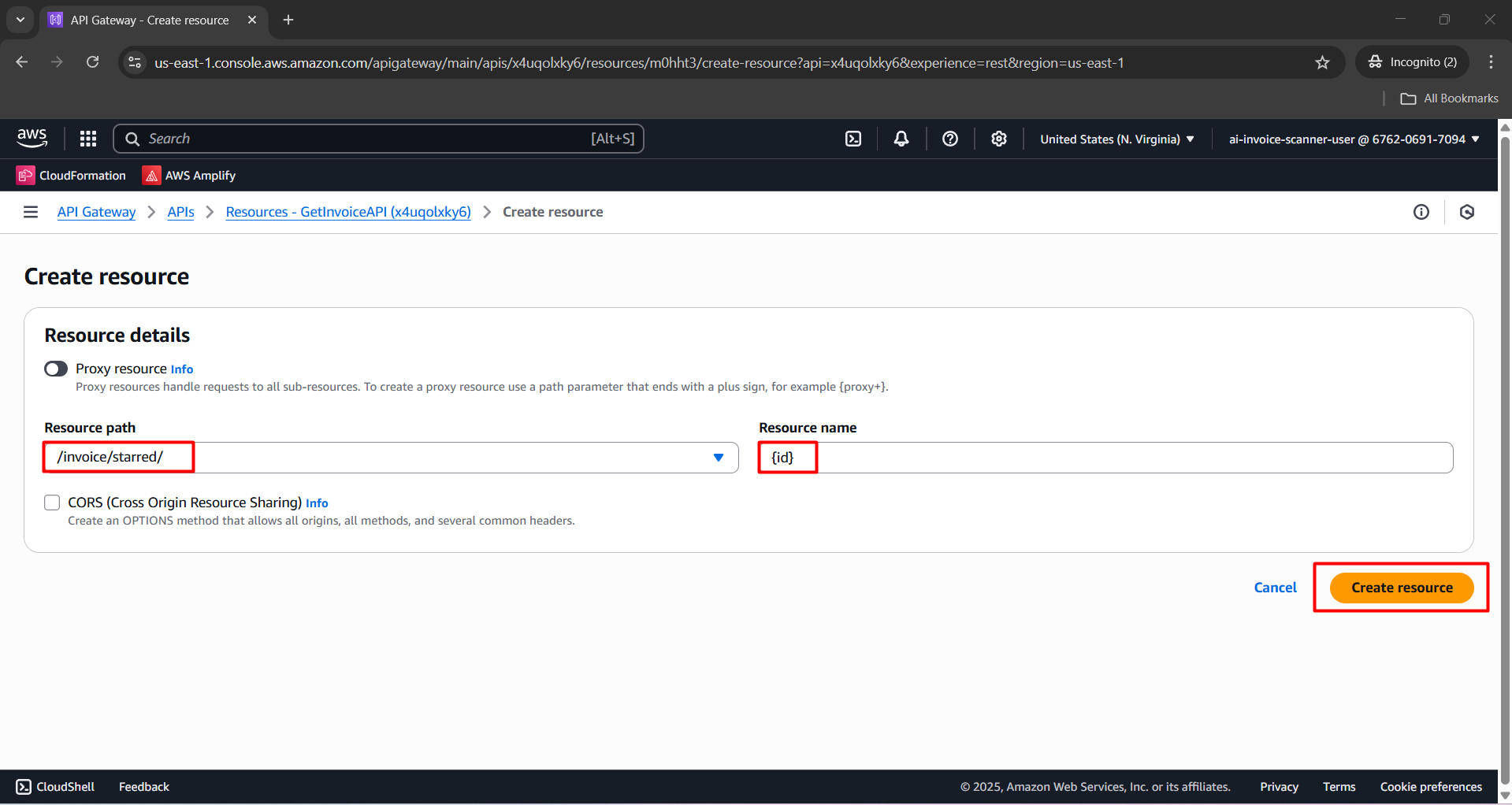
- After the resource is created, select
/invoice/starred/{id}. - Click Create method.
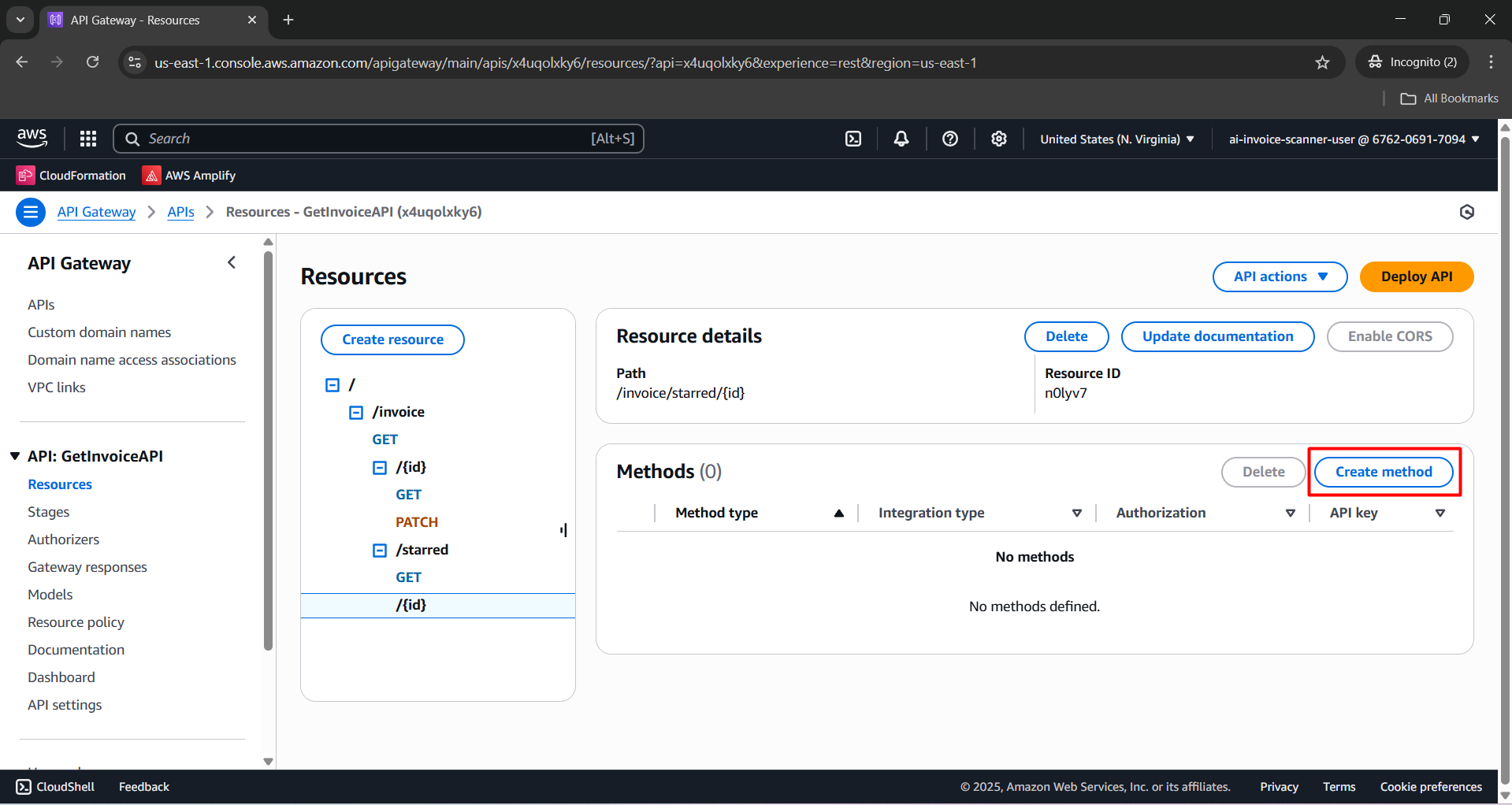
Configure the Create method:
- Method type: PATCH.
- Integration type: Lambda function.
- Lambda proxy integration: Enabled.
- Lambda function: FetchInvoiceDetailsFunction.
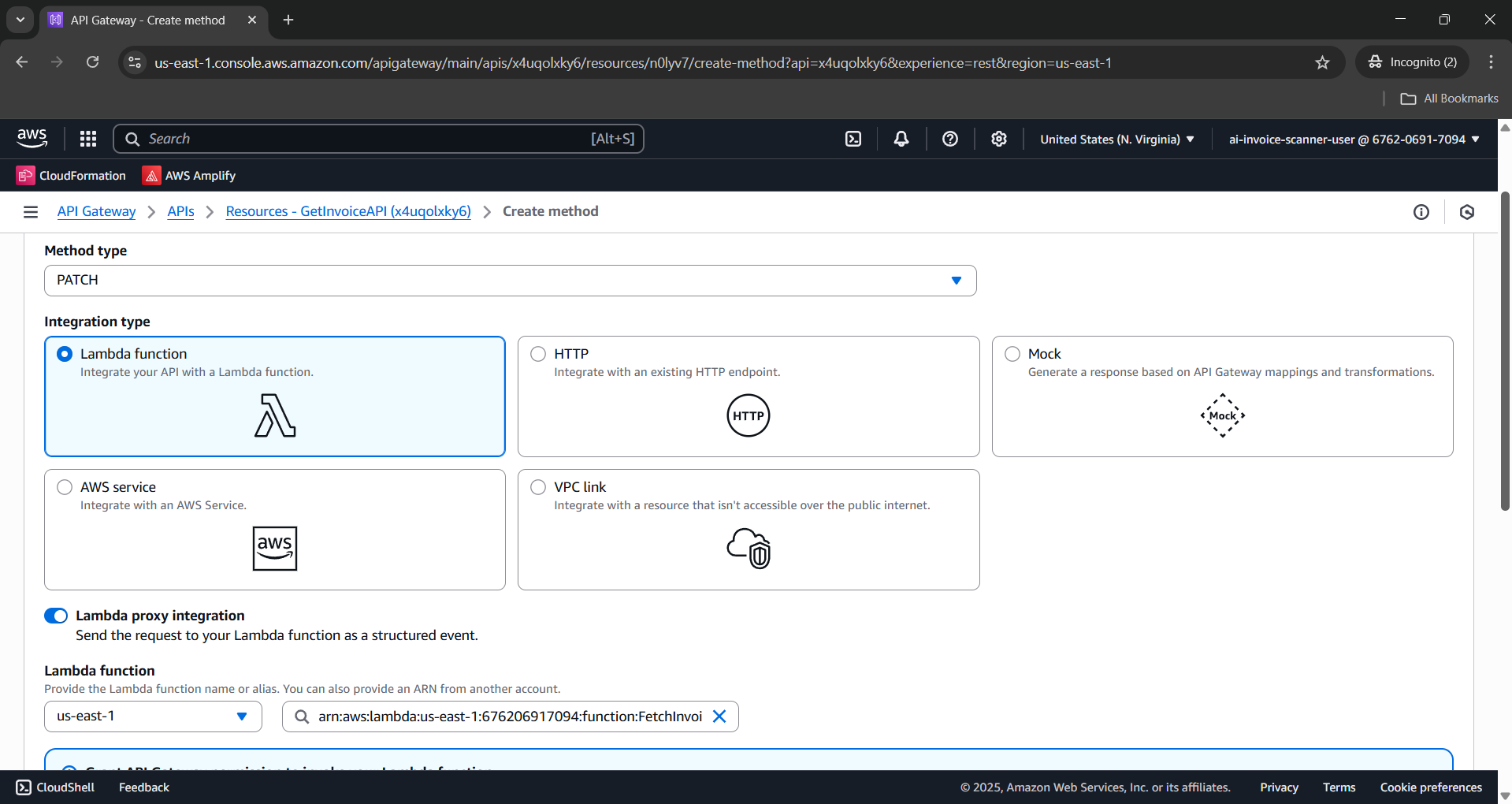
- Click Create method.
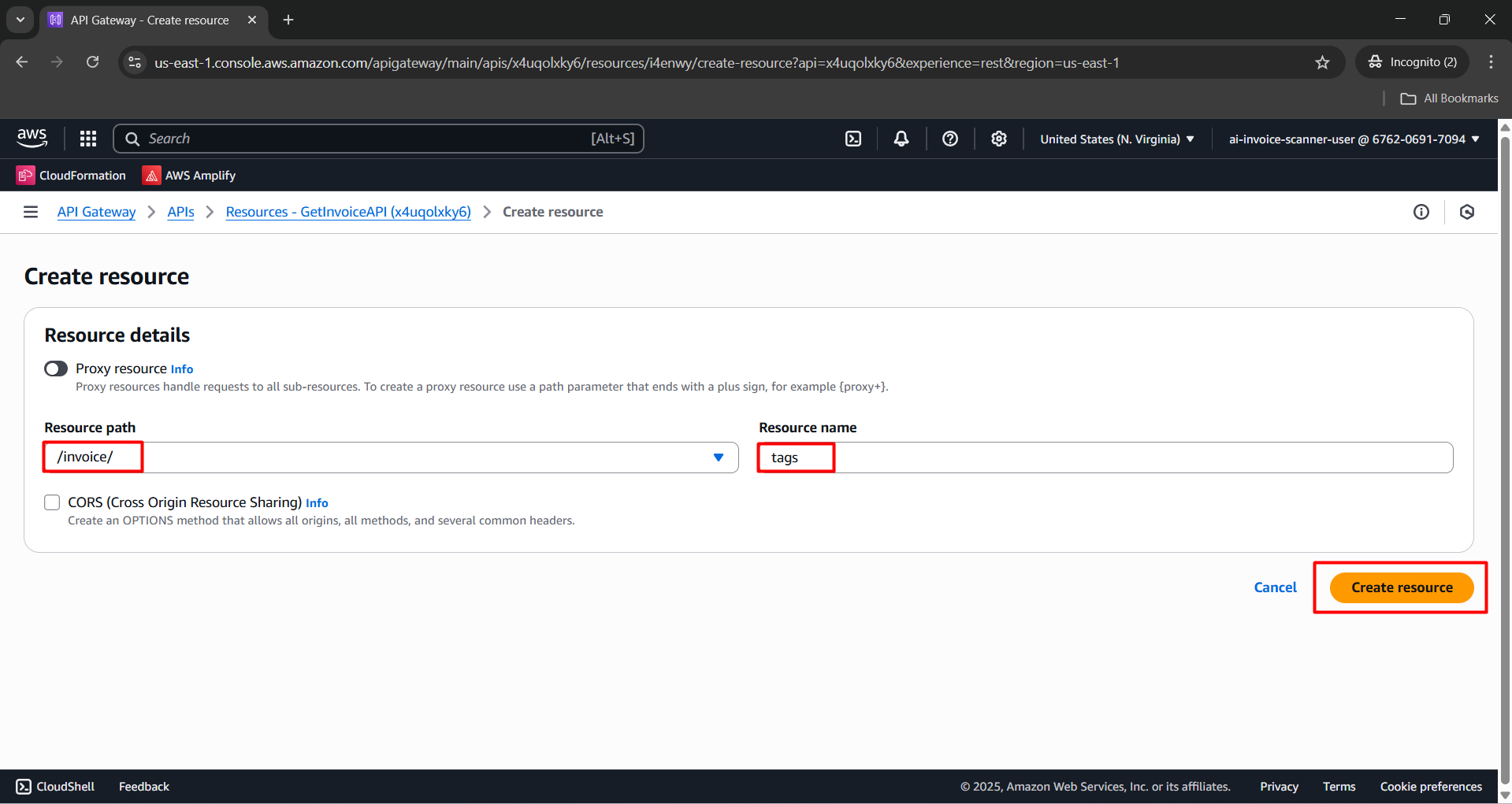
Resource: /invoice/tags
- In GetInvoiceAPI, select
/invoice.
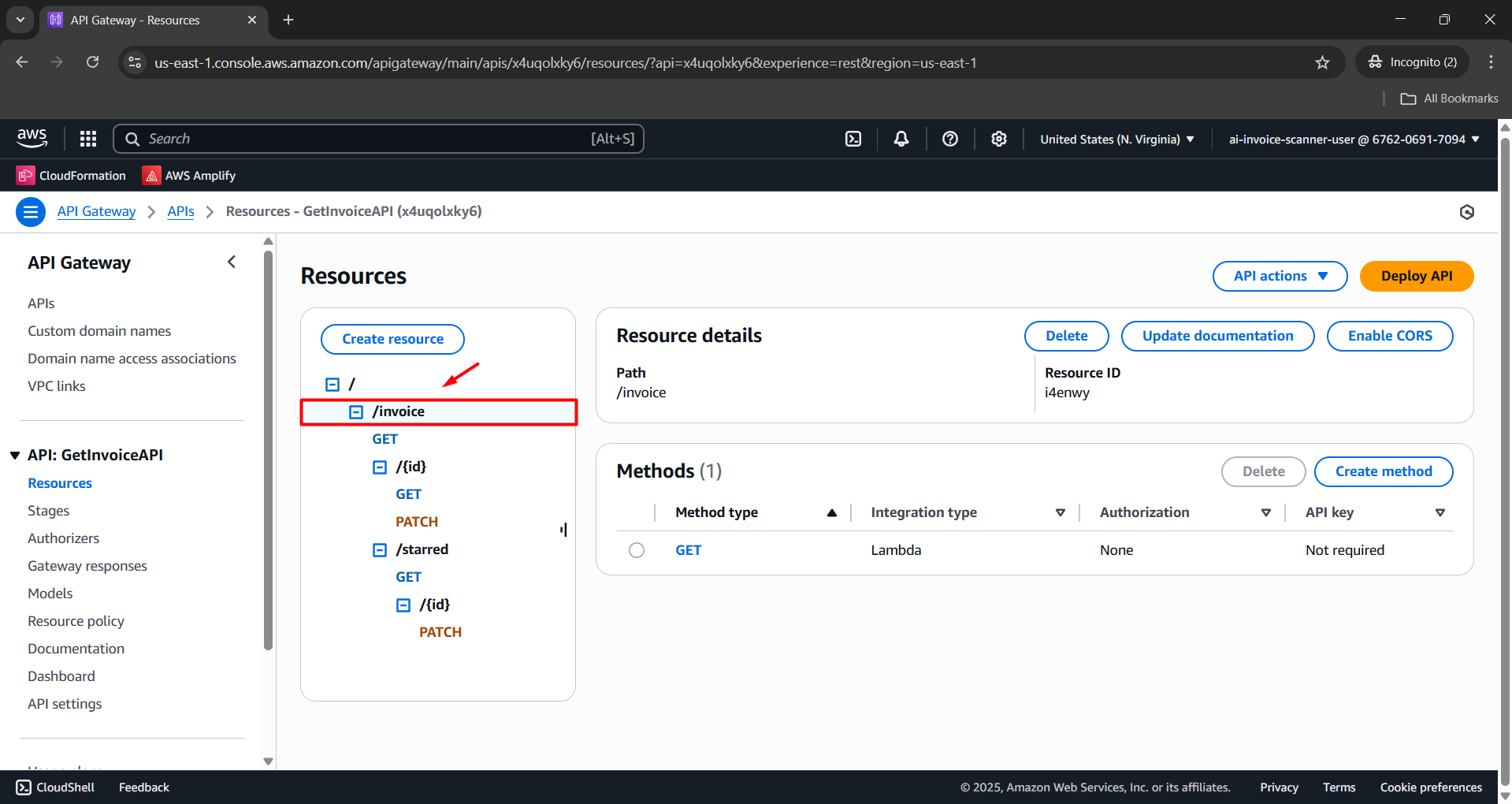
- Click Create resource.
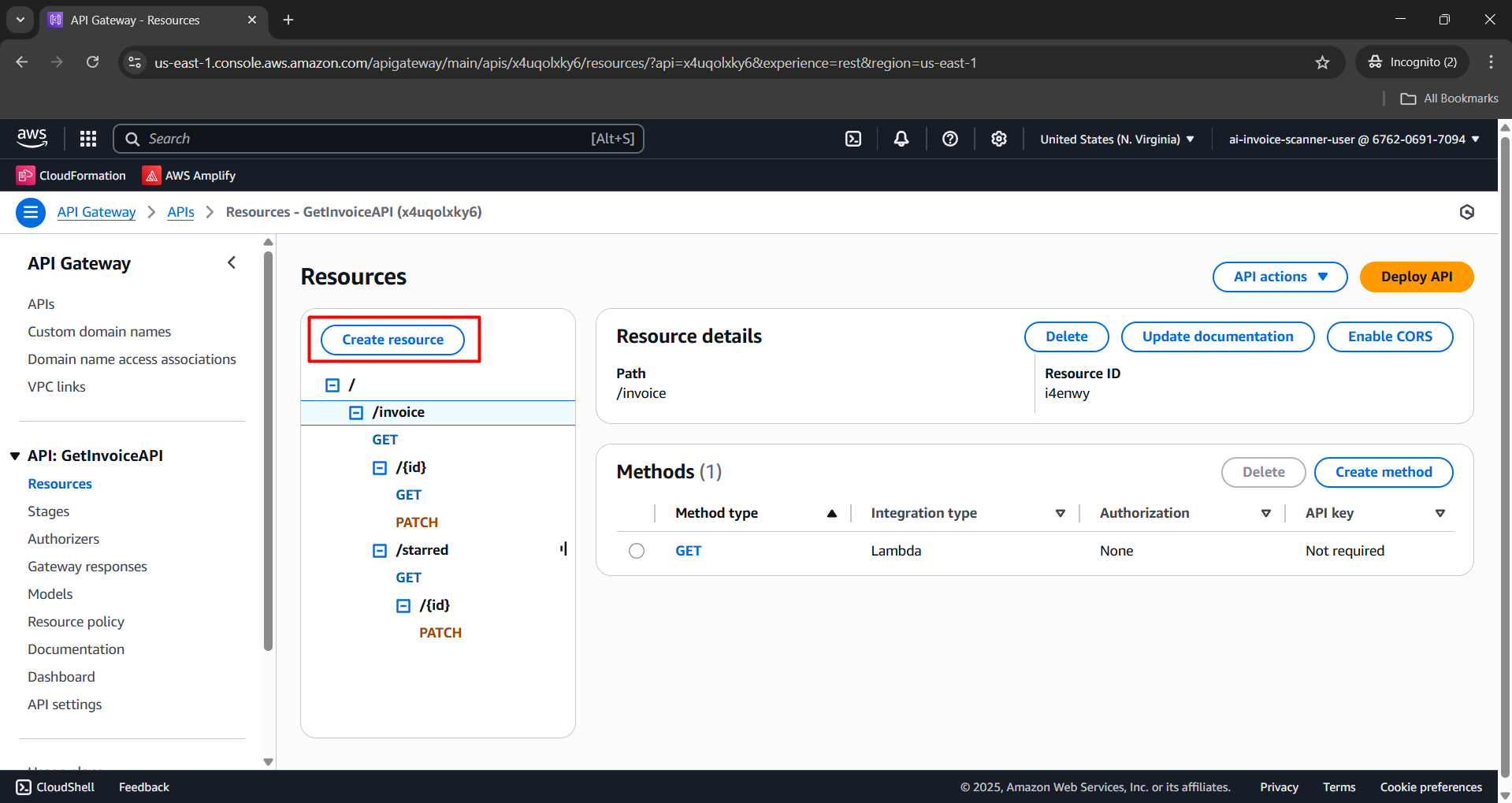
Configure:
- Resource path:
/invoice/ - Resource name:
tags
- Resource path:
Click Create resource.
Resource: /invoice/tags/{id}
- In the resource tree, select
/invoice/tags. - Click Create resource.
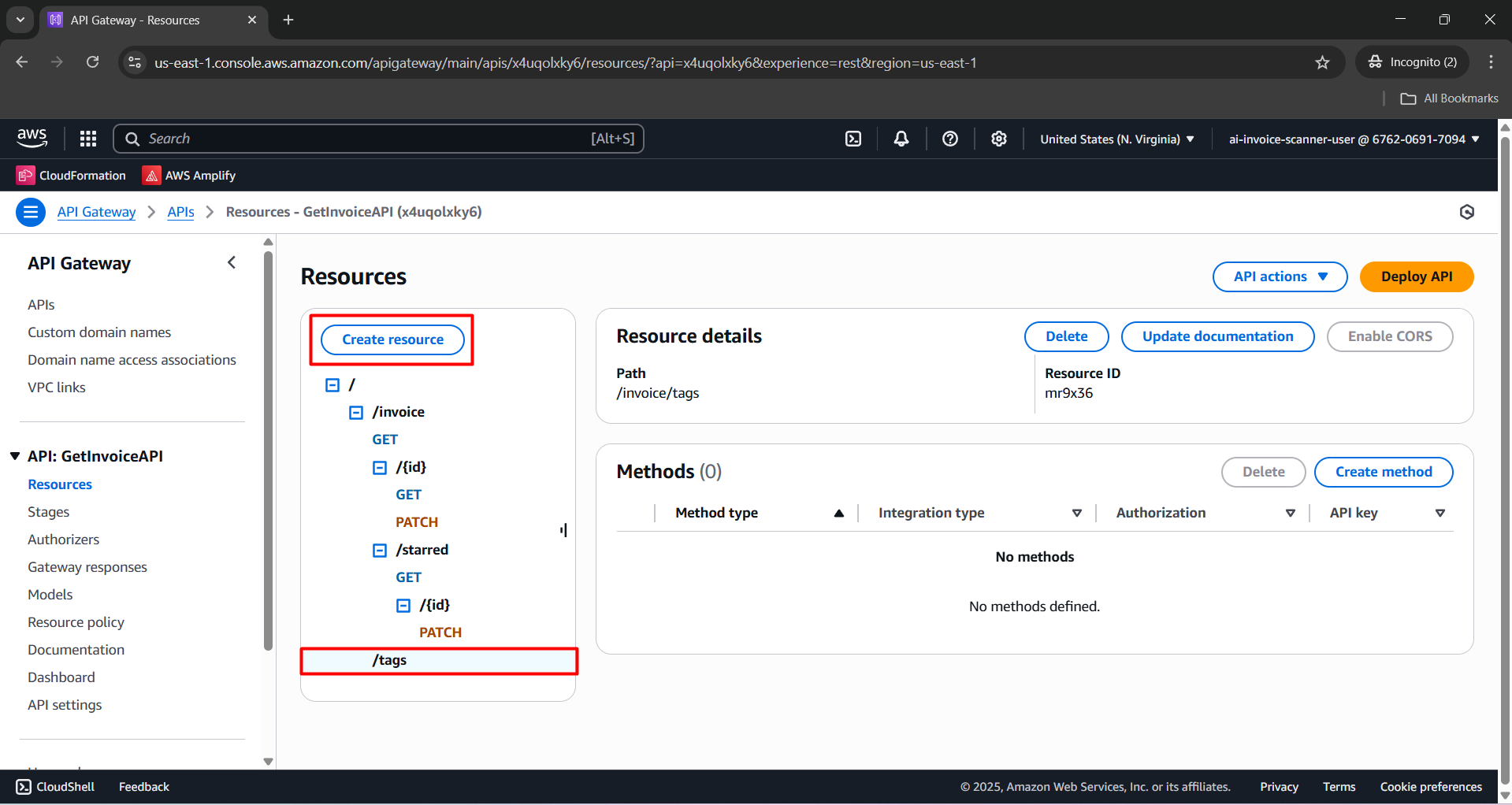
Configure:
- Resource path:
/invoice/tags/ - Resource name:
{id}
- Resource path:
Click Create resource.
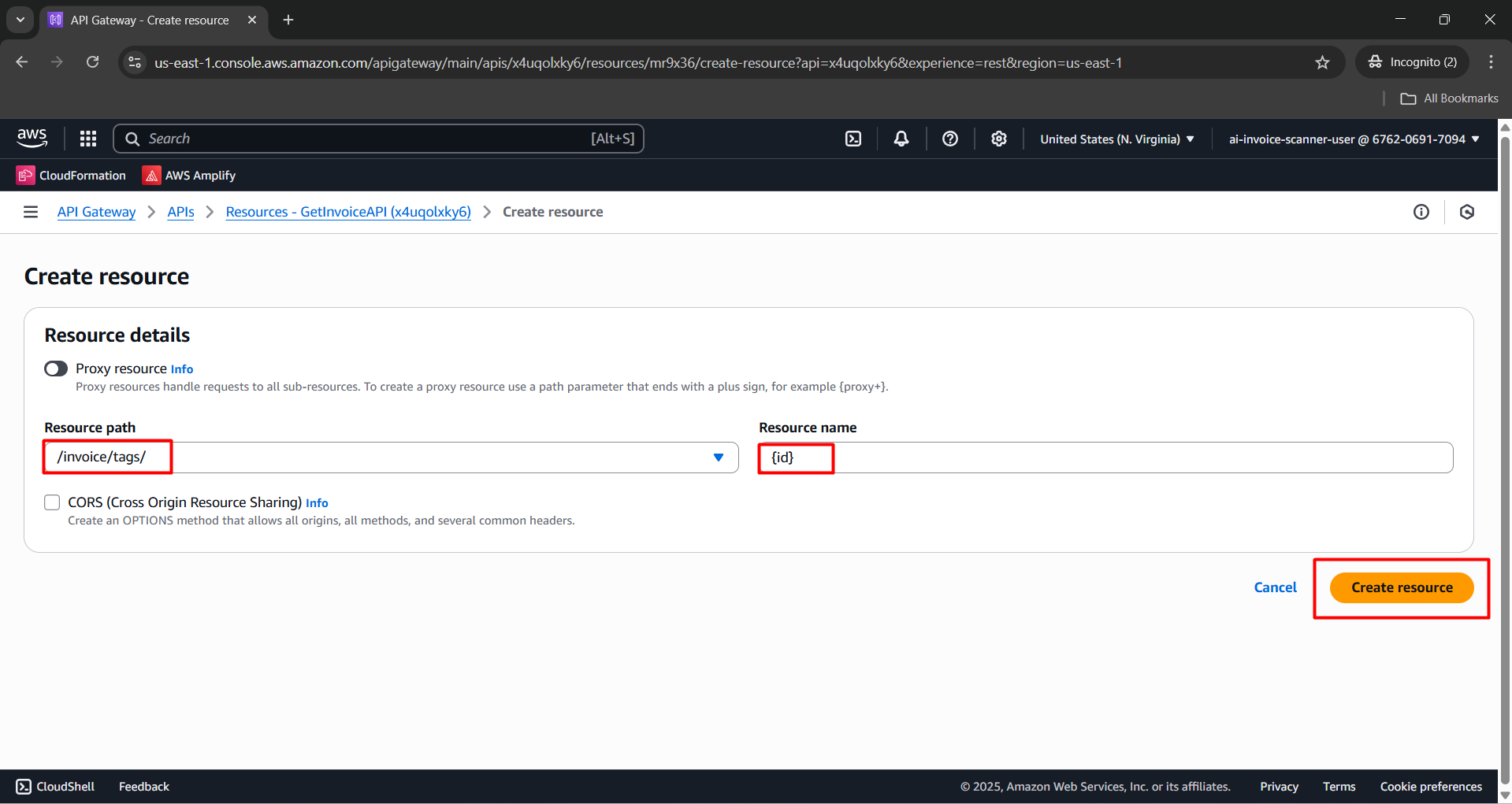
- After the resource is created, select
/invoice/tags/{id}. - Click Create method.
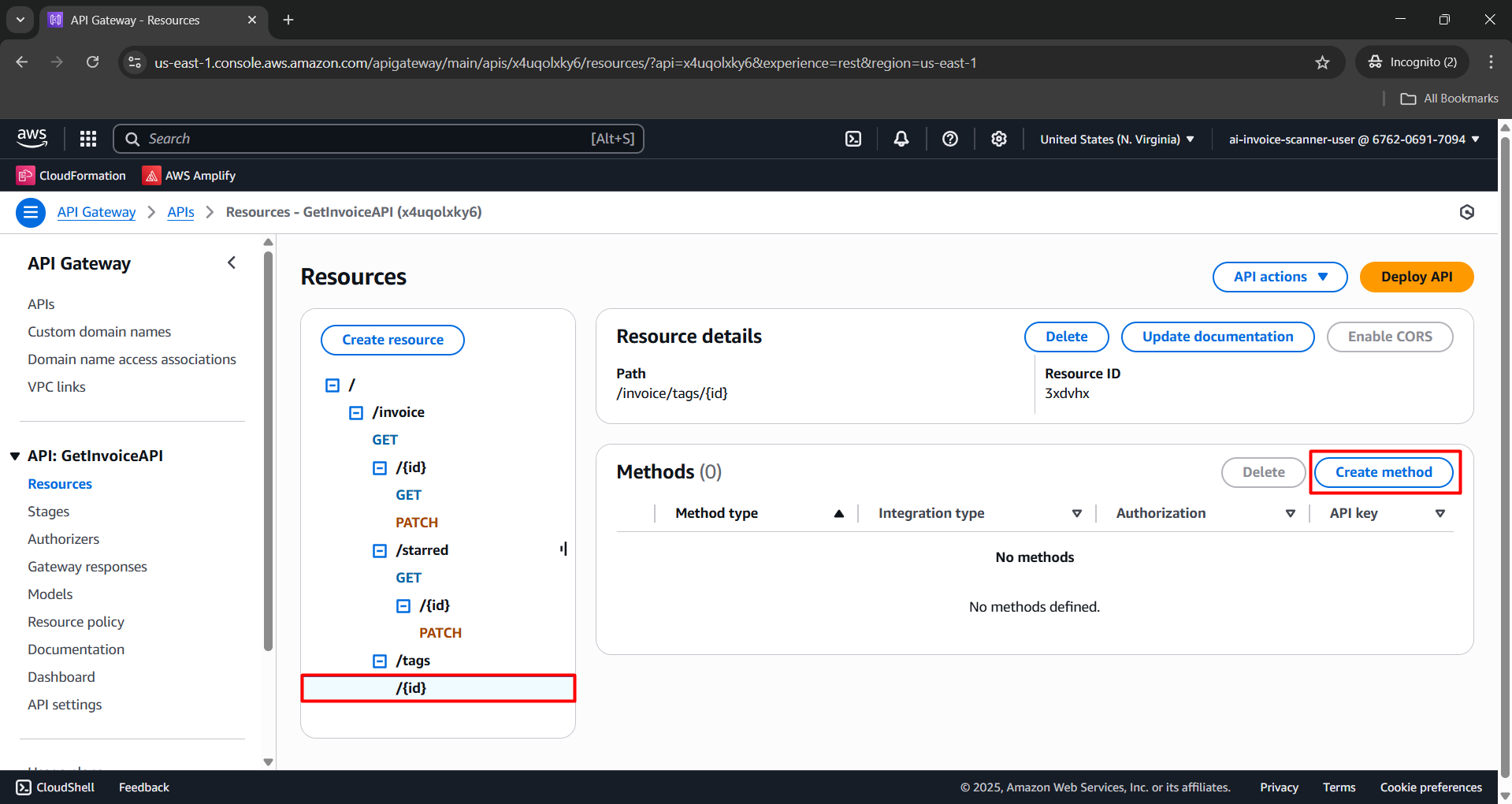
Configure the Create method:
- Method type: PATCH.
- Integration type: Lambda function.
- Lambda proxy integration: Enabled.
- Lambda function: FetchInvoiceDetailsFunction.
- Click Create method.
Step 3: Enable CORS for methods
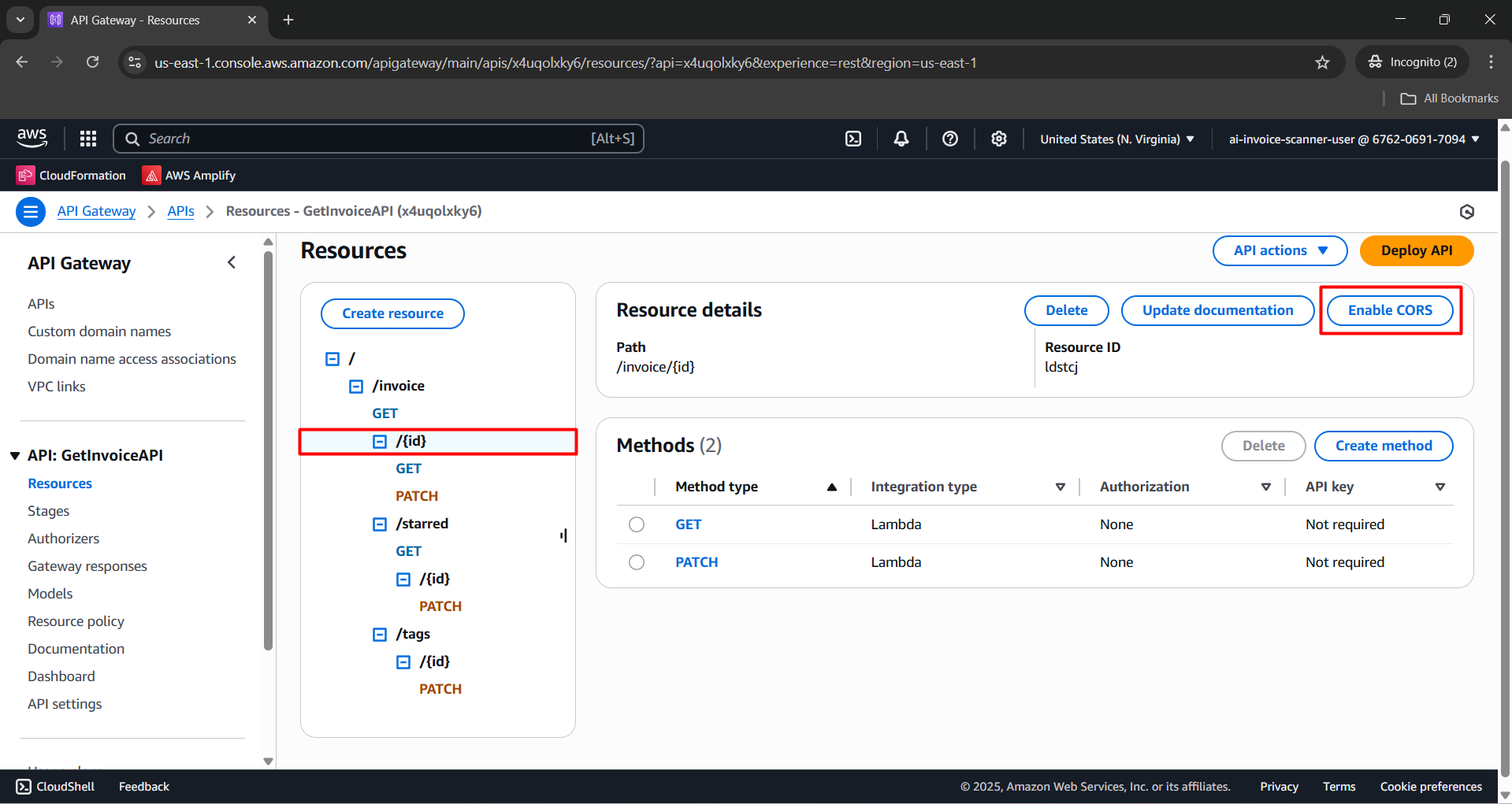
- In the resource tree of GetInvoiceAPI, select
/invoice/{id}. - Click Enable CORS.
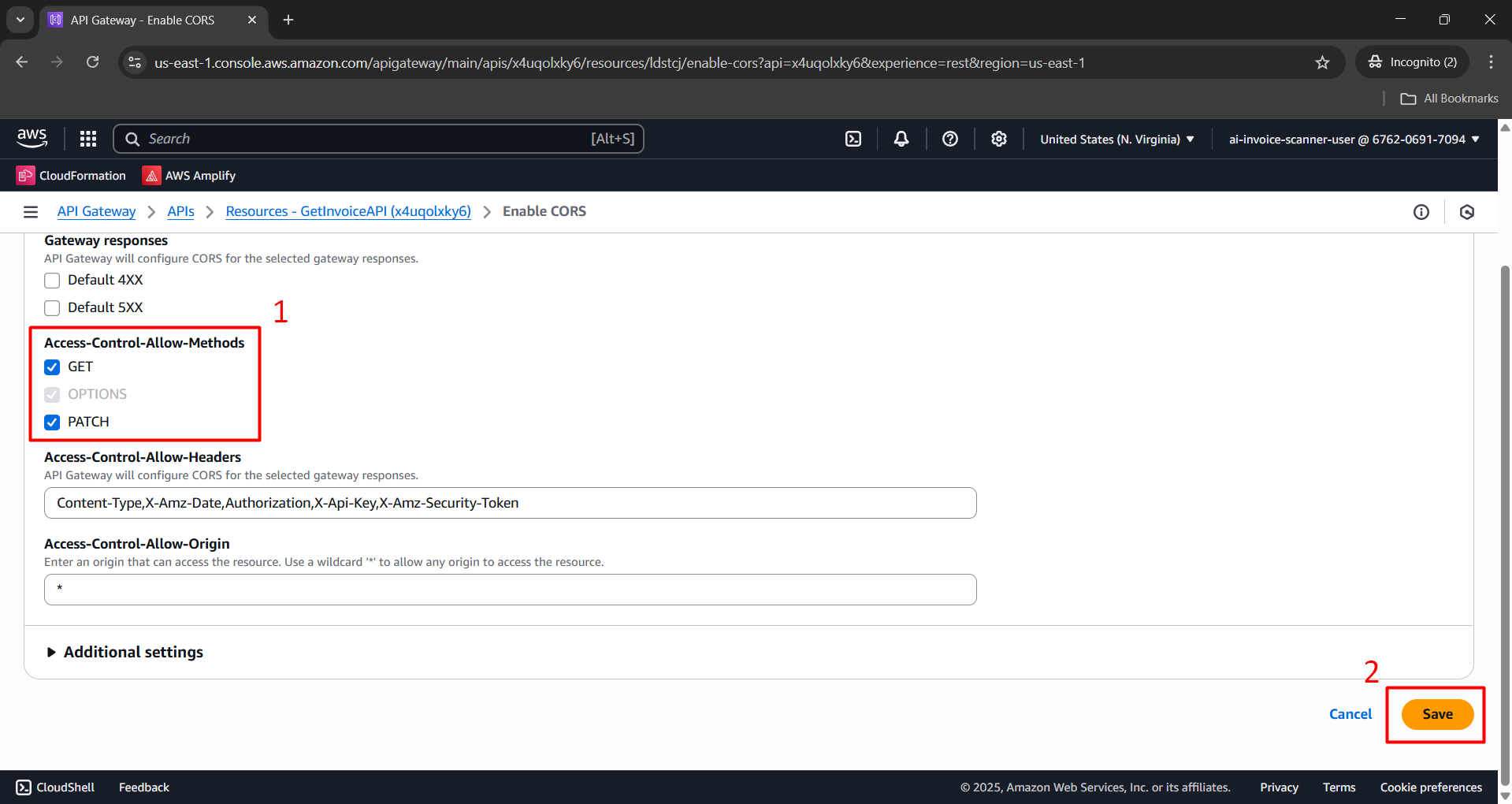
In Access-Control-Allow-Methods, Enabled CORS:
- GET
- PATCH
Click Save.
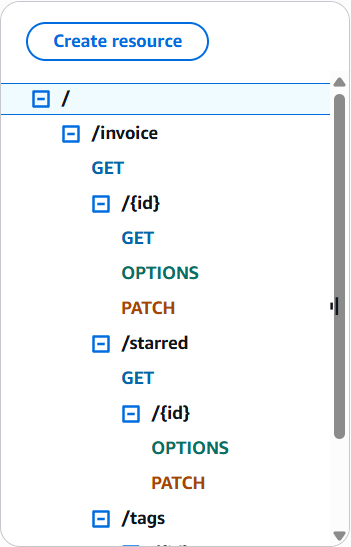
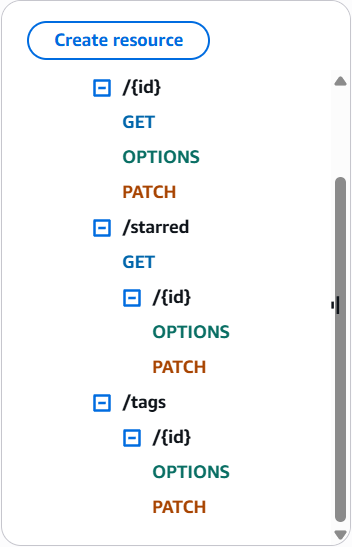
Repeat the above steps for the following resources:
- /invoice/starred/{id}: Enabled CORS for
PATCH - /invoice/tags/{id}: Enabled CORS for
PATCH
- /invoice/starred/{id}: Enabled CORS for
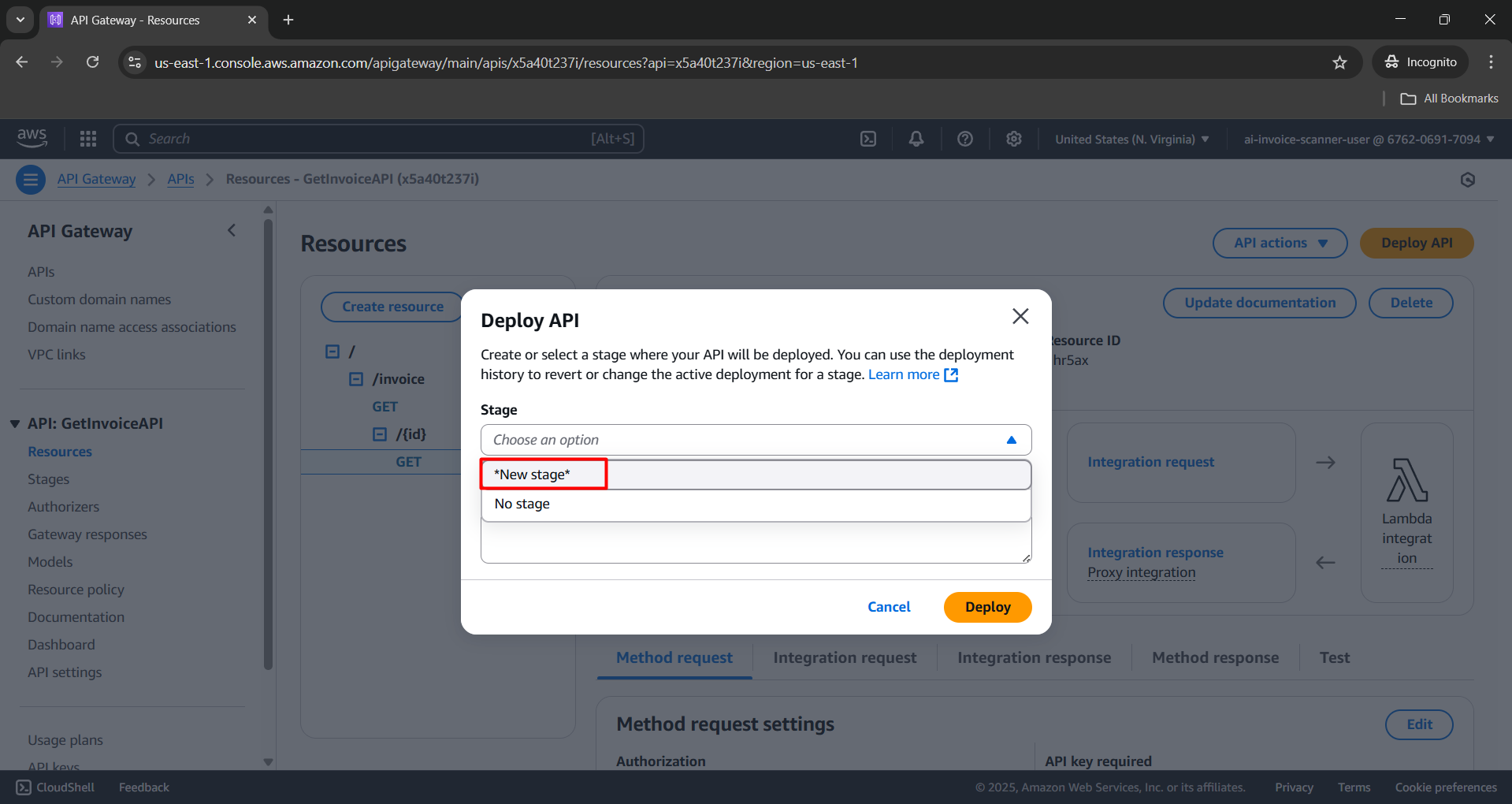
Step 4: Deploy API
- Click Deploy API.
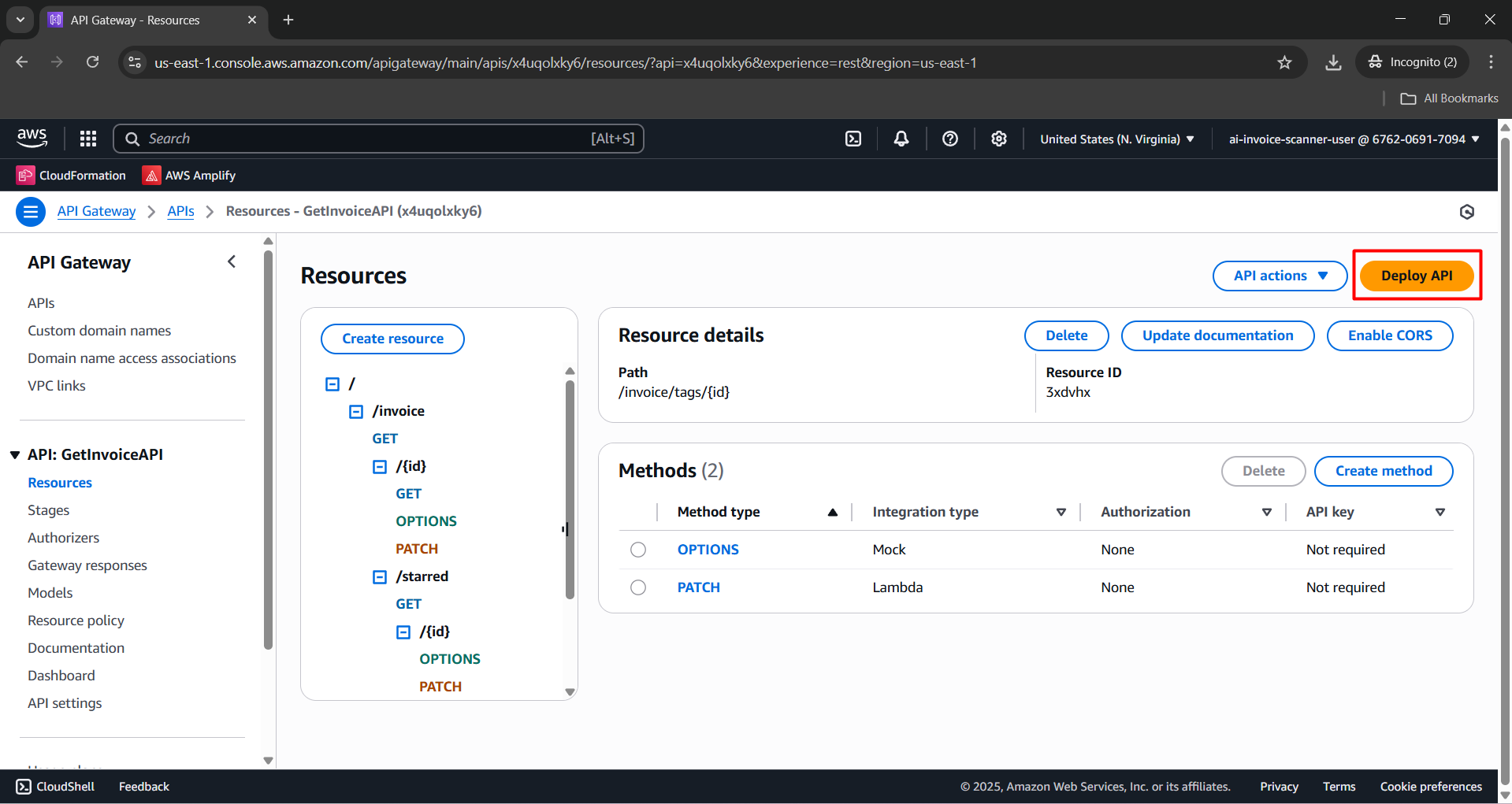
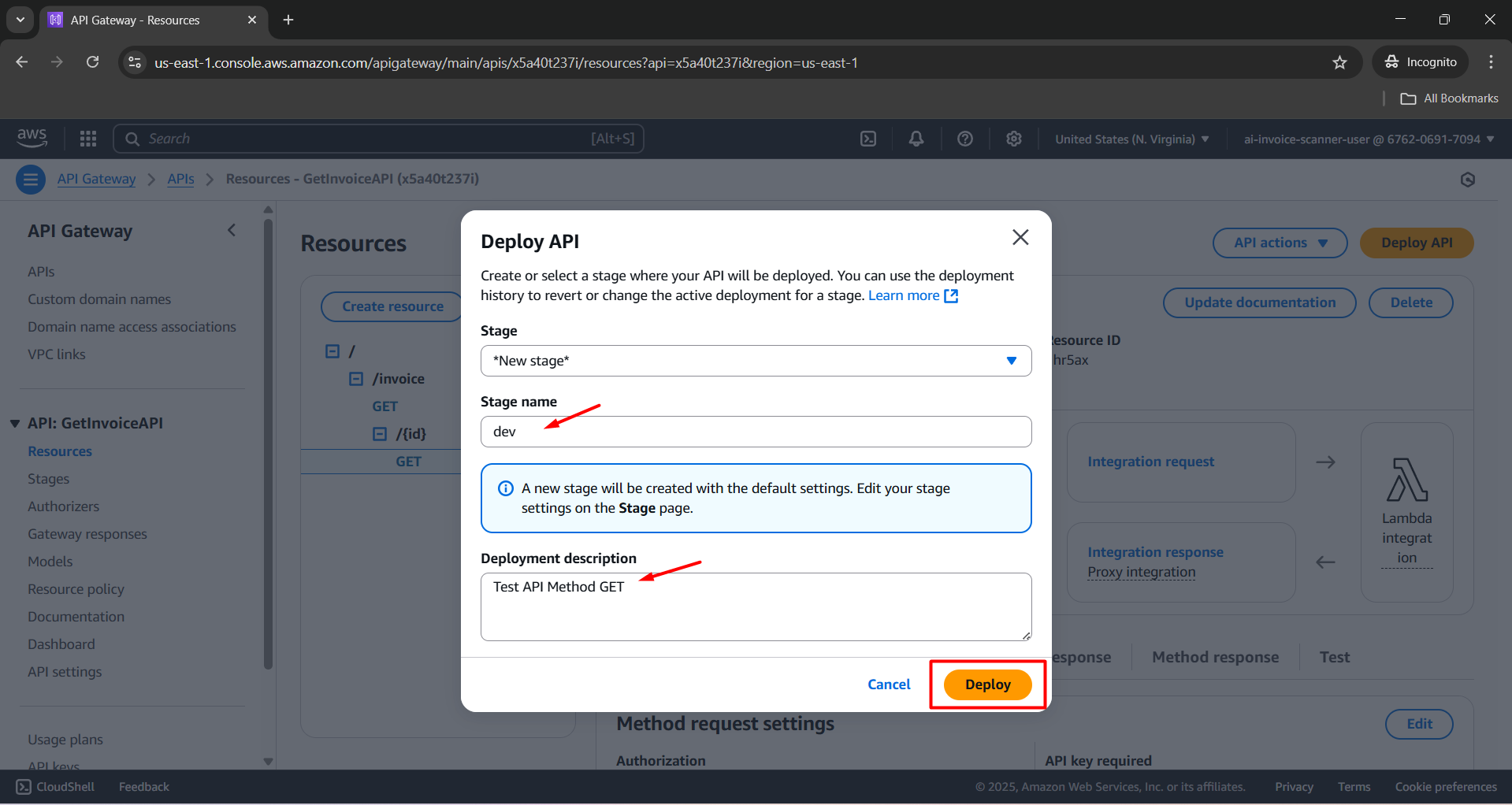
In the Deploy API modal:
- Stage: [New Stage].
- Stage name:
dev. - Deployment description:
Test API Method GET. - Click Deploy.