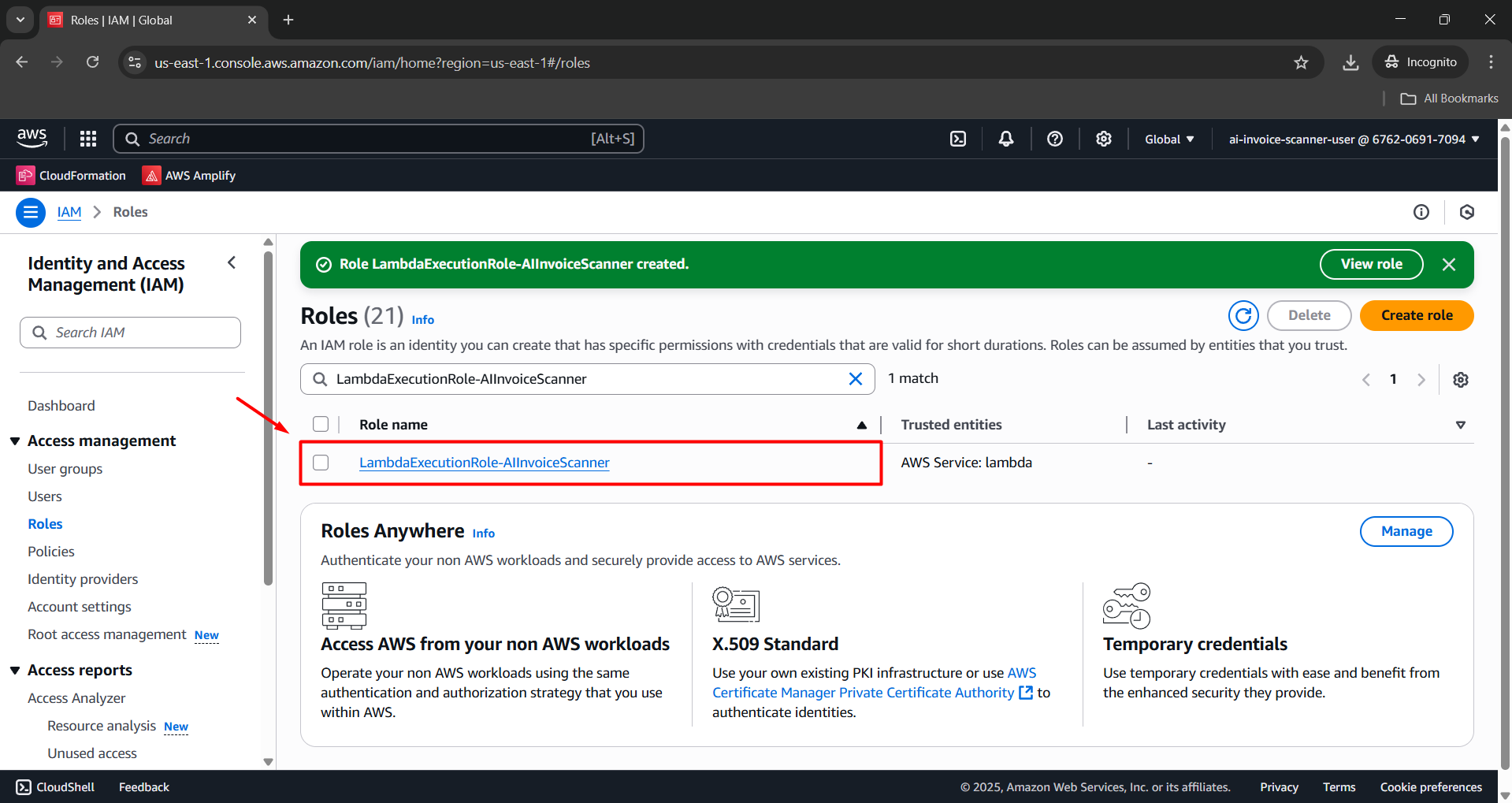
Create IAM Role for Lambda
Overview
In this step, you will create a dedicated IAM Role so that Lambda functions in the Serverless Invoice Scanner system can access AWS services such as Amazon Textract, Amazon Bedrock, Amazon DynamoDB, Amazon S3, and CloudWatch Logs.
Step 1: Access the IAM Console
Open the AWS Management Console in Incognito mode to avoid session conflicts if you’re logged in with multiple accounts.
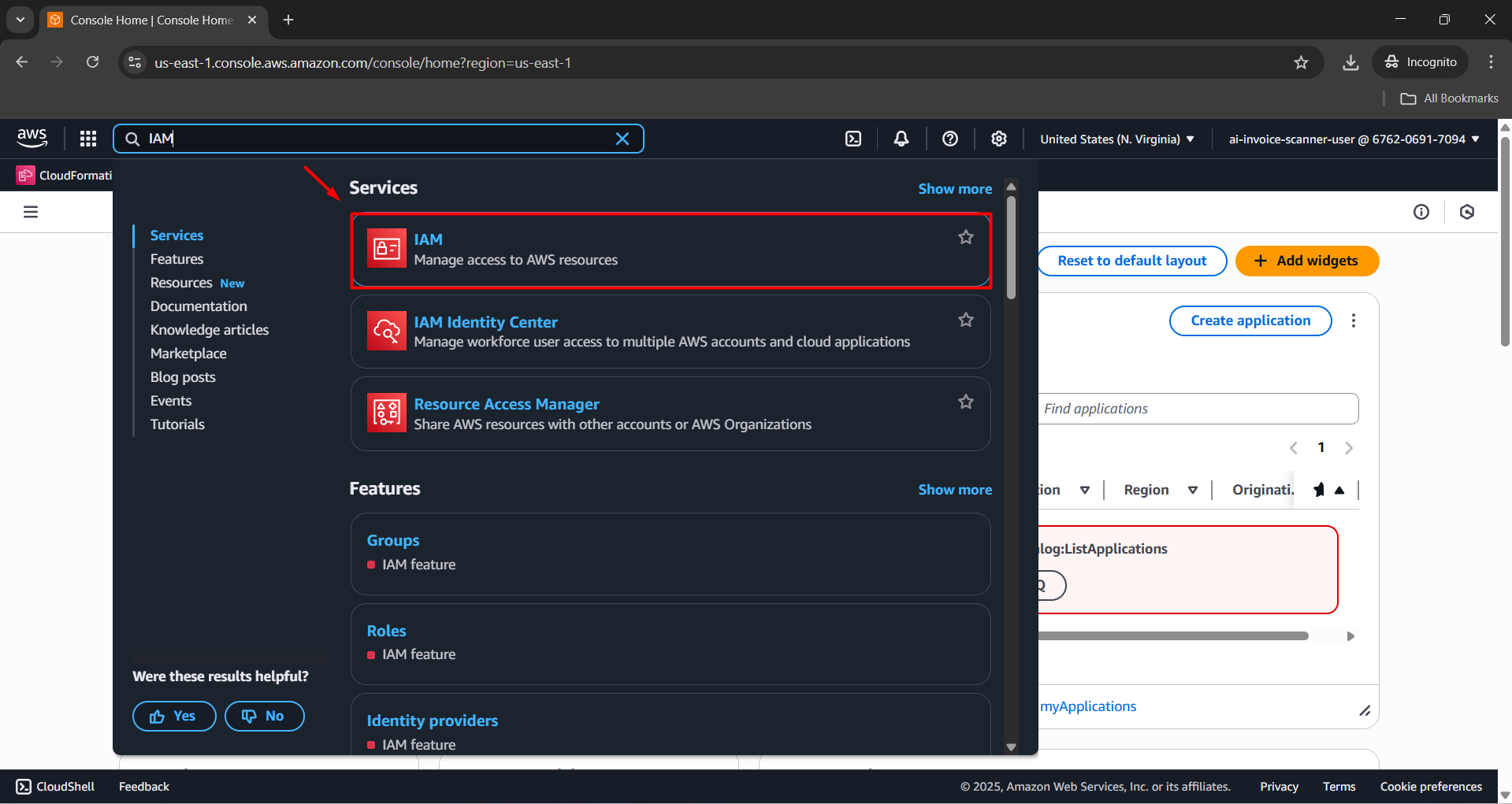
Search for and select IAM in the search bar.
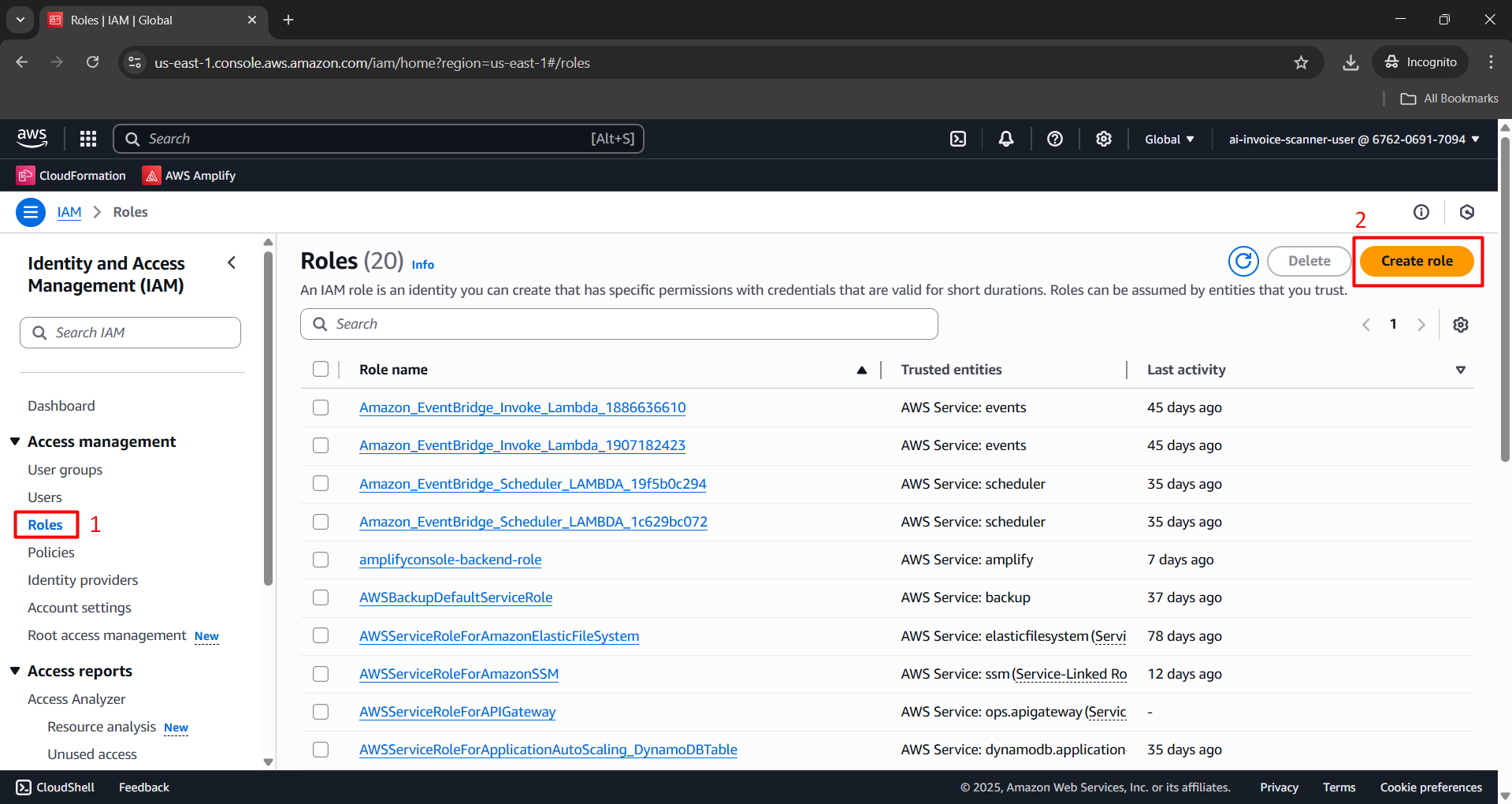
- In the left navigation pane, choose Roles, then click Create role.
Step 2: Configure Role for Lambda
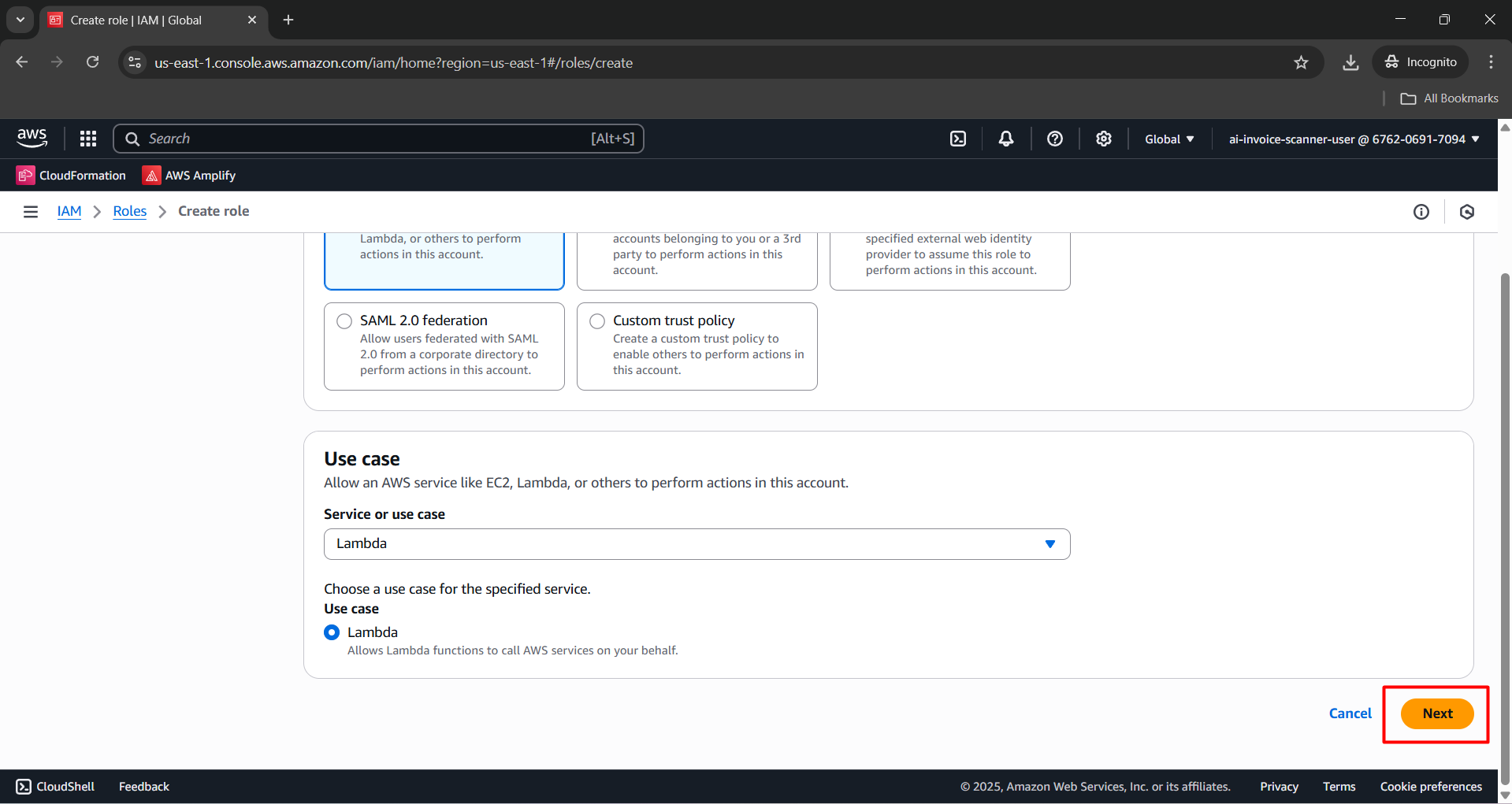
- Trusted entity type: select AWS service
- Use case: select Lambda
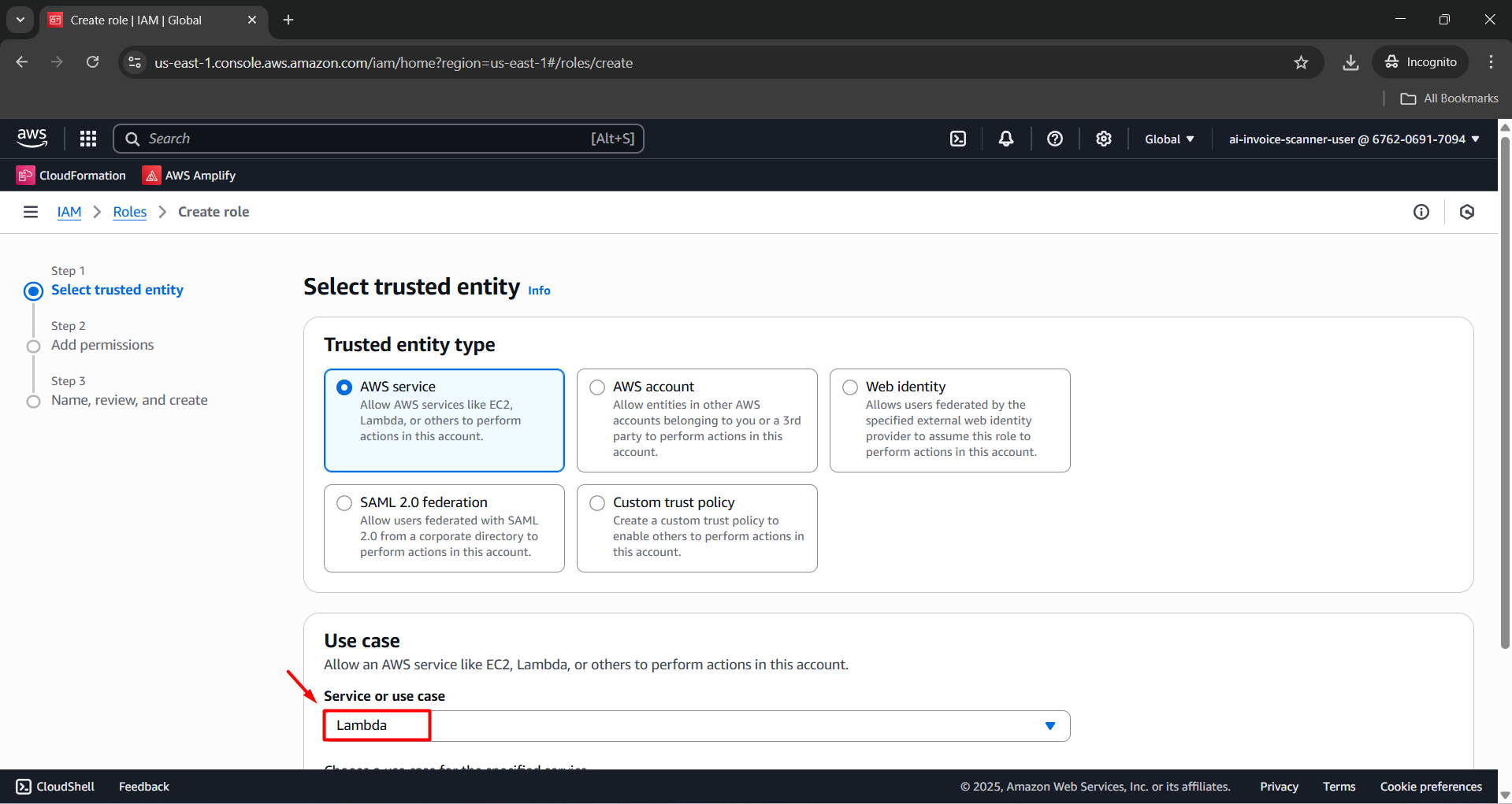
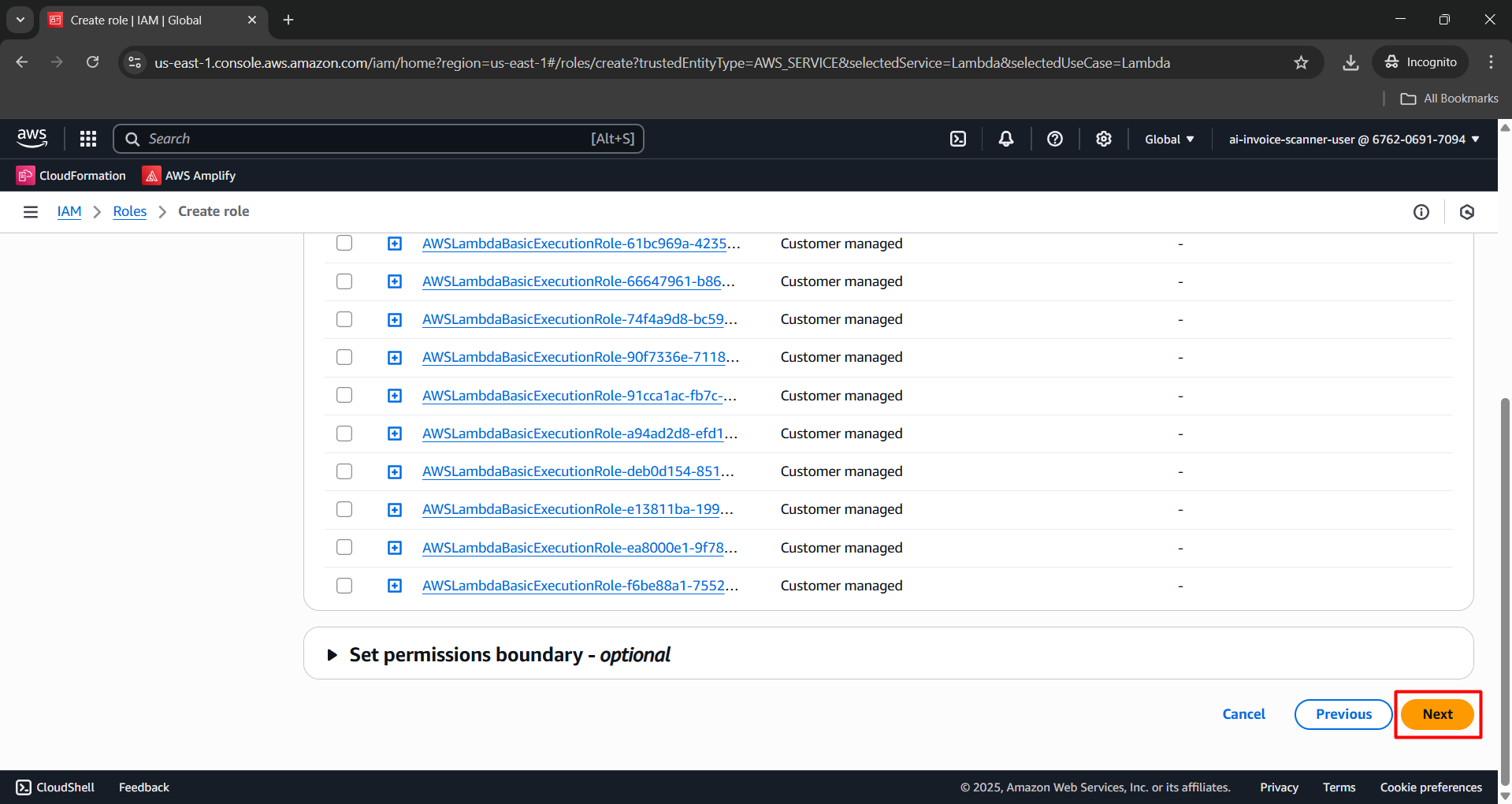
- Click Next to proceed.
Step 3: Attach Permissions to the IAM Role
In the Add permissions step, search for and check the following policies:
AmazonS3FullAccessAmazonDynamoDBFullAccessAmazonTextractFullAccessAmazonBedrockFullAccessAWSLambdaBasicExecutionRole
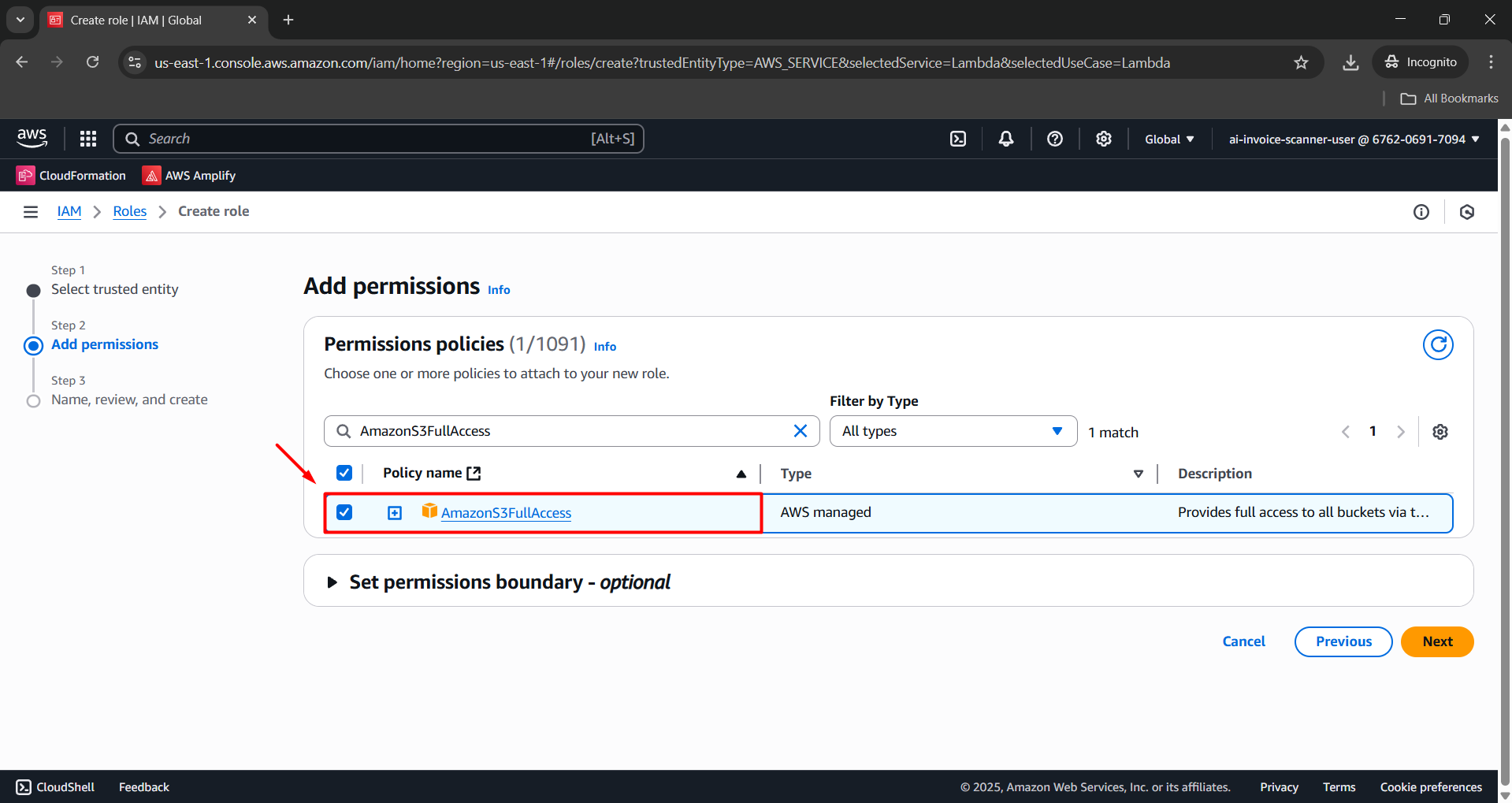
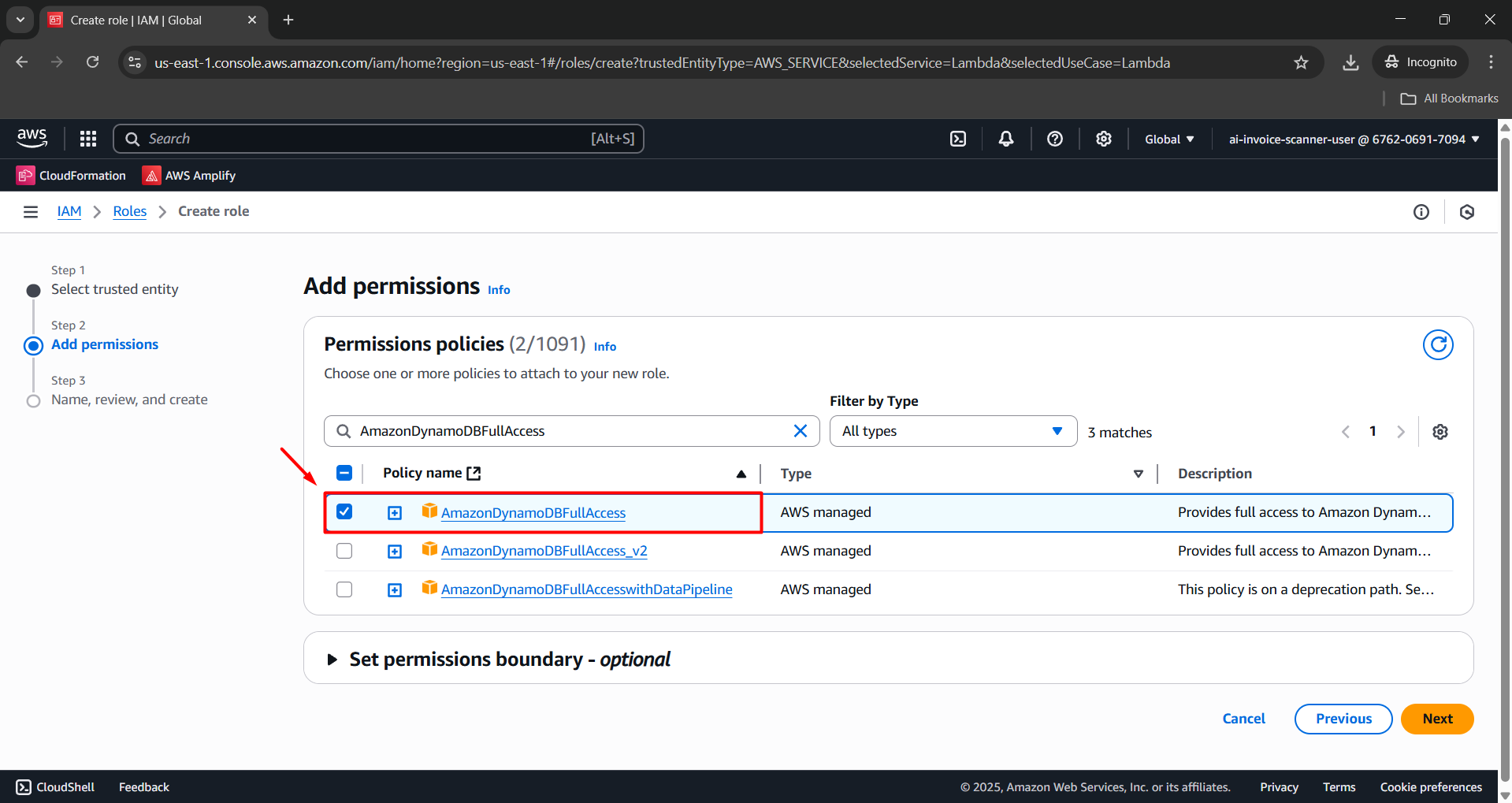
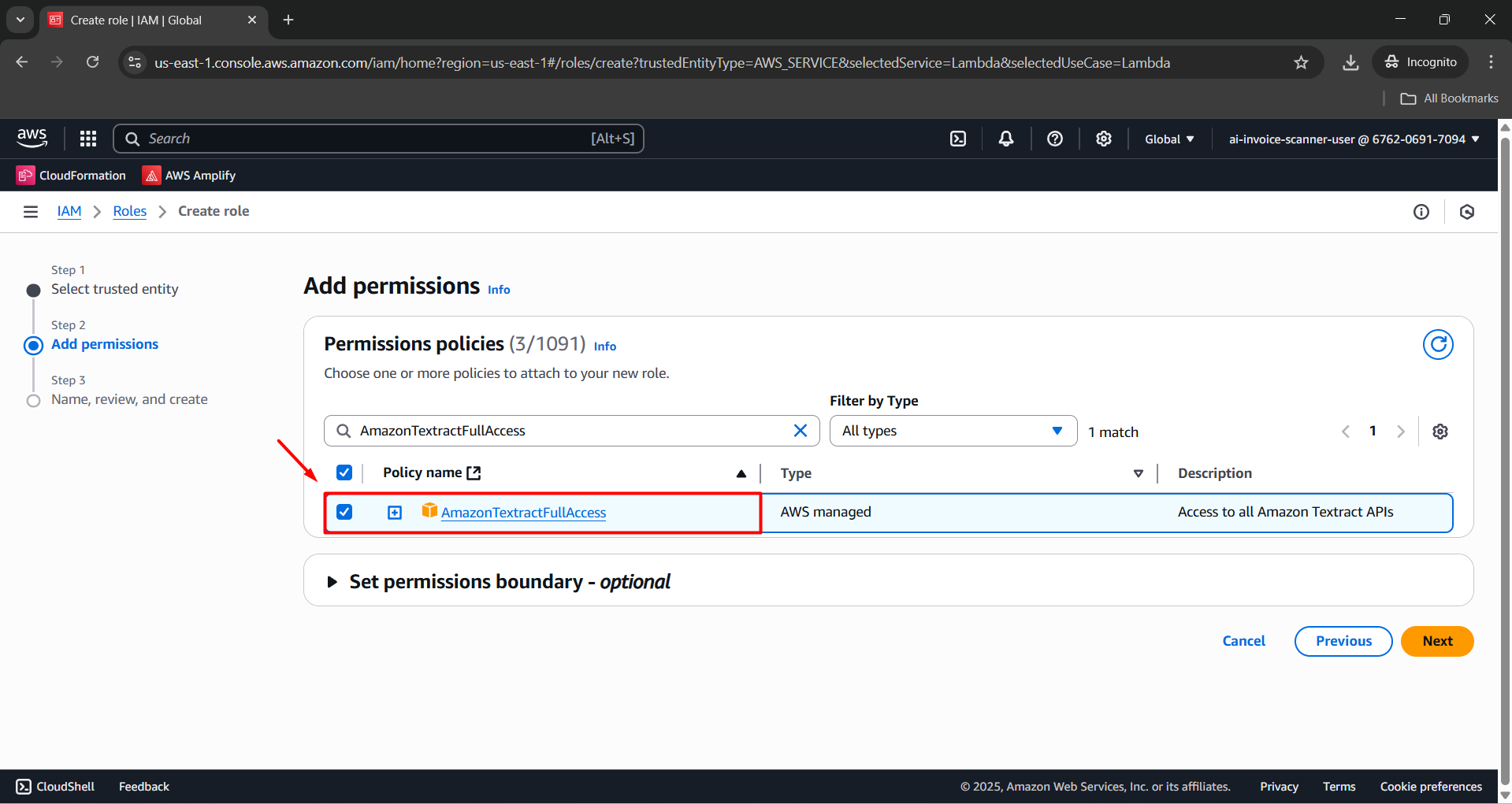
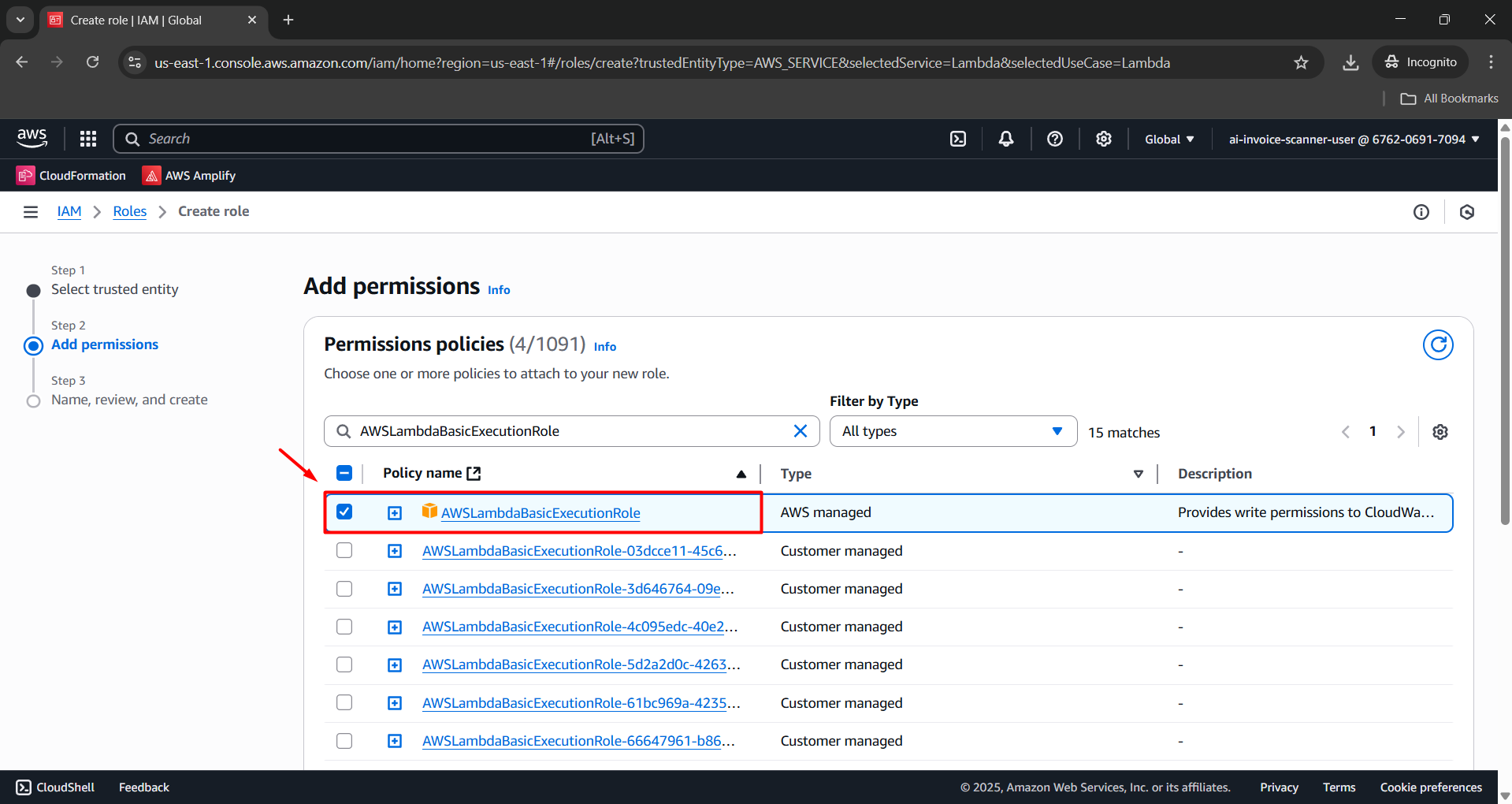
- Click Next to continue.
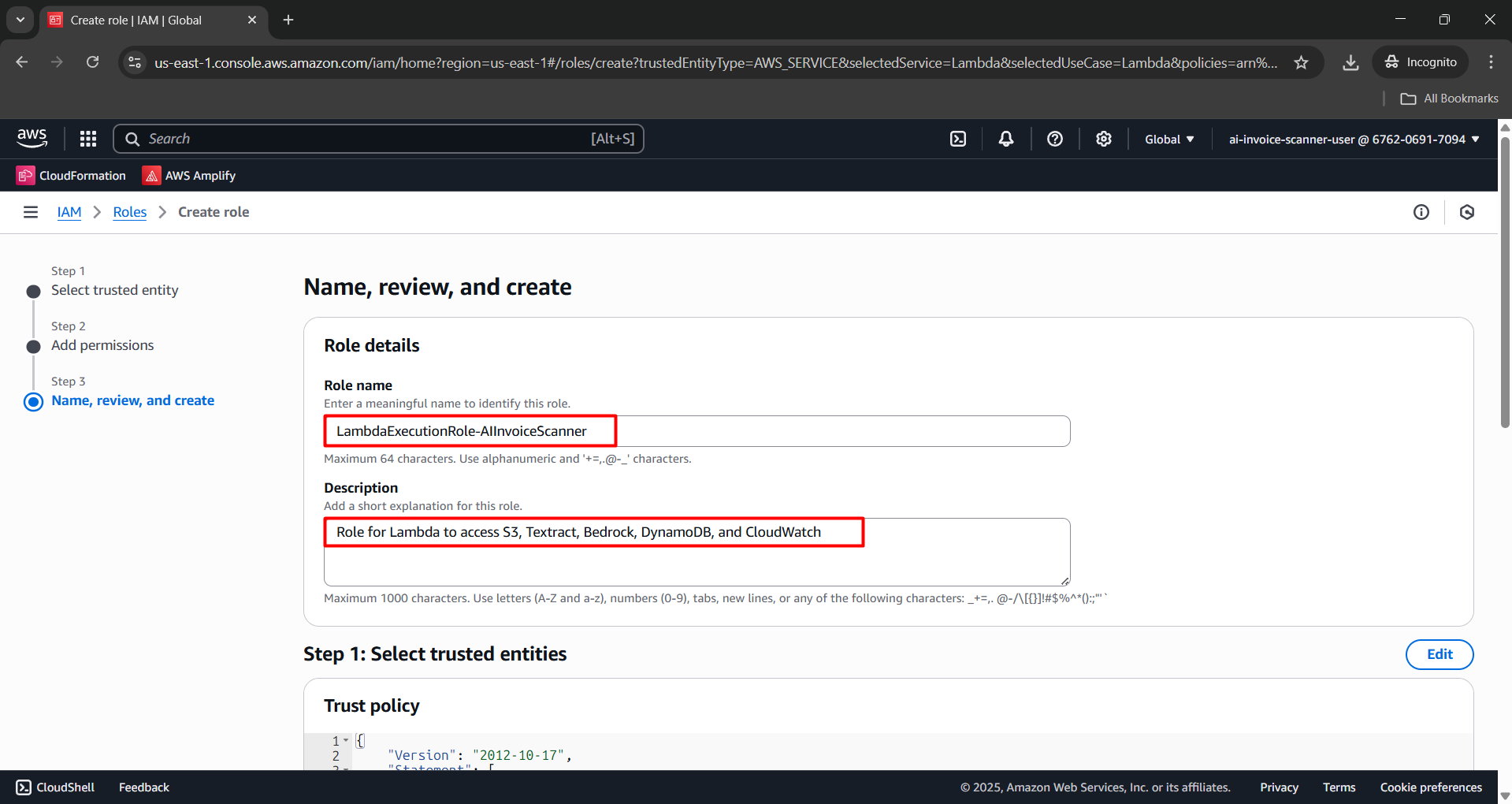
Step 4: Name and Finish
- Role name:
LambdaExecutionRole-AIInvoiceScanner - Description:
Role for Lambda to access S3, Textract, Bedrock, DynamoDB, and CloudWatch
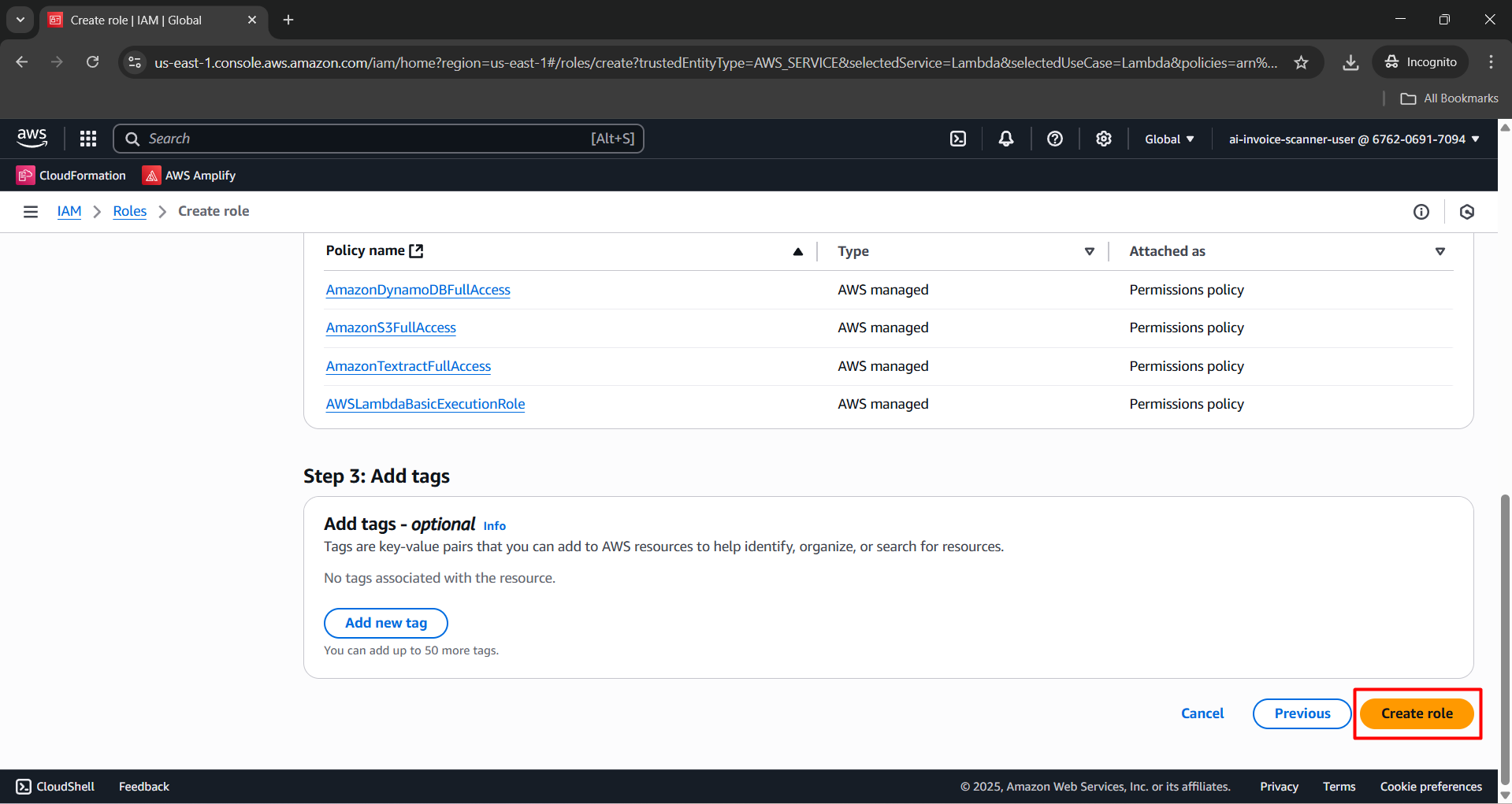
- Click Create role to finish.
- After creation, go to the Roles section in the IAM Console. You will see the
LambdaExecutionRole-AIInvoiceScannerlisted.